We've captured the moments from FabCon & SQLCon that everyone is talking about, and we are bringing them to the community, live and on-demand. Starts on April 14th. Register now
Hello!
I'm new user of PBI and I'm trying to create a graphic were shows me the range of KM per Item based on a Data Filter.
The range I'm trying to get is:
1. >= 1.000 KM
2. Between 1001 to 2000 KM
3. Above 2001 KM
For exemple, if I select the Data Filter from 01/jan to 05/feb the range of item 1 must be 2. Between 1001 to 2000 KM ( 1.000 + 600 = 1.600). But if I select the Data Filter from 01/jan to 18/feb the range must be 3. Above 2001 KM (1.000 + 600 + 3.000 = 4.600).
| Data Base | ||
| Item | Date | Amount KM |
| 1 | 01/jan | 1.000 |
| 2 | 02/feb | 500 |
| 3 | 03/feb | 600 |
| 4 | 04/feb | 800 |
| 1 | 05/feb | 600 |
| 2 | 12/feb | 750 |
| 1 | 18/feb | 3.000 |
| 2 | 20/feb | 1.200 |
| 3 | 24/feb | 1.600 |
| 4 | 26/feb | 1.000 |
| 4 | 01/mar | 1.600 |
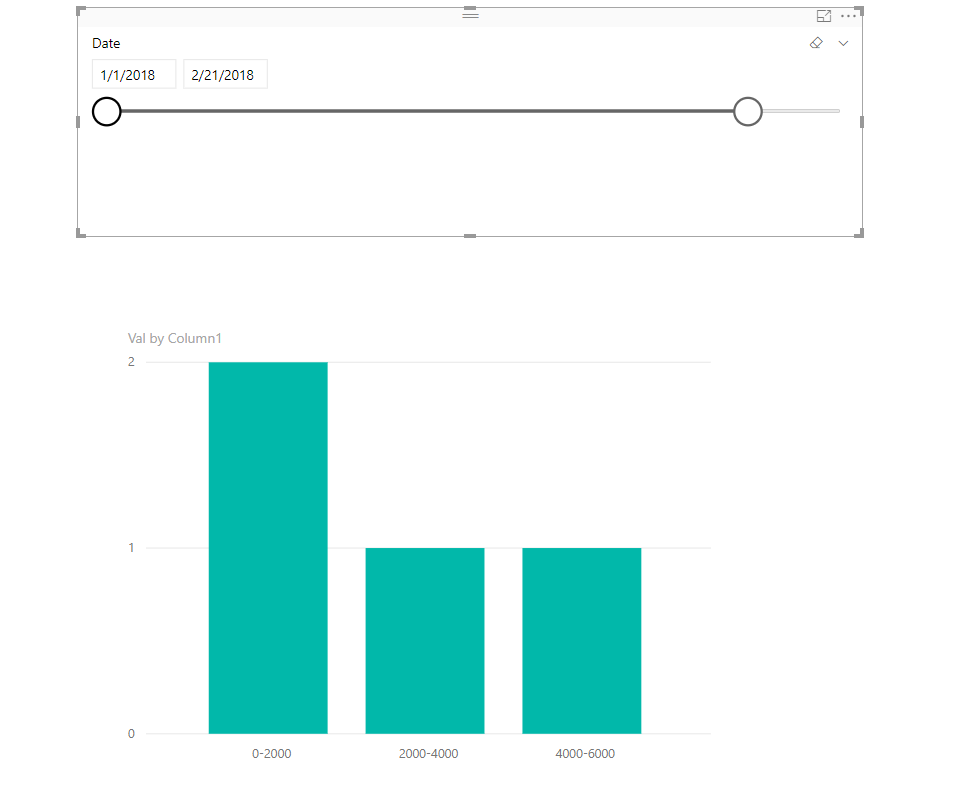
The graphic I'm trying to create is something like this:
Thanks!
Solved! Go to Solution.
Hi @Anonymous,
Based on my test, you can refer to below steps:
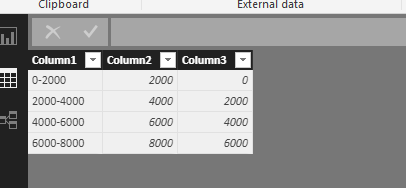
1.Create a new table to record your range of amount KM.
2.Create a measure to calculate the changed amount KM.
Val = var t=SUMMARIZE('Data Base','Data Base'[Item],"t7",CALCULATE(if(SUM('Data Base'[Amount KM])<=MAX('Table1'[Column2]) && SUM('Data Base'[Amount KM])>MIN('Table1'[Column3]),1)))
return
COUNTX(t,[t7])
3.Create a Table visual and add the [Val] and [Column1] field.
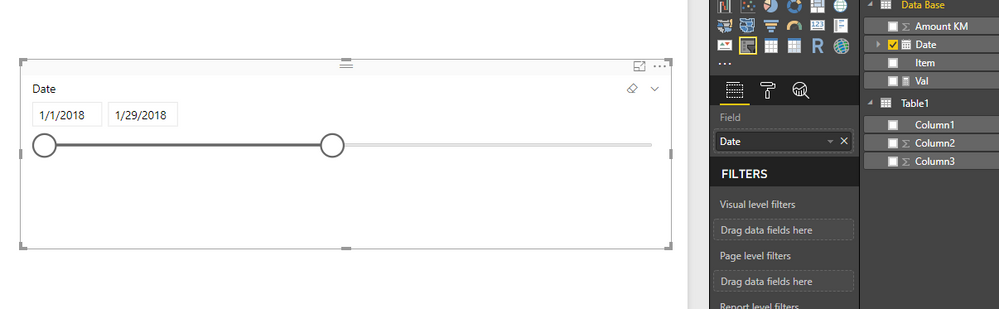
4.Create a Slicer visual and add the [Date] filed.
Now you can see the result.
You can also download the PBIX file to have a view.
https://www.dropbox.com/s/eln6cm74539n2kl/Variable-Range-based-on-date-filter.pbix?dl=0
Regards,
Daniel He
Hi @Anonymous,
Based on my test, you can refer to below steps:
1.Create a new table to record your range of amount KM.
2.Create a measure to calculate the changed amount KM.
Val = var t=SUMMARIZE('Data Base','Data Base'[Item],"t7",CALCULATE(if(SUM('Data Base'[Amount KM])<=MAX('Table1'[Column2]) && SUM('Data Base'[Amount KM])>MIN('Table1'[Column3]),1)))
return
COUNTX(t,[t7])
3.Create a Table visual and add the [Val] and [Column1] field.
4.Create a Slicer visual and add the [Date] filed.
Now you can see the result.
You can also download the PBIX file to have a view.
https://www.dropbox.com/s/eln6cm74539n2kl/Variable-Range-based-on-date-filter.pbix?dl=0
Regards,
Daniel He
That's excactly what I need! Thank you !
If you have recently started exploring Fabric, we'd love to hear how it's going. Your feedback can help with product improvements.
A new Power BI DataViz World Championship is coming this June! Don't miss out on submitting your entry.
Share feedback directly with Fabric product managers, participate in targeted research studies and influence the Fabric roadmap.
| User | Count |
|---|---|
| 57 | |
| 38 | |
| 33 | |
| 19 | |
| 16 |
| User | Count |
|---|---|
| 68 | |
| 66 | |
| 41 | |
| 34 | |
| 25 |