cancel
Showing results for 
Search instead for 
Did you mean: 

Learn from the best! Meet the four finalists headed to the FINALS of the Power BI Dataviz World Championships! Register now

Reply
Anonymous
Not applicable

Sumerize projects by Process Steps

Hello!

I'd like to transform this:

ProjetcStep 1Step 2Step 3Step 4Step 5Step 6
Project ACompletedCompletedCompletedCompletedPendingPending
Project BCompletedCompletedCompletedCompletedPendingPending
Project BCompletedCompletedDoingDoingDoingPending
Project BCompletedCompletedCompletedPendingPendingPending
Project BCompletedDoingDoingDoingPendingPending
Project BCompletedDoingDoingPendingPendingPending
Project BCompletedDoingPendingPendingPendingPending
Project BCompletedCompletedCompletedCompletedPendingPending

Into this:

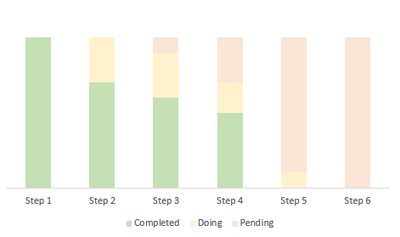
StepCompletedDoingPending
Step 11000
Step 2730
Step 3631
Step 4523
Step 5019
Step 60010

So i can create this graph:


power.PNG

I must do this inside power bi, because I want to use cross filter or segmentation to change the graph if one project is selected.

Thanks!

1 ACCEPTED SOLUTION
parry2k
Super User
Super User

@Anonymous you should unpivot your data by using following steps:


- transform data
- select project column in the table
- right-click, unpivot other columns it will add two columns, attribute, and value, rename these as per your requirement
- close and apply

To visualize,
- add attribute column (or renamed column) on x-axis
- value column (or renamed column) on legend,
- project on values for count or add a measure for count rows and use that on value


I would  Kudos if my solution helped. 👉 If you can spend time posting the question, you can also make efforts to give Kudos whoever helped to solve your problem. It is a token of appreciation!

Visit us at https://perytus.com, your one-stop shop for Power BI related projects/training/consultancy.


Subscribe to the @PowerBIHowTo YT channel for an upcoming video on List and Record functions in Power Query!!

Learn Power BI and Fabric - subscribe to our YT channel - Click here: @PowerBIHowTo

If my solution proved useful, I'd be delighted to receive Kudos. When you put effort into asking a question, it's equally thoughtful to acknowledge and give Kudos to the individual who helped you solve the problem. It's a small gesture that shows appreciation and encouragement! ❤


Did I answer your question? Mark my post as a solution. Proud to be a Super User! Appreciate your Kudos 🙂
Feel free to email me with any of your BI needs.

View solution in original post

3 REPLIES 3
parry2k
Super User
Super User

@Anonymous you should unpivot your data by using following steps:


- transform data
- select project column in the table
- right-click, unpivot other columns it will add two columns, attribute, and value, rename these as per your requirement
- close and apply

To visualize,
- add attribute column (or renamed column) on x-axis
- value column (or renamed column) on legend,
- project on values for count or add a measure for count rows and use that on value


I would  Kudos if my solution helped. 👉 If you can spend time posting the question, you can also make efforts to give Kudos whoever helped to solve your problem. It is a token of appreciation!

Visit us at https://perytus.com, your one-stop shop for Power BI related projects/training/consultancy.


Subscribe to the @PowerBIHowTo YT channel for an upcoming video on List and Record functions in Power Query!!

Learn Power BI and Fabric - subscribe to our YT channel - Click here: @PowerBIHowTo

If my solution proved useful, I'd be delighted to receive Kudos. When you put effort into asking a question, it's equally thoughtful to acknowledge and give Kudos to the individual who helped you solve the problem. It's a small gesture that shows appreciation and encouragement! ❤


Did I answer your question? Mark my post as a solution. Proud to be a Super User! Appreciate your Kudos 🙂
Feel free to email me with any of your BI needs.

Anonymous
Not applicable

Thanks! It worked perfectly!

Just one more configuration:

I want the "Completed" at the bottom, "Doing" in the middle and "Pending" on top of column. How do i configure this?

@Anonymous you should add another column for each value the way you want to sort it and then you can use sort by feature to sort your data.


I would  Kudos if my solution helped. 👉 If you can spend time posting the question, you can also make efforts to give Kudos whoever helped to solve your problem. It is a token of appreciation!

Visit us at https://perytus.com, your one-stop shop for Power BI related projects/training/consultancy.


Subscribe to the @PowerBIHowTo YT channel for an upcoming video on List and Record functions in Power Query!!

Learn Power BI and Fabric - subscribe to our YT channel - Click here: @PowerBIHowTo

If my solution proved useful, I'd be delighted to receive Kudos. When you put effort into asking a question, it's equally thoughtful to acknowledge and give Kudos to the individual who helped you solve the problem. It's a small gesture that shows appreciation and encouragement! ❤


Did I answer your question? Mark my post as a solution. Proud to be a Super User! Appreciate your Kudos 🙂
Feel free to email me with any of your BI needs.

Helpful resources

Announcements
New to Fabric survey Carousel

New to Fabric Survey

If you have recently started exploring Fabric, we'd love to hear how it's going. Your feedback can help with product improvements.

Power BI DataViz World Championships carousel

Power BI DataViz World Championships - June 2026

A new Power BI DataViz World Championship is coming this June! Don't miss out on submitting your entry.

Join our Fabric User Panel

Join our Fabric User Panel

Share feedback directly with Fabric product managers, participate in targeted research studies and influence the Fabric roadmap.

March Power BI Update Carousel

Power BI Community Update - March 2026

Check out the March 2026 Power BI update to learn about new features.