Join us at FabCon Atlanta from March 16 - 20, 2026, for the ultimate Fabric, Power BI, AI and SQL community-led event. Save $200 with code FABCOMM.
Register now!The Power BI Data Visualization World Championships is back! Get ahead of the game and start preparing now! Learn more
Hello,
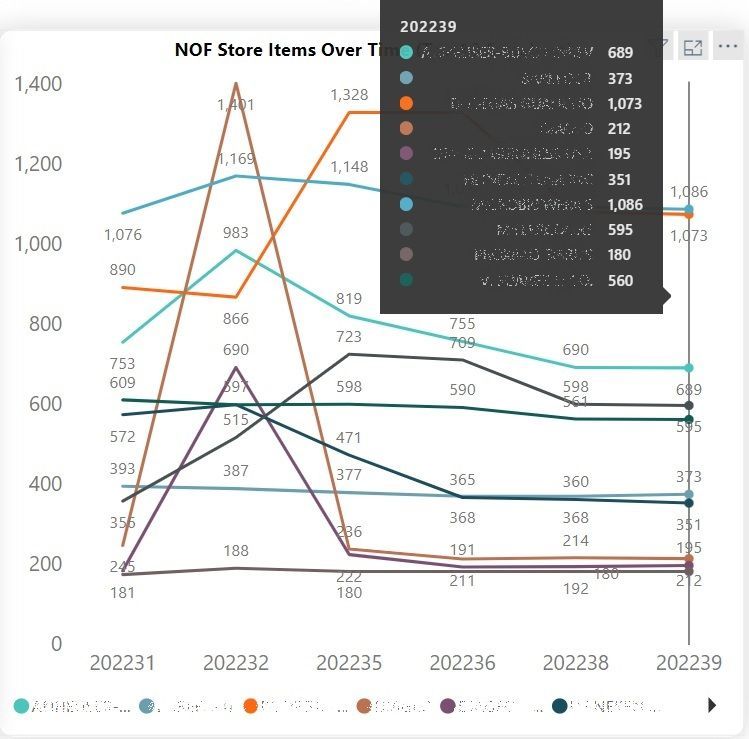
I have a Line Chart Visual currently filtered to show the top 10 legend values for the Y Axis and the X Axis is an internal fiscal year-week identifier. Right now when you hover over a particular week it will give you the values for the top 10, which is what I want to see. However, it has them sorted in alphabetical order by the company, instead of in value order of the Y-Axis (it is a count measure). So far I can only sort the legend alphabetically. How can I put these in descending order of their value?
Solved! Go to Solution.
Hi, @ksimpson50502
Unfortunately, sorting data in the default tooltip is currently not supported.
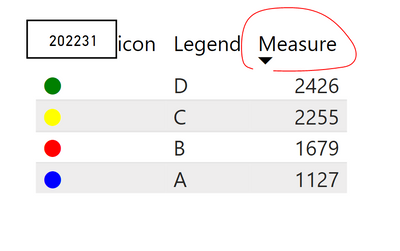
As a workaround, you can consider add a custom tooltip page. You can sort the value in tooltip page.
Create tooltips based on report pages
Please check my attached pbix for more details.
Best Regards,
Community Support Team _ Eason
If this post helps, then please consider Accept it as the solution to help the other members find it more quickly.
Hi, @ksimpson50502
Unfortunately, sorting data in the default tooltip is currently not supported.
As a workaround, you can consider add a custom tooltip page. You can sort the value in tooltip page.
Create tooltips based on report pages
Please check my attached pbix for more details.
Best Regards,
Community Support Team _ Eason
If this post helps, then please consider Accept it as the solution to help the other members find it more quickly.
Thanks for your help - I'm confused by the Legend Icon measure. I want the icons to mimic the colors from the visual, and it is filtered to only show top 10 based on count of the value. Meaning, it could change from week to week. How can I fix this?
The Power BI Data Visualization World Championships is back! Get ahead of the game and start preparing now!
| User | Count |
|---|---|
| 40 | |
| 36 | |
| 34 | |
| 31 | |
| 27 |
| User | Count |
|---|---|
| 136 | |
| 103 | |
| 67 | |
| 65 | |
| 56 |