We've captured the moments from FabCon & SQLCon that everyone is talking about, and we are bringing them to the community, live and on-demand. Starts on April 14th. Register now
Hi
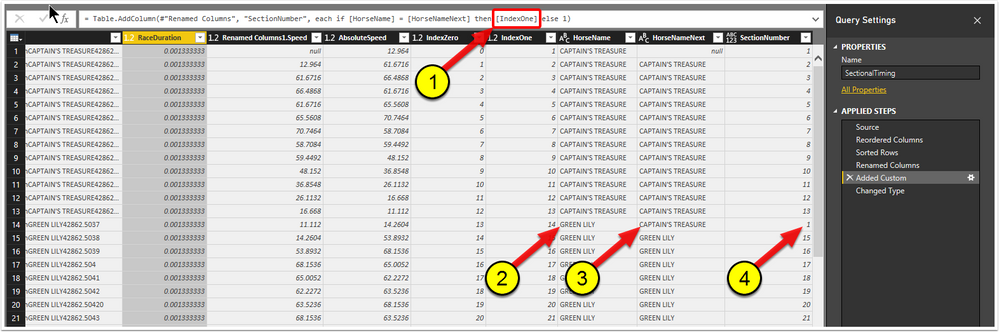
I have the following (incomplete) DAX code shown in (1) in the screen-shot below).
= Table.AddColumn(#"Renamed Columns", "SectionNumber", each if [HorseName] = [HorseNameNext] then [IndexOne] else 1)
What I want to happen is that each time (2 in the screen-shot below) and (3 in the screen-shot below) differ, for the index shown in (4 in the screen-shot below) to be reset to 1 and then incremented by 1 in each row thereafter until the next miss-match between (2) and (3).
Any assitance will be greatly appreciated.
Thanks, Mark.
Solved! Go to Solution.
First: your screen shot is clearly from the query editor, so it's not DAX, but Power Query (a.k.a. M).
You can simply group by horsename, with operation "All Rows", next adjust the generated code to have an index added to each table for each group, and then expand the nested tables (excluding column "Horsename").
Generated/adjusted code as follows (I used just 1 column for "OtherColumns", next to HorseName):
let
Source = Table1,
#"Grouped Rows" = Table.Group(Source, {"HorseName"}, {{"AllData", each Table.AddIndexColumn(_,"SectionNumber",1,1), type table}}),
#"Expanded AllData" = Table.ExpandTableColumn(#"Grouped Rows", "AllData", {"OtherColumns", "SectionNumber"}, {"OtherColumns", "SectionNumber"})
in
#"Expanded AllData"
First: your screen shot is clearly from the query editor, so it's not DAX, but Power Query (a.k.a. M).
You can simply group by horsename, with operation "All Rows", next adjust the generated code to have an index added to each table for each group, and then expand the nested tables (excluding column "Horsename").
Generated/adjusted code as follows (I used just 1 column for "OtherColumns", next to HorseName):
let
Source = Table1,
#"Grouped Rows" = Table.Group(Source, {"HorseName"}, {{"AllData", each Table.AddIndexColumn(_,"SectionNumber",1,1), type table}}),
#"Expanded AllData" = Table.ExpandTableColumn(#"Grouped Rows", "AllData", {"OtherColumns", "SectionNumber"}, {"OtherColumns", "SectionNumber"})
in
#"Expanded AllData"
Thanks, This helped me when I was trying to manipulate a dataset.
To add a little more for anyone else that might come across this, you have to manually edit the M code either in Advanced Editor, or the 'formula bar'. You can't "just" use the buttons at the top of Power BI
You'll need to manually type in the new Index column you generated. When you try to "expand" the column via the tool bar it will not give you access to the new Index column you created.
Thanks Marcel
Hi Marcel
Thank you very much for your solution.
I'm finally starting to get my head around how to transform data.
Your solution was a great learning experience.
Thanks and best regards, Mark.
If you have recently started exploring Fabric, we'd love to hear how it's going. Your feedback can help with product improvements.
A new Power BI DataViz World Championship is coming this June! Don't miss out on submitting your entry.
Share feedback directly with Fabric product managers, participate in targeted research studies and influence the Fabric roadmap.
| User | Count |
|---|---|
| 54 | |
| 39 | |
| 32 | |
| 17 | |
| 15 |
| User | Count |
|---|---|
| 64 | |
| 63 | |
| 37 | |
| 36 | |
| 22 |