Join us at FabCon Atlanta from March 16 - 20, 2026, for the ultimate Fabric, Power BI, AI and SQL community-led event. Save $200 with code FABCOMM.
Register now!Learn from the best! Meet the four finalists headed to the FINALS of the Power BI Dataviz World Championships! Register now
I tried to pivot a table with aggregate function sum in python. After running python script in power bi I am not able to see index columns which i used to group by. But if I am trying to execute this code in python it's working perfectly by displaying index columns.
Here below my code;
import pandas as pd
pivotset = dataset.pivot_table(index=['movieID','user'], values=['Rating'], aggfunc='sum')
print(pivotset)
Result in Python is:
movieID user Rating
1 Ali 5
Ganesh 5
Jayaram 2
Kevin 1
Mithun 3
Musthafa 3
Shafi 4
2 Jack 5
Sasi 4
Suresh 3
But if I am trying to do same in power bi the index variables are not displaying. Please help to find this.
Rating
5
5
2
1
3
The input dataset csv is below
movieID,user,Rating
1,Ganesh,5
1,Mithun,3
2,Sasi,4
1,Musthafa,3
2,Suresh,3
1,Shafi,4
1,Kevin,1
2,Jack,5
1,Jayaram,2
1,Ali,5
Please help me to find why the index variables are disappearing in power bi
Solved! Go to Solution.
@Anonymous ,
Based on my test, I'm afraid power bi doesn't support index columns in pandas table. As a workaround, you can achieve the same result by using "Pivot" and "Unpivot" in power query.
Firstly click "movieID" and "user" column, click transform-> Pivot Columns, select "Rating" as value, sum as aggregation, you will achieve table like below:
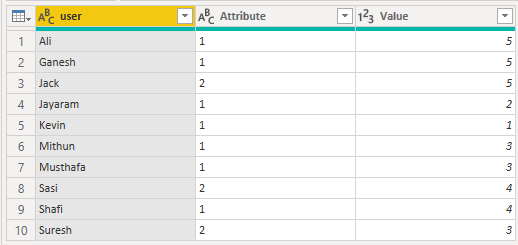
Secondly, click on column "1" and "2" then click "Unpivot Columns":
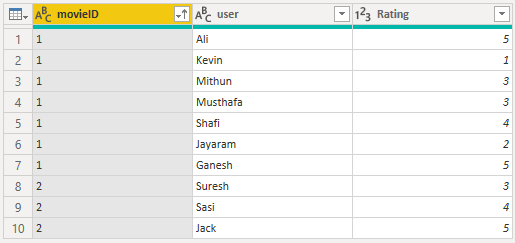
After reordering the columns and renaming the column headers, you will achieve the result:
Regards,
Jimmy Tao
Thank you Jimmy for the fast response and clarified answer. I will try the same then.
@Anonymous ,
Based on my test, I'm afraid power bi doesn't support index columns in pandas table. As a workaround, you can achieve the same result by using "Pivot" and "Unpivot" in power query.
Firstly click "movieID" and "user" column, click transform-> Pivot Columns, select "Rating" as value, sum as aggregation, you will achieve table like below:
Secondly, click on column "1" and "2" then click "Unpivot Columns":
After reordering the columns and renaming the column headers, you will achieve the result:
Regards,
Jimmy Tao
Share feedback directly with Fabric product managers, participate in targeted research studies and influence the Fabric roadmap.
Check out the February 2026 Power BI update to learn about new features.
| User | Count |
|---|---|
| 61 | |
| 54 | |
| 39 | |
| 16 | |
| 14 |
| User | Count |
|---|---|
| 98 | |
| 84 | |
| 35 | |
| 30 | |
| 25 |