This time we’re going bigger than ever. Fabric, Power BI, SQL, AI and more. We're covering it all. You won't want to miss it.
Learn moreLevel up your Power BI skills this month - build one visual each week and tell better stories with data! Get started
Hi All,
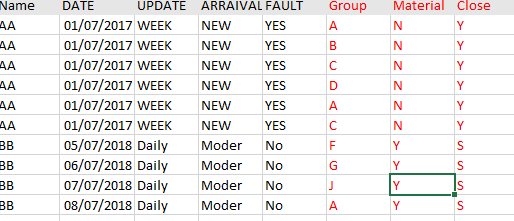
I have sample data
I want to convert a column into rows with Different row headers
Have Sample data with Name, Date, Update, Arriaval, Fault, Group, material and Close column
I want to show one row for each Name with Group number1,Material1,close1 , Group number2,Material2,close2..etc
.Attached Sample data file below
https://www.dropbox.com/s/rki3lhmh6augvqk/Sample%20data.xls?dl=0 Thanks!
Solved! Go to Solution.
HI @YasminYas,
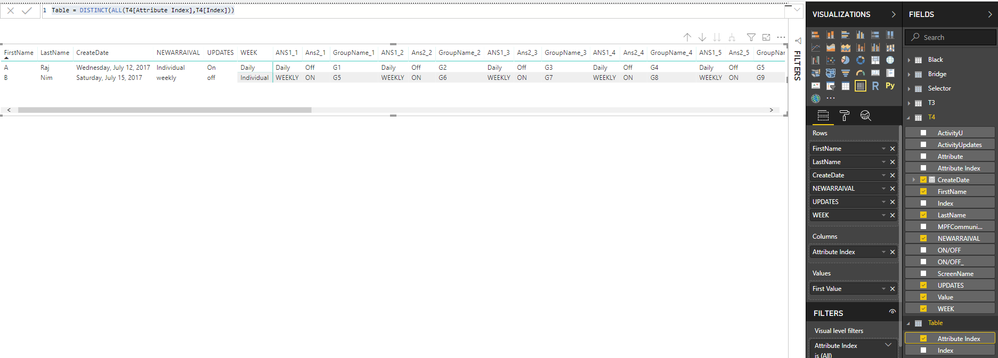
Maybe you can refer to following steps to do unpivot table and create a matrix visual to display similar result.
Steps:
1. Use custom steps to transform table data structure.
let
Source = Table.FromRows(Json.Document(Binary.Decompress(Binary.FromText("i45WclTSUQpKzAKSjkFAwlzf0EjfyMDQHMj2zEvJLMtMKU3MAXL884CES2JmTiWMgyntn5aGpMjdEFkHUCpWh6bWGdHXOmP6WmdCX+tM6WudGX2tM6evdRb0tc6SvtYZGtDZPjqXK4bYChYnINsvMxdIOvl5+kJsNIXZGO7q6u0TCVLt5oZuQz7Y8PLU1GyweRBuPsjaTGRl4AyIMMePPpaaDYSl5gNhqcVAWGqJbmksAA==", BinaryEncoding.Base64), Compression.Deflate)), let _t = ((type text) meta [Serialized.Text = true]) in type table [FirstName = _t, LastName = _t, ScreenName = _t, CreateDate = _t, ActivityUpdates = _t, ActivityU = _t, WEEK = _t, UPDATES = _t, NEWARRAIVAL = _t, #"ON/OFF_" = _t, #"ON/OFF" = _t, MPFCommunityDigest = _t, GroupName = _t, ANS1 = _t, Ans2 = _t]),
#"Changed Type" = Table.TransformColumnTypes(Source,{{"FirstName", type text}, {"LastName", type text}, {"ScreenName", type text}, {"CreateDate", type date}, {"ActivityUpdates", type text}, {"ActivityU", type text}, {"WEEK", type text}, {"UPDATES", type text}, {"NEWARRAIVAL", type text}, {"ON/OFF_", type text}, {"ON/OFF", type text}, {"MPFCommunityDigest", type text}, {"GroupName", type text}, {"ANS1", type text}, {"Ans2", type text}}),
#"Grouped Rows" = Table.Group(#"Changed Type", {"FirstName", "LastName", "ScreenName", "CreateDate", "ActivityUpdates", "ActivityU", "WEEK", "UPDATES", "NEWARRAIVAL", "ON/OFF_", "ON/OFF", "MPFCommunityDigest"}, {{"Contents", each Table.UnpivotOtherColumns(Table.AddIndexColumn(Table.SelectColumns(_,{"Ans2", "ANS1", "GroupName"}), "Index", 1, 1), {"Index"}, "Attribute", "Value"), type table}}),
#"Expanded Contents" = Table.ExpandTableColumn(#"Grouped Rows", "Contents", {"Index", "Attribute", "Value"}, {"Index", "Attribute", "Value"}),
#"Added Custom" = Table.AddColumn(#"Expanded Contents", "Attribute Index", each [Attribute]&"_"&Text.From([Index]))
in
#"Added Custom"
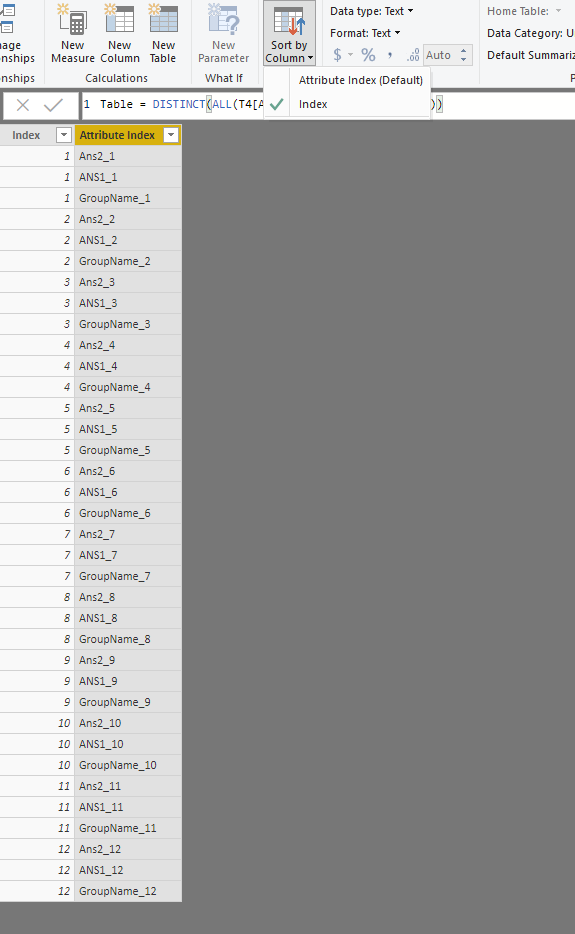
2. Create a custom sort order table to do custom on column fields:
Table = DISTINCT(ALL(T4[Attribute Index],T4[Index]))
3. Create matrix visual with raw table records and sort order table fields.
Regards,
Xiaoxin Sheng
HI @YasminYas,
Maybe you can refer to following steps to do unpivot table and create a matrix visual to display similar result.
Steps:
1. Use custom steps to transform table data structure.
let
Source = Table.FromRows(Json.Document(Binary.Decompress(Binary.FromText("i45WclTSUQpKzAKSjkFAwlzf0EjfyMDQHMj2zEvJLMtMKU3MAXL884CES2JmTiWMgyntn5aGpMjdEFkHUCpWh6bWGdHXOmP6WmdCX+tM6WudGX2tM6evdRb0tc6SvtYZGtDZPjqXK4bYChYnINsvMxdIOvl5+kJsNIXZGO7q6u0TCVLt5oZuQz7Y8PLU1GyweRBuPsjaTGRl4AyIMMePPpaaDYSl5gNhqcVAWGqJbmksAA==", BinaryEncoding.Base64), Compression.Deflate)), let _t = ((type text) meta [Serialized.Text = true]) in type table [FirstName = _t, LastName = _t, ScreenName = _t, CreateDate = _t, ActivityUpdates = _t, ActivityU = _t, WEEK = _t, UPDATES = _t, NEWARRAIVAL = _t, #"ON/OFF_" = _t, #"ON/OFF" = _t, MPFCommunityDigest = _t, GroupName = _t, ANS1 = _t, Ans2 = _t]),
#"Changed Type" = Table.TransformColumnTypes(Source,{{"FirstName", type text}, {"LastName", type text}, {"ScreenName", type text}, {"CreateDate", type date}, {"ActivityUpdates", type text}, {"ActivityU", type text}, {"WEEK", type text}, {"UPDATES", type text}, {"NEWARRAIVAL", type text}, {"ON/OFF_", type text}, {"ON/OFF", type text}, {"MPFCommunityDigest", type text}, {"GroupName", type text}, {"ANS1", type text}, {"Ans2", type text}}),
#"Grouped Rows" = Table.Group(#"Changed Type", {"FirstName", "LastName", "ScreenName", "CreateDate", "ActivityUpdates", "ActivityU", "WEEK", "UPDATES", "NEWARRAIVAL", "ON/OFF_", "ON/OFF", "MPFCommunityDigest"}, {{"Contents", each Table.UnpivotOtherColumns(Table.AddIndexColumn(Table.SelectColumns(_,{"Ans2", "ANS1", "GroupName"}), "Index", 1, 1), {"Index"}, "Attribute", "Value"), type table}}),
#"Expanded Contents" = Table.ExpandTableColumn(#"Grouped Rows", "Contents", {"Index", "Attribute", "Value"}, {"Index", "Attribute", "Value"}),
#"Added Custom" = Table.AddColumn(#"Expanded Contents", "Attribute Index", each [Attribute]&"_"&Text.From([Index]))
in
#"Added Custom"
2. Create a custom sort order table to do custom on column fields:
Table = DISTINCT(ALL(T4[Attribute Index],T4[Index]))
3. Create matrix visual with raw table records and sort order table fields.
Regards,
Xiaoxin Sheng
Hi
Can share me the PBIX
Check out the April 2026 Power BI update to learn about new features.
Sign up to receive a private message when registration opens and key events begin.
If you have recently started exploring Fabric, we'd love to hear how it's going. Your feedback can help with product improvements.
| User | Count |
|---|---|
| 36 | |
| 33 | |
| 31 | |
| 24 | |
| 18 |
| User | Count |
|---|---|
| 68 | |
| 50 | |
| 33 | |
| 24 | |
| 24 |