Don't miss your chance to take the Fabric Data Engineer (DP-600) exam for FREE! Find out how by watching the DP-600 session on-demand now through April 28th.
Learn moreJoin the FabCon + SQLCon recap series. Up next: Power BI, Real-Time Intelligence, IQ and AI, and Data Factory take center stage. All sessions are available on-demand after the live show. Register now
Hi All,
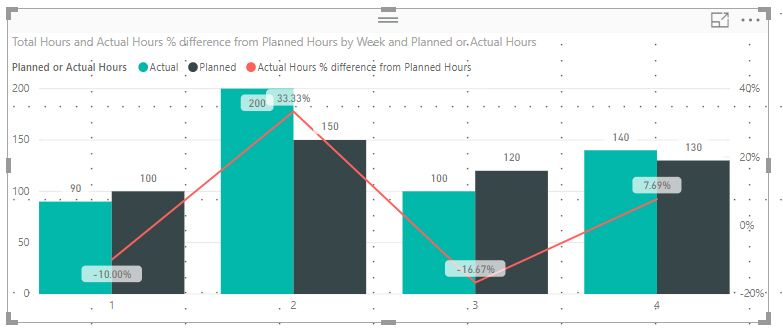
I am very new to Power BI. I was wondering if there is a way to measure the percent different between planned and actual hours in the in the following chart? Thanks.
Solved! Go to Solution.
Hi @shad_fz,
Follow below steps for calculating percentage difference.
1. Add New Column "Planned Hours"
Planned Hours = if('Planned Vs Actual'[Planned or Actual Hours]="Planned",'Planned Vs Actual'[Total Hours],0)2. Add New Column "Actual Hours"
Actual Hours = if('Planned Vs Actual'[Planned or Actual Hours]="Actual",'Planned Vs Actual'[Total Hours],0)3. Create a new Quick Measure. Right Click on Table name & select New Quick Measure
a. Select "Percentage Difference" under "Mathematical Operations".
b. Drag "Planned Hours" column to "Base Value".
c. Drag "Actual Hours" column to "Value to compare"
d. Blanks: Treat as zero in the calculation
4. This will add below measure to the table.
Actual Hours % difference from Planned Hours =
VAR __BASELINE_VALUE = SUM('Planned Vs Actual'[Planned Hours])
VAR __VALUE_TO_COMPARE = SUM('Planned Vs Actual'[Actual Hours])
RETURN
DIVIDE(__VALUE_TO_COMPARE - __BASELINE_VALUE, __BASELINE_VALUE)
Please let me know if it helps.
Thanks,
Rahul
Hi @shad_fz,
Although the solution provided by @RahulYadav it's a good solution it will add upp to increase your model in size because every calculated column you add to your model it will add size and complexety to your data.
This can be solved making use of a measure for all the parts of @RahulYadav solution add this measure to your model:
Actual Hours % difference from Planned Hours =
VAR BASELINE_VALUE =
CALCULATE (
SUM ( 'Planned Vs Actual'[Planned Hours] ),
'Planned Vs Actual'[Planned or Actual Hours] = "Planned"
)
VAR VALUE_TO_COMPARE =
CALCULATE (
SUM ( 'Planned Vs Actual'[Actual Hours] ),
'Planned Vs Actual'[Planned or Actual Hours] = "Actuals"
)
RETURN
DIVIDE ( VALUE_TO_COMPARE - BASELINE_VALUE, BASELINE_VALUE )
As you can see this measure calculates the planned / actuals hours and based on context so it will be calculated at each update.
Regards,
MFelix
Regards
Miguel Félix
Proud to be a Super User!
Check out my blog: Power BI em PortuguêsHi @shad_fz,
Follow below steps for calculating percentage difference.
1. Add New Column "Planned Hours"
Planned Hours = if('Planned Vs Actual'[Planned or Actual Hours]="Planned",'Planned Vs Actual'[Total Hours],0)2. Add New Column "Actual Hours"
Actual Hours = if('Planned Vs Actual'[Planned or Actual Hours]="Actual",'Planned Vs Actual'[Total Hours],0)3. Create a new Quick Measure. Right Click on Table name & select New Quick Measure
a. Select "Percentage Difference" under "Mathematical Operations".
b. Drag "Planned Hours" column to "Base Value".
c. Drag "Actual Hours" column to "Value to compare"
d. Blanks: Treat as zero in the calculation
4. This will add below measure to the table.
Actual Hours % difference from Planned Hours =
VAR __BASELINE_VALUE = SUM('Planned Vs Actual'[Planned Hours])
VAR __VALUE_TO_COMPARE = SUM('Planned Vs Actual'[Actual Hours])
RETURN
DIVIDE(__VALUE_TO_COMPARE - __BASELINE_VALUE, __BASELINE_VALUE)
Please let me know if it helps.
Thanks,
Rahul
Check out the April 2026 Power BI update to learn about new features.
If you have recently started exploring Fabric, we'd love to hear how it's going. Your feedback can help with product improvements.
A new Power BI DataViz World Championship is coming this June! Don't miss out on submitting your entry.
| User | Count |
|---|---|
| 43 | |
| 38 | |
| 35 | |
| 21 | |
| 15 |
| User | Count |
|---|---|
| 63 | |
| 58 | |
| 28 | |
| 27 | |
| 25 |