cancel
Showing results for 
Search instead for 
Did you mean: 

Next up in the FabCon + SQLCon recap series: The roadmap for Microsoft SQL and Maximizing Developer experiences in Fabric. All sessions are available on-demand after the live show. Register now

Reply
MintuBaruah
Helper III
Helper III

Multiple Occurrences

Hello @all


Example Table1:

Column1
13
13
13
15
18
3
14
2
2
2
18


From the above table, I want to identify the multiple occurrences(Frequency) of a value.

for eg in the case of "13" frequency should be "High" as it has more than two occurrences, "3" should have "Low" freq as it has only one occurrence and 18 should have "Normal" freq as it has two occurrences.


Please help resolve this issue.


Regards,

Mintu Baruah

2 ACCEPTED SOLUTIONS
Fowmy
Super User
Super User

@MintuBaruah 

Add a column and use it on a visual 

Freq = 

var __v = Table3[Column1] 
var __d = CALCULATE(COUNT(Table3[Column1]), Table3[Column1] = __v)
    
return
SWITCH(
    TRUE(),
    __d > 2 , "High",
    __d = 2 , "Normal",
    __d < 2 , "Low"
)

Fowmy_0-1627472449389.png


Did I answer your question? Mark my post as a solution! and hit thumbs up


Subscribe and learn Power BI from these videos

Website LinkedIn PBI User Group

View solution in original post

Anonymous
Not applicable

Hi @MintuBaruah ,


I did it in two ways, please check.


  • Use DAX:


Frequency(DAX) =
VAR _count =
    CALCULATE ( COUNTROWS ( 'Table' ), ALLEXCEPT ( 'Table', 'Table'[Column1] ) )
RETURN
    SWITCH ( TRUE (), _count = 1, "Low", _count = 2, "Normal", _count >= 3, "High" )
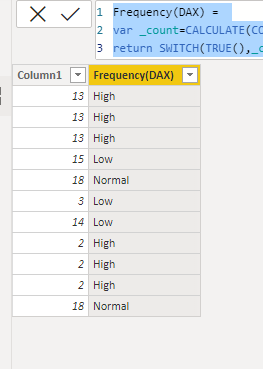
 

Frequency(DAX).PNG


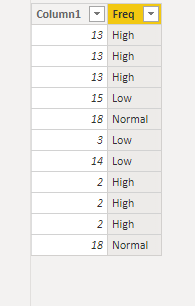
  • In Power Query:

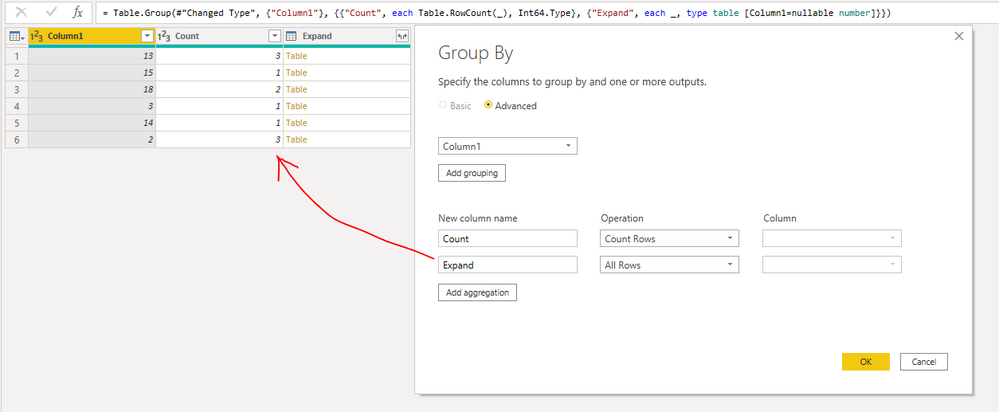
1.Group by

Count group by.PNG

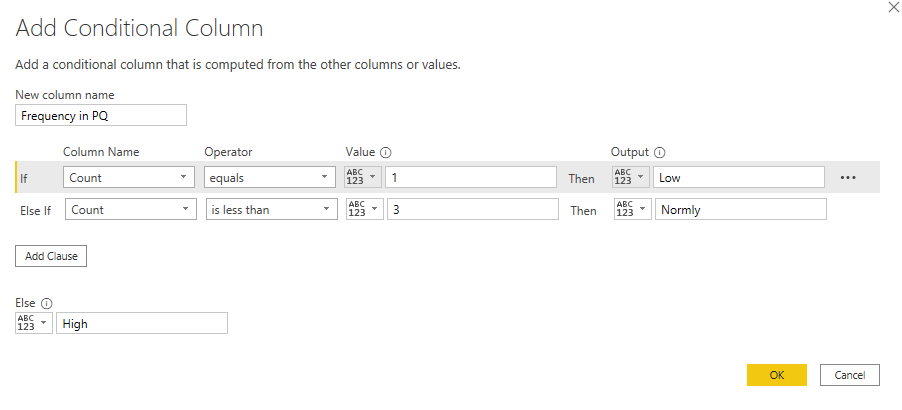
2. Add a Conditional Column:

Conditional column.PNG

Here is the whole M syntax:


let
    Source = Table.FromRows(Json.Document(Binary.Decompress(Binary.FromText("i45WMjRWitXBoEwhlAWYgoqZgCkjDBKkKhYA", BinaryEncoding.Base64), Compression.Deflate)), let _t = ((type nullable text) meta [Serialized.Text = true]) in type table [Column1 = _t]),
    #"Changed Type" = Table.TransformColumnTypes(Source,{{"Column1", Int64.Type}}),
    #"Grouped Rows" = Table.Group(#"Changed Type", {"Column1"}, {{"Count", each Table.RowCount(_), Int64.Type}, {"Expand", each _, type table [Column1=nullable number]}}),
    #"Expanded Expand" = Table.ExpandTableColumn(#"Grouped Rows", "Expand", {"Column1"}, {"Column1.1"}),
    #"Removed Columns" = Table.RemoveColumns(#"Expanded Expand",{"Column1.1"}),
    #"Added Custom" = Table.AddColumn(#"Removed Columns", "Frequency in PQ", each if [Count] = 1 then "Low" else if [Count] < 3 then "Normly" else "High")
in
    #"Added Custom"
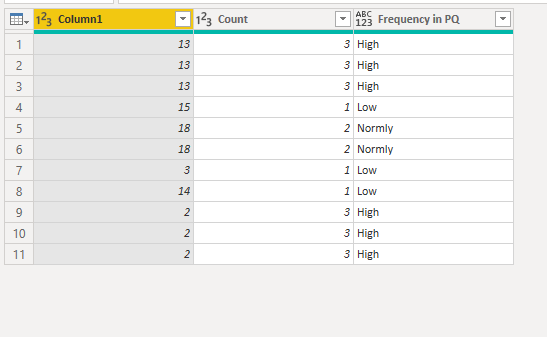
 

Frequency(PQ).PNG


Best Regards,
Eyelyn Qin
If this post helps, then please consider Accept it as the solution to help the other members find it more quickly.

View solution in original post

4 REPLIES 4
Fowmy
Super User
Super User

@MintuBaruah 

Did you try the suggested solution? If it works for you, please Accept it as a Solution, it will be useful for other users as well.

Do let me know if you have any queries 


Did I answer your question? Mark my post as a solution! and hit thumbs up


Subscribe and learn Power BI from these videos

Website LinkedIn PBI User Group

Anonymous
Not applicable

Hi @MintuBaruah ,


I did it in two ways, please check.


  • Use DAX:


Frequency(DAX) =
VAR _count =
    CALCULATE ( COUNTROWS ( 'Table' ), ALLEXCEPT ( 'Table', 'Table'[Column1] ) )
RETURN
    SWITCH ( TRUE (), _count = 1, "Low", _count = 2, "Normal", _count >= 3, "High" )


Frequency(DAX).PNG


  • In Power Query:

1.Group by

Count group by.PNG

2. Add a Conditional Column:

Conditional column.PNG

Here is the whole M syntax:


let
    Source = Table.FromRows(Json.Document(Binary.Decompress(Binary.FromText("i45WMjRWitXBoEwhlAWYgoqZgCkjDBKkKhYA", BinaryEncoding.Base64), Compression.Deflate)), let _t = ((type nullable text) meta [Serialized.Text = true]) in type table [Column1 = _t]),
    #"Changed Type" = Table.TransformColumnTypes(Source,{{"Column1", Int64.Type}}),
    #"Grouped Rows" = Table.Group(#"Changed Type", {"Column1"}, {{"Count", each Table.RowCount(_), Int64.Type}, {"Expand", each _, type table [Column1=nullable number]}}),
    #"Expanded Expand" = Table.ExpandTableColumn(#"Grouped Rows", "Expand", {"Column1"}, {"Column1.1"}),
    #"Removed Columns" = Table.RemoveColumns(#"Expanded Expand",{"Column1.1"}),
    #"Added Custom" = Table.AddColumn(#"Removed Columns", "Frequency in PQ", each if [Count] = 1 then "Low" else if [Count] < 3 then "Normly" else "High")
in
    #"Added Custom"


Frequency(PQ).PNG


Best Regards,
Eyelyn Qin
If this post helps, then please consider Accept it as the solution to help the other members find it more quickly.

Fowmy
Super User
Super User

@MintuBaruah 

Add a column and use it on a visual 

Freq = 

var __v = Table3[Column1] 
var __d = CALCULATE(COUNT(Table3[Column1]), Table3[Column1] = __v)
    
return
SWITCH(
    TRUE(),
    __d > 2 , "High",
    __d = 2 , "Normal",
    __d < 2 , "Low"
)

Fowmy_0-1627472449389.png


Did I answer your question? Mark my post as a solution! and hit thumbs up


Subscribe and learn Power BI from these videos

Website LinkedIn PBI User Group

amitchandak
Super User
Super User

@MintuBaruah , a measure like


measure = Switch(True(), count(Table[Column1]) >2, "High",

count(Table[Column1]) =2, "Normal",

"low"

)


or

measure =

var _1 = calculate(count(Table[Column1]),allexcept(Table, Table[Column1])

return

Switch(True(),  _1>2, "High",

 _1=2, "Normal",

"low"

)

Share with Power BI Enthusiasts: Full Power BI Video (20 Hours) YouTube
Microsoft Fabric Series 60+ Videos YouTube
Microsoft Fabric Hindi End to End YouTube

Helpful resources

Announcements
New to Fabric survey Carousel

New to Fabric Survey

If you have recently started exploring Fabric, we'd love to hear how it's going. Your feedback can help with product improvements.

Power BI DataViz World Championships carousel

Power BI DataViz World Championships - June 2026

A new Power BI DataViz World Championship is coming this June! Don't miss out on submitting your entry.

FabCon and SQLCon Highlights Carousel

FabCon &SQLCon Highlights

Experience the highlights from FabCon & SQLCon, available live and on-demand starting April 14th.

March Power BI Update Carousel

Power BI Community Update - March 2026

Check out the March 2026 Power BI update to learn about new features.