Don't miss your chance to take exam DP-600 or DP-700 on us!
Request nowLearn from the best! Meet the four finalists headed to the FINALS of the Power BI Dataviz World Championships! Register now
Hello, I was wondering if there was a way to have multiple total rows with different summaries.
[EXAMPLE DATA]
Grand Total:
% Parent Column Total:
As far as I know, the only way to do this is to put them side by side in a new column.
Solved! Go to Solution.
Heres is one way. (I created a dimension table for item)
Create a new independent table using the following code:
Matrix Table =
VAR _item =
ADDCOLUMNS (
DISTINCT ( fTable[Item] ),
"Order", RANK.EQ ( fTable[Item], fTable[Item], ASC )
)
VAR _Rows =
COUNT ( 'Item table'[Item] )
VAR _totals = {
( "Total", _Rows + 1 ),
( "Grand %", _Rows + 2 )
}
RETURN
UNION ( _item, _totals )
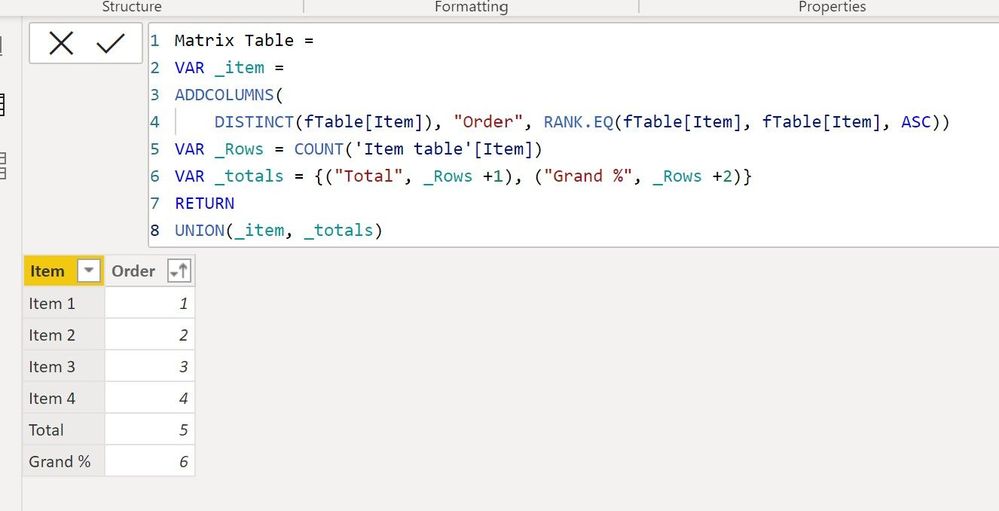
Now you need to create the equivalent following measures for each Quantity value
Sum Q1 = SUM(fTable[Quantity 1])Sum Q1 All Items =
CALCULATE([Sum Q1], ALLSELECTED('Item table'[Item]))
and finally for the matrix:
Quantity 1 =
VAR _itmes =
CALCULATE (
[Sum Q1],
TREATAS ( VALUES ( 'Matrix Table'[Item] ), 'Item table'[Item] )
)
VAR _total = [Sum Q1 All Items]
VAR _Grand =
DIVIDE (
[Sum Q1 All Items],
[Sum Q1 All Items] + [Sum Q2 All Items] + [Sum Q3 All Items]
)
VAR _rows =
COUNT ( 'Item table'[Item] )
RETURN
SWITCH (
SELECTEDVALUE ( 'Matrix Table'[Order] ),
_rows + 1, _total,
_rows + 2, FORMAT ( _Grand, "percent" ),
_itmes
)
Add the field from the Matrix Table to the visual and the measures to get:
Sample PBIX file attached
Proud to be a Super User!
Paul on Linkedin.
Heres is one way. (I created a dimension table for item)
Create a new independent table using the following code:
Matrix Table =
VAR _item =
ADDCOLUMNS (
DISTINCT ( fTable[Item] ),
"Order", RANK.EQ ( fTable[Item], fTable[Item], ASC )
)
VAR _Rows =
COUNT ( 'Item table'[Item] )
VAR _totals = {
( "Total", _Rows + 1 ),
( "Grand %", _Rows + 2 )
}
RETURN
UNION ( _item, _totals )
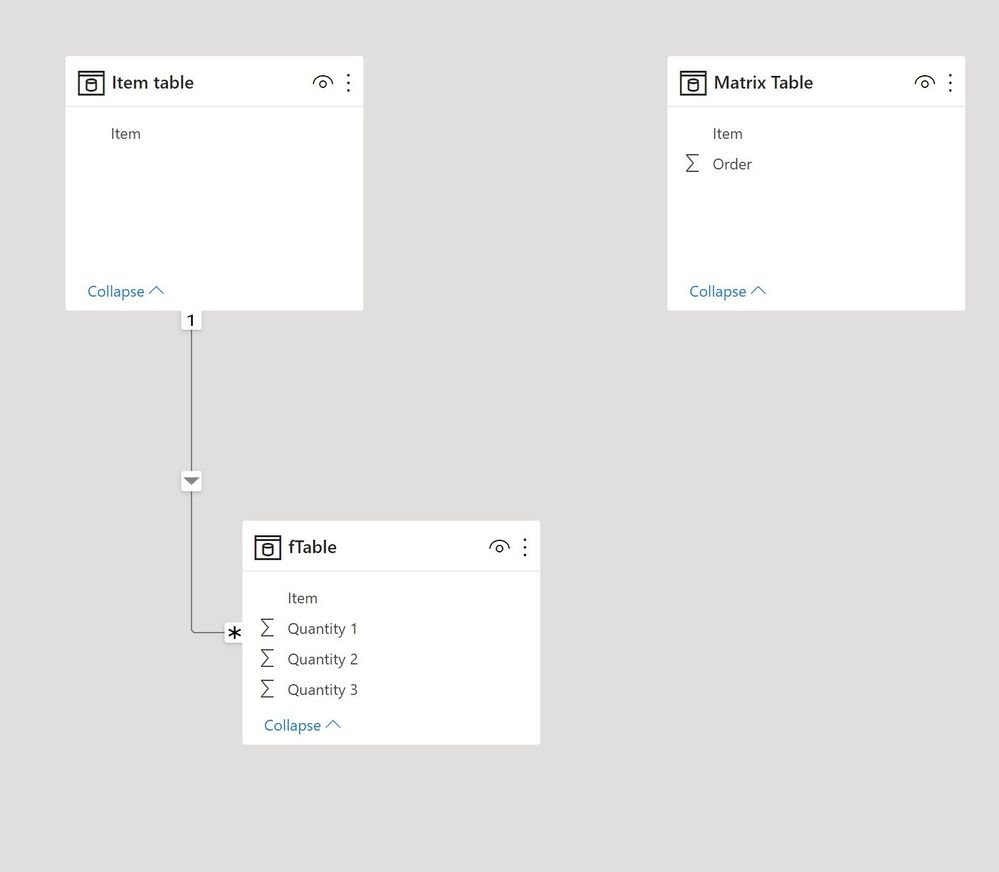
Now you need to create the equivalent following measures for each Quantity value
Sum Q1 = SUM(fTable[Quantity 1])Sum Q1 All Items =
CALCULATE([Sum Q1], ALLSELECTED('Item table'[Item]))
and finally for the matrix:
Quantity 1 =
VAR _itmes =
CALCULATE (
[Sum Q1],
TREATAS ( VALUES ( 'Matrix Table'[Item] ), 'Item table'[Item] )
)
VAR _total = [Sum Q1 All Items]
VAR _Grand =
DIVIDE (
[Sum Q1 All Items],
[Sum Q1 All Items] + [Sum Q2 All Items] + [Sum Q3 All Items]
)
VAR _rows =
COUNT ( 'Item table'[Item] )
RETURN
SWITCH (
SELECTEDVALUE ( 'Matrix Table'[Order] ),
_rows + 1, _total,
_rows + 2, FORMAT ( _Grand, "percent" ),
_itmes
)
Add the field from the Matrix Table to the visual and the measures to get:
Sample PBIX file attached
Proud to be a Super User!
Paul on Linkedin.
It depends on how you build the matrix. You can have the measures as rows for example. Can you provide a more detailed depiction?
Proud to be a Super User!
Paul on Linkedin.
Share feedback directly with Fabric product managers, participate in targeted research studies and influence the Fabric roadmap.
Check out the February 2026 Power BI update to learn about new features.
| User | Count |
|---|---|
| 50 | |
| 40 | |
| 37 | |
| 14 | |
| 14 |
| User | Count |
|---|---|
| 85 | |
| 69 | |
| 38 | |
| 29 | |
| 27 |