cancel
Showing results for 
Search instead for 
Did you mean: 

We've captured the moments from FabCon & SQLCon that everyone is talking about, and we are bringing them to the community, live and on-demand. Starts on April 14th. Register now

Reply
JMHickman1987
Regular Visitor

Language list visualization

Hello Power BI Community, 


Very new to Power BI so please feel free to ask any questions concerning clarity on the subject matter. 


I am currently working on a project that compiles education courses from an EU institution across the EU. The project uses a sharepoint excel sheet to which combiles the course data into one sheet. One of the columns is labled Language and represents the languages that the course is taught in. The sheet is organized by course title (rows). Some of the courses are taught in English, while other are taught in several languages.


Currently, the cells with multiple languages are written as such:

Single langaue: English


Multiple languages: English ; Spanish ; Hungarian. 


One of the visualizations that the client is interested in seeing is a pie chart with the ratio of all the languages that they teach in. What would be the best way to accomplish this?


Many thanks in advance,

 -Joshua

1 ACCEPTED SOLUTION
Anonymous
Not applicable

Hi @JMHickman1987 ,


I think how to create visualization is based on your data model.

According to your statement, I think you data should look like as below.
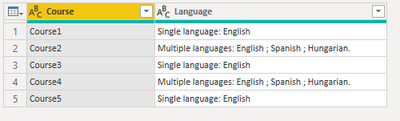
RicoZhou_0-1655715503584.png

You can transform your data in Power Query Editor and then create the pie chart.

let
    Source = Table.FromRows(Json.Document(Binary.Decompress(Binary.FromText("i45Wcs4vLSpONVTSUQrOzEvPSVXIScxLL01MT7VScAXyM4szlGJ1YMqMgMp8S3NKMguQFBbDVSpYKwQXJOZBWB6leemJRZmJeXoKSCYYE2eRCcUWmeK1KBYA", BinaryEncoding.Base64), Compression.Deflate)), let _t = ((type nullable text) meta [Serialized.Text = true]) in type table [Course = _t, Language = _t]),
    #"Changed Type" = Table.TransformColumnTypes(Source,{{"Course", type text}, {"Language", type text}}),
    #"Duplicated Column" = Table.DuplicateColumn(#"Changed Type", "Language", "Language - Copy"),
    #"Replaced Value" = Table.ReplaceValue(#"Duplicated Column","Single language: ","",Replacer.ReplaceText,{"Language - Copy"}),
    #"Replaced Value1" = Table.ReplaceValue(#"Replaced Value","Multiple languages: ","",Replacer.ReplaceText,{"Language - Copy"}),
    #"Split Column by Delimiter" = Table.SplitColumn(#"Replaced Value1", "Language - Copy", Splitter.SplitTextByDelimiter(";", QuoteStyle.Csv), {"Language - Copy.1", "Language - Copy.2", "Language - Copy.3"}),
    #"Unpivoted Columns" = Table.UnpivotOtherColumns(#"Split Column by Delimiter", {"Course", "Language"}, "Attribute", "Value"),
    #"Removed Columns" = Table.RemoveColumns(#"Unpivoted Columns",{"Attribute"}),
    #"Replaced Value2" = Table.ReplaceValue(#"Removed Columns"," ","",Replacer.ReplaceText,{"Value"}),
    #"Replaced Value3" = Table.ReplaceValue(#"Replaced Value2",".","",Replacer.ReplaceText,{"Value"})
in
    #"Replaced Value3"
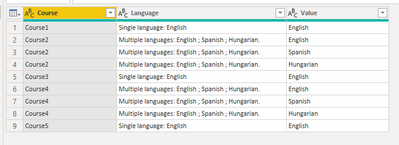
RicoZhou_1-1655715592449.png

Here I create a sample with two pie charts, one is count courses by single or multiple and another is count courses by each language.
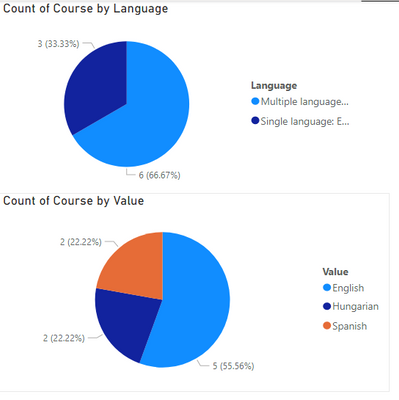
RicoZhou_2-1655715670085.png


Best Regards,
Rico Zhou


If this post helps, then please consider Accept it as the solution to help the other members find it more quickly.

View solution in original post

1 REPLY 1
Anonymous
Not applicable

Hi @JMHickman1987 ,


I think how to create visualization is based on your data model.

According to your statement, I think you data should look like as below.

RicoZhou_0-1655715503584.png

You can transform your data in Power Query Editor and then create the pie chart.

let
    Source = Table.FromRows(Json.Document(Binary.Decompress(Binary.FromText("i45Wcs4vLSpONVTSUQrOzEvPSVXIScxLL01MT7VScAXyM4szlGJ1YMqMgMp8S3NKMguQFBbDVSpYKwQXJOZBWB6leemJRZmJeXoKSCYYE2eRCcUWmeK1KBYA", BinaryEncoding.Base64), Compression.Deflate)), let _t = ((type nullable text) meta [Serialized.Text = true]) in type table [Course = _t, Language = _t]),
    #"Changed Type" = Table.TransformColumnTypes(Source,{{"Course", type text}, {"Language", type text}}),
    #"Duplicated Column" = Table.DuplicateColumn(#"Changed Type", "Language", "Language - Copy"),
    #"Replaced Value" = Table.ReplaceValue(#"Duplicated Column","Single language: ","",Replacer.ReplaceText,{"Language - Copy"}),
    #"Replaced Value1" = Table.ReplaceValue(#"Replaced Value","Multiple languages: ","",Replacer.ReplaceText,{"Language - Copy"}),
    #"Split Column by Delimiter" = Table.SplitColumn(#"Replaced Value1", "Language - Copy", Splitter.SplitTextByDelimiter(";", QuoteStyle.Csv), {"Language - Copy.1", "Language - Copy.2", "Language - Copy.3"}),
    #"Unpivoted Columns" = Table.UnpivotOtherColumns(#"Split Column by Delimiter", {"Course", "Language"}, "Attribute", "Value"),
    #"Removed Columns" = Table.RemoveColumns(#"Unpivoted Columns",{"Attribute"}),
    #"Replaced Value2" = Table.ReplaceValue(#"Removed Columns"," ","",Replacer.ReplaceText,{"Value"}),
    #"Replaced Value3" = Table.ReplaceValue(#"Replaced Value2",".","",Replacer.ReplaceText,{"Value"})
in
    #"Replaced Value3"

RicoZhou_1-1655715592449.png

Here I create a sample with two pie charts, one is count courses by single or multiple and another is count courses by each language.

RicoZhou_2-1655715670085.png


Best Regards,
Rico Zhou


If this post helps, then please consider Accept it as the solution to help the other members find it more quickly.

Helpful resources

Announcements
New to Fabric survey Carousel

New to Fabric Survey

If you have recently started exploring Fabric, we'd love to hear how it's going. Your feedback can help with product improvements.

Power BI DataViz World Championships carousel

Power BI DataViz World Championships - June 2026

A new Power BI DataViz World Championship is coming this June! Don't miss out on submitting your entry.

Join our Fabric User Panel

Join our Fabric User Panel

Share feedback directly with Fabric product managers, participate in targeted research studies and influence the Fabric roadmap.

March Power BI Update Carousel

Power BI Community Update - March 2026

Check out the March 2026 Power BI update to learn about new features.