cancel
Showing results for 
Search instead for 
Did you mean: 

The Power BI Data Visualization World Championships is back! Get ahead of the game and start preparing now! Learn more

Reply
Anonymous
Not applicable

Filter data in Advanced Editor

Hi all,

Does anybody know a syntax for the advanced editor to filter data only for a certain years. Currently, the coming data from one query is from 2012 till 2020 and I would like to pull only information from 2018 until 2020. The current syntax is something like:

let
Source = 1Database("aa", "cbb", [TypedMeasureColumns=true]),
MAR1 = Source{[Id="MAR"]}[Data],
MAR2 = MAR1{[Id="MAR"]}[Data],
#"Added Items" = Cube.Transform(MAR2, {{Cube.AddAndExpandDimensionColumn, "[A]", {Cube.AddAndExpandDimensionColumn, "[C]", {Cube.AddMeasureColumn, "F"}})
in
#"Added Items"

Thank you.

1 ACCEPTED SOLUTION

Hi @Anonymous ,


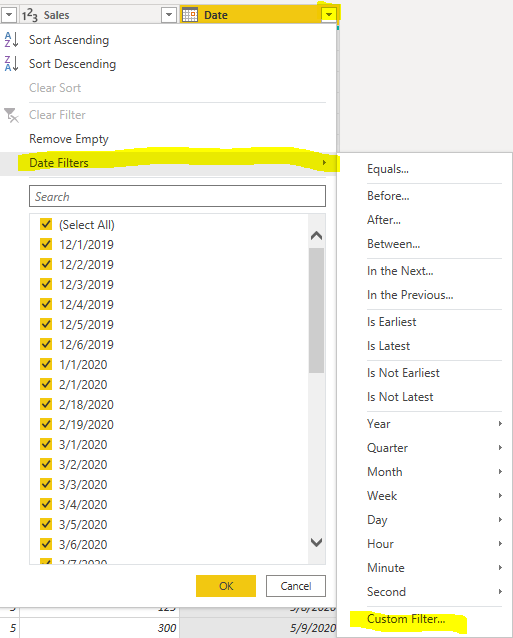
You could filter date directly like below: 

7.PNG


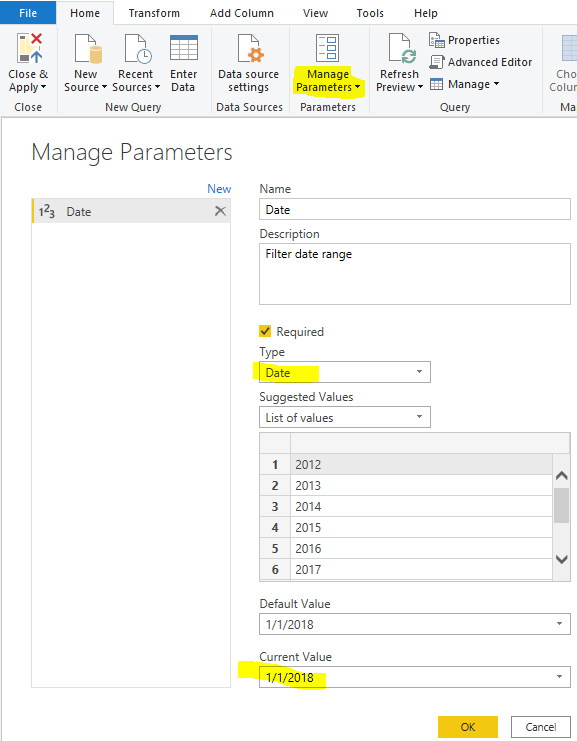
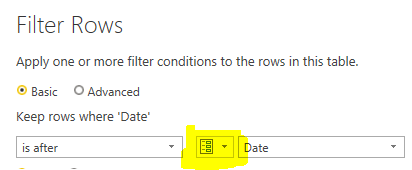
Or you could create a parameter to filter it. When you want to set other date range, you could only change the parameters.


1.PNG2.PNG

let
    Source = Excel.Workbook(File.Contents("C:\Users\xueding\Desktop\Financial Sample - Copy.xlsx"), null, true),
    financials3_Table = Source{[Item="financials3",Kind="Table"]}[Data],
    #"Changed Type" = Table.TransformColumnTypes(financials3_Table,{{"Segment", type text}, {"Country", type text}, {"Product", type text}, {"Units Sold", type number}, {"Manufacturing Price", Int64.Type}, {"Sales", Int64.Type}, {"Date", type date}}),
    #"Filtered Rows" = Table.SelectRows(#"Changed Type", each [Date] > Date)
in
    #"Filtered Rows"

Using Parameters in Power BI 


Best Regards,
Xue Ding
If this post helps, then please consider Accept it as the solution to help the other members find it more quickly.

View solution in original post

4 REPLIES 4
harshnathani
Community Champion
Community Champion

HI @Anonymous ,


You can refer this video.


https://www.youtube.com/watch?v=qdhsq23cQhg


Regards,

Harsh Nathani

Appreciate with a Kudos!! (Click the Thumbs Up Button)

Did I answer your question? Mark my post as a solution!


Anonymous
Not applicable

Hi @harshnathani,

Thank you for the video. I watched it and this option didn't work for my case, but I will try something similar or try to add 

Table.SelectRows function.

Best,

Hi @Anonymous ,


You could filter date directly like below: 

7.PNG


Or you could create a parameter to filter it. When you want to set other date range, you could only change the parameters.


1.PNG2.PNG

let
    Source = Excel.Workbook(File.Contents("C:\Users\xueding\Desktop\Financial Sample - Copy.xlsx"), null, true),
    financials3_Table = Source{[Item="financials3",Kind="Table"]}[Data],
    #"Changed Type" = Table.TransformColumnTypes(financials3_Table,{{"Segment", type text}, {"Country", type text}, {"Product", type text}, {"Units Sold", type number}, {"Manufacturing Price", Int64.Type}, {"Sales", Int64.Type}, {"Date", type date}}),
    #"Filtered Rows" = Table.SelectRows(#"Changed Type", each [Date] > Date)
in
    #"Filtered Rows"

Using Parameters in Power BI 


Best Regards,
Xue Ding
If this post helps, then please consider Accept it as the solution to help the other members find it more quickly.
Anonymous
Not applicable

Hi @v-xuding-msft ,

Thank you a lot. This way worked!

Best,
E.

Helpful resources

Announcements
Power BI DataViz World Championships

Power BI Dataviz World Championships

The Power BI Data Visualization World Championships is back! Get ahead of the game and start preparing now!

December 2025 Power BI Update Carousel

Power BI Monthly Update - December 2025

Check out the December 2025 Power BI Holiday Recap!

FabCon Atlanta 2026 carousel

FabCon Atlanta 2026

Join us at FabCon Atlanta, March 16-20, for the ultimate Fabric, Power BI, AI and SQL community-led event. Save $200 with code FABCOMM.