cancel
Showing results for 
Search instead for 
Did you mean: 

The Power BI Data Visualization World Championships is back! Get ahead of the game and start preparing now! Learn more

Reply
BSM1985
Helper IV
Helper IV

Dynamic Measure Names

Hi Team,


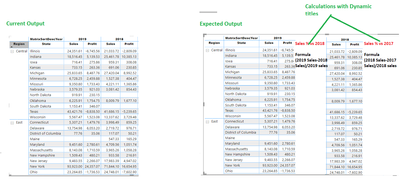
Below is the matrix. I would like to get the dynamic measures which is depending upon the the field year.

Ex: I want to create a calculation % Sales Vs 2018 where the formula is (2019 Sales-2018 Sales)/2019 Sales. This can be done with DAX. My requirement is the name of the measures should be dynamic such as % Sales Vs 2018, % Sales Vs 2017 etc.,  I added the current output vs expected output below. I also attached the pbix file. https://1drv.ms/u/s!Ao1Y41keMwfAcgZ9w3oyHU_NiOA 

I also highlighted the calculations in RED in below snapshot.

Could you help me on this.

BSM1985_0-1620197615240.png 


1 ACCEPTED SOLUTION
MFelix
Super User
Super User

Hi @BSM1985 ,


You cannot directly make the change of a measure name in any visualizaiton however thinking outside the box this can be possible, what I di was the following:


  • Created a Date table (in case of the use of dates is a best practice)
  • On that table created the matrix and matrix sort column has you have
  • Created a tabled with the years and the Sales profit row, also added a column with the text of sales variation:
Sales Measure Table = UNION(DISTINCT(DateDim[Year]) , ROW("Matrix", "Sales"), ROW("Matrix", "Profit"))
  • Added a column to this table with the following syntax:
DinamicName = IF('Sales Measure Table'[Year] in {"Sales", "Profit"}, 'Sales Measure Table'[Year],"Sales % vs " & CONVERT('Sales Measure Table'[Year], INTEGER) - 1)
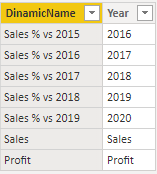
MFelix_0-1620299146685.png


  • Created the following measures:
Variatation vs py = 
VAR Total_sales =
    SUM ( Orders[Sales] )
VAR Previous_year =
    CALCULATE (
        SUM ( Orders[Sales] ),
        FILTER ( ALL ( DateDim ), DateDim[Year] = MAX ( DateDim[Year] ) - 1 )
    )
VAR result =
    DIVIDE ( ( Total_sales - Previous_year ), Total_sales )
RETURN
    result


MatrixValues =
SWITCH (
    TRUE (),
    SELECTEDVALUE ( 'Sales Measure Table'[Year] ) = "Sales", SUM ( Orders[Sales] ),
    SELECTEDVALUE ( 'Sales Measure Table'[Year] ) = "Profit", SUM ( Orders[Profit] ),
    SELECTEDVALUE ( 'Sales Measure Table'[Year] )
        = FORMAT ( SELECTEDVALUE ( DateDim[YearMatrix] ), "#" ),
        IF (
            [Variatation vs py] = BLANK ()
                || SELECTEDVALUE ( DateDim[YearMatrix] )
                    = MINX ( ALL ( DateDim[YearMatrix] ), DateDim[YearMatrix] ),
            BLANK (),
            FORMAT ( [Variatation vs py], "#.00%" )
        )
)


  • Now setup your matrix in the following way:
    • Rows:
      • Region
      • State
    • Columns
      • YearMatrix
      • DinamicName
    • Values
      • MatrixValue

Result below and in attach PBIX file:


MFelix_1-1620299454095.png


Regards

Miguel Félix


Did I answer your question? Mark my post as a solution!

Proud to be a Super User!

Check out my blog: Power BI em Português



View solution in original post

3 REPLIES 3
MFelix
Super User
Super User

Hi @BSM1985 ,


You cannot directly make the change of a measure name in any visualizaiton however thinking outside the box this can be possible, what I di was the following:


  • Created a Date table (in case of the use of dates is a best practice)
  • On that table created the matrix and matrix sort column has you have
  • Created a tabled with the years and the Sales profit row, also added a column with the text of sales variation:
Sales Measure Table = UNION(DISTINCT(DateDim[Year]) , ROW("Matrix", "Sales"), ROW("Matrix", "Profit"))
  • Added a column to this table with the following syntax:
DinamicName = IF('Sales Measure Table'[Year] in {"Sales", "Profit"}, 'Sales Measure Table'[Year],"Sales % vs " & CONVERT('Sales Measure Table'[Year], INTEGER) - 1)

MFelix_0-1620299146685.png


  • Created the following measures:
Variatation vs py = 
VAR Total_sales =
    SUM ( Orders[Sales] )
VAR Previous_year =
    CALCULATE (
        SUM ( Orders[Sales] ),
        FILTER ( ALL ( DateDim ), DateDim[Year] = MAX ( DateDim[Year] ) - 1 )
    )
VAR result =
    DIVIDE ( ( Total_sales - Previous_year ), Total_sales )
RETURN
    result


MatrixValues =
SWITCH (
    TRUE (),
    SELECTEDVALUE ( 'Sales Measure Table'[Year] ) = "Sales", SUM ( Orders[Sales] ),
    SELECTEDVALUE ( 'Sales Measure Table'[Year] ) = "Profit", SUM ( Orders[Profit] ),
    SELECTEDVALUE ( 'Sales Measure Table'[Year] )
        = FORMAT ( SELECTEDVALUE ( DateDim[YearMatrix] ), "#" ),
        IF (
            [Variatation vs py] = BLANK ()
                || SELECTEDVALUE ( DateDim[YearMatrix] )
                    = MINX ( ALL ( DateDim[YearMatrix] ), DateDim[YearMatrix] ),
            BLANK (),
            FORMAT ( [Variatation vs py], "#.00%" )
        )
)


  • Now setup your matrix in the following way:
    • Rows:
      • Region
      • State
    • Columns
      • YearMatrix
      • DinamicName
    • Values
      • MatrixValue

Result below and in attach PBIX file:


MFelix_1-1620299454095.png


Regards

Miguel Félix


Did I answer your question? Mark my post as a solution!

Proud to be a Super User!

Check out my blog: Power BI em Português


Anonymous
Not applicable

The solution you presented is awsome. 

I would like to ask if is possible to sort the table by one of the measures, like "Variatation vs 2018"? 
I have tried, but i can't find a way to do this. 

Hello @MFelix 


Thank you very much for the solution

Helpful resources

Announcements
Power BI DataViz World Championships

Power BI Dataviz World Championships

The Power BI Data Visualization World Championships is back! Get ahead of the game and start preparing now!

December 2025 Power BI Update Carousel

Power BI Monthly Update - December 2025

Check out the December 2025 Power BI Holiday Recap!

FabCon Atlanta 2026 carousel

FabCon Atlanta 2026

Join us at FabCon Atlanta, March 16-20, for the ultimate Fabric, Power BI, AI and SQL community-led event. Save $200 with code FABCOMM.

Top Solution Authors