This time we’re going bigger than ever. Fabric, Power BI, SQL, AI and more. We're covering it all. You won't want to miss it.
Learn moreLevel up your Power BI skills this month - build one visual each week and tell better stories with data! Get started
Fellow Community,
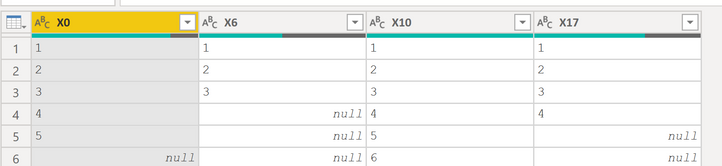
I would like to do the following transformation with a single column data set.
In the example below I would like to use the character "x" as a indicator to start a new column.
When complete I would have a table of multipule columns
Any help is appreciated!!
Starting Column
Vertical Column
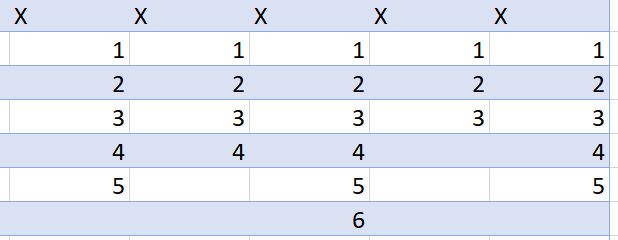
After transformation I would like to have this
Horizontal Table
Solved! Go to Solution.
@Anonymous this is just a rough idea , can be improved but I guess this will get you started.
let
Source = Table.FromRows(Json.Document(Binary.Decompress(Binary.FromText("i45WilCK1YlWMgSTRmDSGEyagElTMIlLDTF6zQipjAUA", BinaryEncoding.Base64), Compression.Deflate)), let _t = ((type text) meta [Serialized.Text = true]) in type table [Column1 = _t]),
#"Changed Type" = Table.TransformColumnTypes(Source,{{"Column1", type text}}),
#"Added Index" = Table.AddIndexColumn(#"Changed Type", "Index", 0, 1),
#"Added Custom" = Table.AddColumn(#"Added Index", "X Col", each if [Column1]="X" then [Column1] & Number.ToText([Index]) else null),
#"Filled Down" = Table.FillDown(#"Added Custom",{"X Col"}),
#"Filtered Rows" = Table.SelectRows(#"Filled Down", each ([Column1] <> "X")),
#"Added Custom2" = Table.AddColumn(#"Filtered Rows", "Custom", each [Column1]),
#"Removed Columns" = Table.RemoveColumns(#"Added Custom2",{"Index"}),
#"Pivoted Column" = Table.Pivot(#"Removed Columns", List.Distinct(#"Removed Columns"[#"X Col"]), "X Col", "Column1"),
#"Removed Columns1" = Table.RemoveColumns(#"Pivoted Column",{"Custom"})
in
#"Removed Columns1"
Subscribe to the @PowerBIHowTo YT channel for an upcoming video on List and Record functions in Power Query!!
Learn Power BI and Fabric - subscribe to our YT channel - Click here: @PowerBIHowTo
If my solution proved useful, I'd be delighted to receive Kudos. When you put effort into asking a question, it's equally thoughtful to acknowledge and give Kudos to the individual who helped you solve the problem. It's a small gesture that shows appreciation and encouragement! ❤
Did I answer your question? Mark my post as a solution. Proud to be a Super User! Appreciate your Kudos 🙂
Feel free to email me with any of your BI needs.

@Anonymous would this work, column header has to be unique, cannot all be X
Subscribe to the @PowerBIHowTo YT channel for an upcoming video on List and Record functions in Power Query!!
Learn Power BI and Fabric - subscribe to our YT channel - Click here: @PowerBIHowTo
If my solution proved useful, I'd be delighted to receive Kudos. When you put effort into asking a question, it's equally thoughtful to acknowledge and give Kudos to the individual who helped you solve the problem. It's a small gesture that shows appreciation and encouragement! ❤
Did I answer your question? Mark my post as a solution. Proud to be a Super User! Appreciate your Kudos 🙂
Feel free to email me with any of your BI needs.

I think this will work, can you share your steps?
@Anonymous this is just a rough idea , can be improved but I guess this will get you started.
let
Source = Table.FromRows(Json.Document(Binary.Decompress(Binary.FromText("i45WilCK1YlWMgSTRmDSGEyagElTMIlLDTF6zQipjAUA", BinaryEncoding.Base64), Compression.Deflate)), let _t = ((type text) meta [Serialized.Text = true]) in type table [Column1 = _t]),
#"Changed Type" = Table.TransformColumnTypes(Source,{{"Column1", type text}}),
#"Added Index" = Table.AddIndexColumn(#"Changed Type", "Index", 0, 1),
#"Added Custom" = Table.AddColumn(#"Added Index", "X Col", each if [Column1]="X" then [Column1] & Number.ToText([Index]) else null),
#"Filled Down" = Table.FillDown(#"Added Custom",{"X Col"}),
#"Filtered Rows" = Table.SelectRows(#"Filled Down", each ([Column1] <> "X")),
#"Added Custom2" = Table.AddColumn(#"Filtered Rows", "Custom", each [Column1]),
#"Removed Columns" = Table.RemoveColumns(#"Added Custom2",{"Index"}),
#"Pivoted Column" = Table.Pivot(#"Removed Columns", List.Distinct(#"Removed Columns"[#"X Col"]), "X Col", "Column1"),
#"Removed Columns1" = Table.RemoveColumns(#"Pivoted Column",{"Custom"})
in
#"Removed Columns1"
Subscribe to the @PowerBIHowTo YT channel for an upcoming video on List and Record functions in Power Query!!
Learn Power BI and Fabric - subscribe to our YT channel - Click here: @PowerBIHowTo
If my solution proved useful, I'd be delighted to receive Kudos. When you put effort into asking a question, it's equally thoughtful to acknowledge and give Kudos to the individual who helped you solve the problem. It's a small gesture that shows appreciation and encouragement! ❤
Did I answer your question? Mark my post as a solution. Proud to be a Super User! Appreciate your Kudos 🙂
Feel free to email me with any of your BI needs.
Check out the April 2026 Power BI update to learn about new features.
Sign up to receive a private message when registration opens and key events begin.
If you have recently started exploring Fabric, we'd love to hear how it's going. Your feedback can help with product improvements.
| User | Count |
|---|---|
| 36 | |
| 30 | |
| 29 | |
| 21 | |
| 18 |
| User | Count |
|---|---|
| 68 | |
| 45 | |
| 33 | |
| 24 | |
| 23 |