Join us in Barcelona for FabCon and SQLCon, September 28 - October 1, 2026.
This is best Fabric, Power BI, SQL and AI community event. How do we know? The last event sold out! Save €200 with code FABCMTY200.
Register now- Power BI forums
- Get Help with Power BI
- Desktop
- Service
- Report Server
- Power Query
- Mobile Apps
- Developer
- DAX Commands and Tips
- Custom Visuals Development Discussion
- Health and Life Sciences
- Power BI Spanish forums
- Translated Spanish Desktop
- Training and Consulting
- Instructor Led Training
- Dashboard in a Day for Women, by Women
- Galleries
- Data Stories Gallery
- Themes Gallery
- Contests Gallery
- QuickViz Gallery
- Quick Measures Gallery
- Visual Calculations Gallery
- Fabric Apps Gallery
- Notebook Gallery
- Translytical Task Flow Gallery
- TMDL Gallery
- R Script Showcase
- Webinars and Video Gallery
- Ideas
- Custom Visuals Ideas (read-only)
- Issues
- Issues
- Events
- Upcoming Events
The Fabric community is upgrading! Read all of the details including the timeline and what you can expect. Learn more
- Power BI forums
- Forums
- Get Help with Power BI
- Desktop
- Re: Creating a Matrix
- Subscribe to RSS Feed
- Mark Topic as New
- Mark Topic as Read
- Float this Topic for Current User
- Bookmark
- Subscribe
- Printer Friendly Page

- Mark as New
- Bookmark
- Subscribe
- Mute
- Subscribe to RSS Feed
- Permalink
- Report Inappropriate Content
Creating a Matrix
Hi
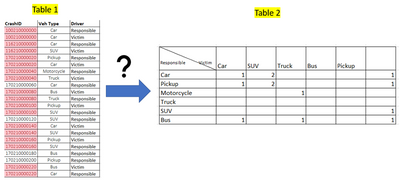
How to make Table 2 based on data in Table 1. Table 1 contains accident data, Crash ID refers to a unique ID of a crash, Veh Type refers to the types of vehicles involved in crashes, and the Driver column contains the driver either responsible or the victim. For instance, crash Id 100210000000 occurred between two cars and one of them was responsible.
I tried the matrix visual option and created two columns as follows.
DrRes = if([Driver]= “Responsible” , [Veh Type], blank ())
DrVic = if([Driver]= “Victim” , [Veh Type], blank ())
And used DrRes as Rows and DrVic as column but no luck to create desired Table 2, please assist.
Solved! Go to Solution.
- Mark as New
- Bookmark
- Subscribe
- Mute
- Subscribe to RSS Feed
- Permalink
- Report Inappropriate Content
Thanks for your kind assistance, could I ask how to create the following table
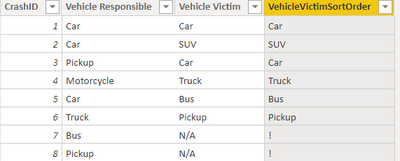
from give Table 1


- Mark as New
- Bookmark
- Subscribe
- Mute
- Subscribe to RSS Feed
- Permalink
- Report Inappropriate Content
Hi @Anonymous ,
According to your description, here's my solution.
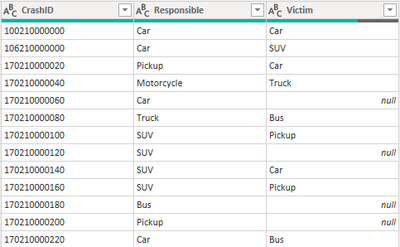
1.Select the Driver column, then click Pivot Column.
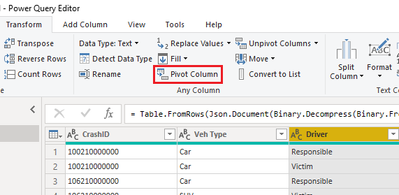
Select "Veh Type" column in the Values Column option and select Don't Aggregate in the Advanced options.
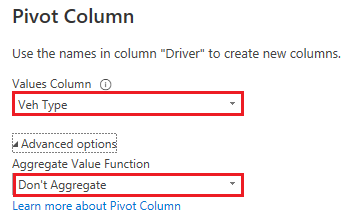
Result:
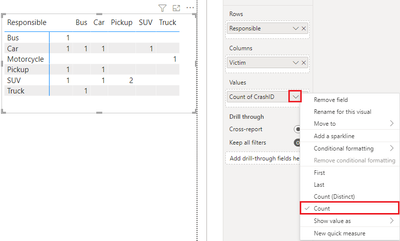
2. In a matrix visual, put Responsible column in Rows, Victim column in Columns, Crash ID column in Values and select Count in the dropdown option, get the correct result:
I attach my sample below for your reference.
Best Regards,
Community Support Team _ kalyj
If this post helps, then please consider Accept it as the solution to help the other members find it more quickly.
- Mark as New
- Bookmark
- Subscribe
- Mute
- Subscribe to RSS Feed
- Permalink
- Report Inappropriate Content
Hi @Anonymous ,
According to your description, here's my solution.
1.Select the Driver column, then click Pivot Column.
Select "Veh Type" column in the Values Column option and select Don't Aggregate in the Advanced options.
Result:
2. In a matrix visual, put Responsible column in Rows, Victim column in Columns, Crash ID column in Values and select Count in the dropdown option, get the correct result:
I attach my sample below for your reference.
Best Regards,
Community Support Team _ kalyj
If this post helps, then please consider Accept it as the solution to help the other members find it more quickly.


- Mark as New
- Bookmark
- Subscribe
- Mute
- Subscribe to RSS Feed
- Permalink
- Report Inappropriate Content
- Mark as New
- Bookmark
- Subscribe
- Mute
- Subscribe to RSS Feed
- Permalink
- Report Inappropriate Content
Thank you very much DaXtreme very helpful, I ran to another issue: ole db or odbc error
- Mark as New
- Bookmark
- Subscribe
- Mute
- Subscribe to RSS Feed
- Permalink
- Report Inappropriate Content
Everything that's needed to create the matrix I created in the file is in the file. Even the transformations needed to create the table in the model from the initial one...
- Mark as New
- Bookmark
- Subscribe
- Mute
- Subscribe to RSS Feed
- Permalink
- Report Inappropriate Content
Thanks for your kind assistance, could I ask how to create the following table
from give Table 1
Helpful resources

FabCon & SQLCon – Barcelona 2026
Join us in Barcelona for FabCon and SQLCon, the Fabric, Power BI, SQL, and AI community event. Save €200 with code FABCMTY200.

Power BI DataViz World Championships - June 2026
A new Power BI DataViz World Championship is coming this June! Don't miss out on submitting your entry.

| User | Count |
|---|---|
| 24 | |
| 22 | |
| 20 | |
| 18 | |
| 14 |


| User | Count |
|---|---|
| 32 | |
| 26 | |
| 23 | |
| 20 | |
| 20 |


