Don't miss your chance to take the Fabric Data Engineer (DP-600) exam for FREE! Find out how by watching the DP-600 session on-demand now through April 28th.
Learn moreJoin the FabCon + SQLCon recap series. Up next: Power BI, Real-Time Intelligence, IQ and AI, and Data Factory take center stage. All sessions are available on-demand after the live show. Register now
Hi
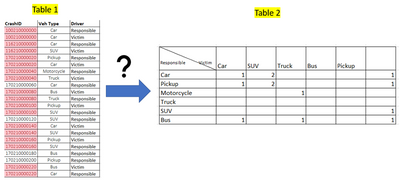
How to make Table 2 based on data in Table 1. Table 1 contains accident data, Crash ID refers to a unique ID of a crash, Veh Type refers to the types of vehicles involved in crashes, and the Driver column contains the driver either responsible or the victim. For instance, crash Id 100210000000 occurred between two cars and one of them was responsible.
I tried the matrix visual option and created two columns as follows.
DrRes = if([Driver]= “Responsible” , [Veh Type], blank ())
DrVic = if([Driver]= “Victim” , [Veh Type], blank ())
And used DrRes as Rows and DrVic as column but no luck to create desired Table 2, please assist.
Solved! Go to Solution.
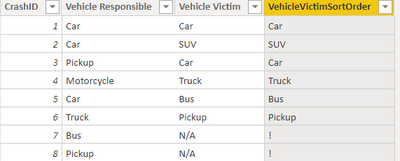
Thanks for your kind assistance, could I ask how to create the following table
from give Table 1
Hi @Anonymous ,
According to your description, here's my solution.
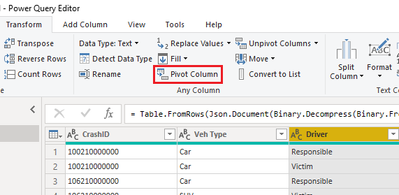
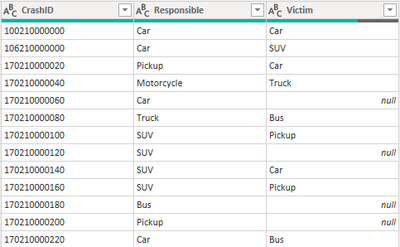
1.Select the Driver column, then click Pivot Column.
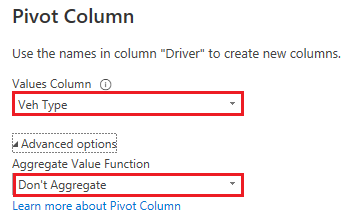
Select "Veh Type" column in the Values Column option and select Don't Aggregate in the Advanced options.
Result:
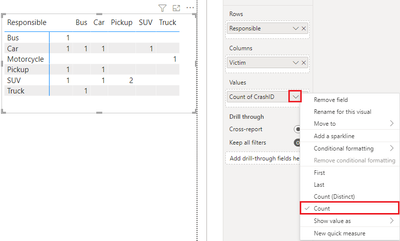
2. In a matrix visual, put Responsible column in Rows, Victim column in Columns, Crash ID column in Values and select Count in the dropdown option, get the correct result:
I attach my sample below for your reference.
Best Regards,
Community Support Team _ kalyj
If this post helps, then please consider Accept it as the solution to help the other members find it more quickly.
Hi @Anonymous ,
According to your description, here's my solution.
1.Select the Driver column, then click Pivot Column.
Select "Veh Type" column in the Values Column option and select Don't Aggregate in the Advanced options.
Result:
2. In a matrix visual, put Responsible column in Rows, Victim column in Columns, Crash ID column in Values and select Count in the dropdown option, get the correct result:
I attach my sample below for your reference.
Best Regards,
Community Support Team _ kalyj
If this post helps, then please consider Accept it as the solution to help the other members find it more quickly.
Thank you very much DaXtreme very helpful, I ran to another issue: ole db or odbc error
Everything that's needed to create the matrix I created in the file is in the file. Even the transformations needed to create the table in the model from the initial one...
Thanks for your kind assistance, could I ask how to create the following table
from give Table 1
Check out the April 2026 Power BI update to learn about new features.
If you have recently started exploring Fabric, we'd love to hear how it's going. Your feedback can help with product improvements.
A new Power BI DataViz World Championship is coming this June! Don't miss out on submitting your entry.
| User | Count |
|---|---|
| 41 | |
| 37 | |
| 34 | |
| 21 | |
| 16 |
| User | Count |
|---|---|
| 64 | |
| 58 | |
| 31 | |
| 25 | |
| 25 |