cancel
Showing results for 
Search instead for 
Did you mean: 

The Power BI Data Visualization World Championships is back! Get ahead of the game and start preparing now! Learn more

Reply
Anonymous
Not applicable

Create a parameter named DataSourceExcel that

You create a parameter named DataSourceExcel that holds the file name and location of a Microsoft Excel data source.
You need to update the query to reference the parameter instead of multiple hard-coded copies of the location within each query definition.
Solution: In the Power Query M code, you replace references to the Excel file with DataSourceExcel.
Does this meet the goal?

  • A. Yes
  • B. No
1 ACCEPTED SOLUTION
BedhiafiAmira
Frequent Visitor

Let's imagine this scenario, If we have 5 queries, each of them pointing to the same Excel file. If we need to change Excel file location using M code, we need to go to advanced editor for each query and hard-code location of new Excel file. We need to repeat it each time we change the data source.


If we create just 1 parameter and use this parameter name instead of hard-code Excel location in each query, once we change parameter value (only on one place), it will update automatically all 5 queries. So we will have to change reference from hard-coded value to parameter on each query, but we do this only once, after that ew change only parameter value on 1 place.


Yes it does meet the goal. This is a simple example :

I imported an Excel file first without using a parameter and copied it twice, now I have 3 tables pointing to the same Excel file : (This is another way as I am supposing your question is related the to certification exam)


let
Source = let
Source = Excel.Workbook(File.Contents("XXXXXX\Sample Data 1.xlsx"), null, true),
Emp_Sheet = Source{[Item="Emp",Kind="Sheet"]}[Data],
#"Promoted Headers" = Table.PromoteHeaders(Emp_Sheet, [PromoteAllScalars=true]),
#"Changed Type" = Table.TransformColumnTypes(#"Promoted Headers",{{"EmpID", type text}, {"Name", type text}, {"Month", type date}})
in
#"Changed Type"
in
Source
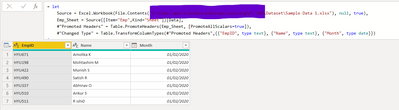
 

BedhiafiAmira_0-1660570842848.png

Then I created a parameter pointing to the location of that file :
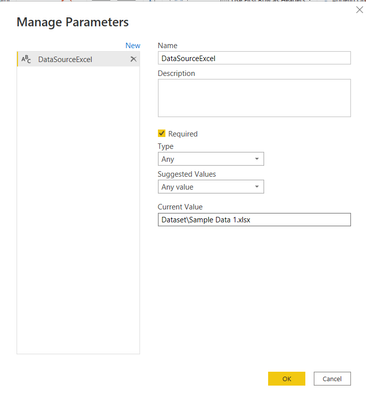
BedhiafiAmira_1-1660570908389.png


and I updated the code of each query like below : DataSourceExcel is the variable containing the path of the Excel file :


= let
Source = Excel.Workbook(File.Contents(DataSourceExcel), null, true),
Emp_Sheet = Source{[Item="Emp",Kind="Sheet"]}[Data],
#"Promoted Headers" = Table.PromoteHeaders(Emp_Sheet, [PromoteAllScalars=true]),
#"Changed Type" = Table.TransformColumnTypes(#"Promoted Headers",{{"EmpID", type text}, {"Name", type text}, {"Month", type date}})
in
#"Changed Type"


To conclude the answer is No.

View solution in original post

1 REPLY 1
BedhiafiAmira
Frequent Visitor

Let's imagine this scenario, If we have 5 queries, each of them pointing to the same Excel file. If we need to change Excel file location using M code, we need to go to advanced editor for each query and hard-code location of new Excel file. We need to repeat it each time we change the data source.


If we create just 1 parameter and use this parameter name instead of hard-code Excel location in each query, once we change parameter value (only on one place), it will update automatically all 5 queries. So we will have to change reference from hard-coded value to parameter on each query, but we do this only once, after that ew change only parameter value on 1 place.


Yes it does meet the goal. This is a simple example :

I imported an Excel file first without using a parameter and copied it twice, now I have 3 tables pointing to the same Excel file : (This is another way as I am supposing your question is related the to certification exam)


let
Source = let
Source = Excel.Workbook(File.Contents("XXXXXX\Sample Data 1.xlsx"), null, true),
Emp_Sheet = Source{[Item="Emp",Kind="Sheet"]}[Data],
#"Promoted Headers" = Table.PromoteHeaders(Emp_Sheet, [PromoteAllScalars=true]),
#"Changed Type" = Table.TransformColumnTypes(#"Promoted Headers",{{"EmpID", type text}, {"Name", type text}, {"Month", type date}})
in
#"Changed Type"
in
Source


BedhiafiAmira_0-1660570842848.png

Then I created a parameter pointing to the location of that file :

BedhiafiAmira_1-1660570908389.png


and I updated the code of each query like below : DataSourceExcel is the variable containing the path of the Excel file :


= let
Source = Excel.Workbook(File.Contents(DataSourceExcel), null, true),
Emp_Sheet = Source{[Item="Emp",Kind="Sheet"]}[Data],
#"Promoted Headers" = Table.PromoteHeaders(Emp_Sheet, [PromoteAllScalars=true]),
#"Changed Type" = Table.TransformColumnTypes(#"Promoted Headers",{{"EmpID", type text}, {"Name", type text}, {"Month", type date}})
in
#"Changed Type"


To conclude the answer is No.

Helpful resources

Announcements
Power BI DataViz World Championships

Power BI Dataviz World Championships

The Power BI Data Visualization World Championships is back! Get ahead of the game and start preparing now!

December 2025 Power BI Update Carousel

Power BI Monthly Update - December 2025

Check out the December 2025 Power BI Holiday Recap!

FabCon Atlanta 2026 carousel

FabCon Atlanta 2026

Join us at FabCon Atlanta, March 16-20, for the ultimate Fabric, Power BI, AI and SQL community-led event. Save $200 with code FABCOMM.