Learn from the best! Meet the four finalists headed to the FINALS of the Power BI Dataviz World Championships! Register now
I have tried to append rows of by cloumns, the original data looks like this
| Name | Date1 | Cost1 | Date2 | Cost2 |
| A | 2013-03-25 | 1,923,245.06 | ||
| B | 2015-06-04 | 4,104,660.00 | 2017-10-16 | 392,073.48 |
| C | 2015-09-10 | 771,540.00 | 2017-08-16 | 627,925.50 |
| D | 2013-07-19 | 1,917,441.27 | 2016-10-14 | 476,390.88 |
| E | 2015-06-02 | - 1,261,474.52 | 2016-07-28 | 153,216.00 |
| F | 2015-07-27 | - | 2015-09-29 | 47,151.00 |
and I want it to look like this,
| Name | Date | Cost |
| A | 25/03/2013 | 1,923,245.06 |
| B | 04/06/2015 | 4,104,660.00 |
| C | 10/09/2015 | 771,540.00 |
| D | 19/07/2013 | 1,917,441.27 |
| E | 02/06/2015 | -1,261,474.52 |
| F | 27/07/2015 | - |
| A | ||
| B | 16/10/2017 | 392,073.48 |
| C | 16/08/2017 | 627,925.50 |
| D | 14/10/2016 | 476,390.88 |
| E | 28/07/2016 | 153,216.00 |
| F | 29/09/2015 | 47,151.00 |
Any suggestions, thank you.
Solved! Go to Solution.
This should work:
let
Source = Excel.CurrentWorkbook(){[Name="Test_Unpivot"]}[Content],
#"Changed Type" = Table.TransformColumnTypes(Source,{{"Name", type text}, {" Date1 ", type datetime}, {" Cost1 ", type text}, {"Date2", type datetime}, {" Cost2 ", type text}}),
#"Unpivoted Only Selected Columns" = Table.Unpivot(#"Changed Type", {" Date1 ", " Cost1 ", "Date2", " Cost2 "}, "Attribut", "Value"),
#"Trimmed Text" = Table.TransformColumns(#"Unpivoted Only Selected Columns",{{"Attribut", Text.Trim, type text}}),
#"Added Name_temp" = Table.AddColumn(#"Trimmed Text", "Name_temp", each [Name]&Text.End([Attribut],1)),
#"Replace '1'" = Table.ReplaceValue(#"Added Name_temp","1","",Replacer.ReplaceText,{"Attribut"}),
#"Replace '2'" = Table.ReplaceValue(#"Replace '1'","2","",Replacer.ReplaceText,{"Attribut"}),
#"Removed Name" = Table.RemoveColumns(#"Replace '2'",{"Name"}),
#"Pivoted Column" = Table.Pivot(#"Removed Name", List.Distinct(#"Removed Name"[Attribut]), "Attribut", "Value"),
#"Add Name" = Table.AddColumn(#"Pivoted Column", "Name", each Text.Start([Name_temp],1)),
#"Removed Name_temp" = Table.RemoveColumns(#"Add Name",{"Name_temp"}),
#"Reordered Columns" = Table.ReorderColumns(#"Removed Name_temp",{"Name", "Date", "Cost"}),
#"Changed Date" = Table.TransformColumnTypes(#"Reordered Columns",{{"Date", type date}})
in
#"Changed Date"
This should work:
let
Source = Excel.CurrentWorkbook(){[Name="Test_Unpivot"]}[Content],
#"Changed Type" = Table.TransformColumnTypes(Source,{{"Name", type text}, {" Date1 ", type datetime}, {" Cost1 ", type text}, {"Date2", type datetime}, {" Cost2 ", type text}}),
#"Unpivoted Only Selected Columns" = Table.Unpivot(#"Changed Type", {" Date1 ", " Cost1 ", "Date2", " Cost2 "}, "Attribut", "Value"),
#"Trimmed Text" = Table.TransformColumns(#"Unpivoted Only Selected Columns",{{"Attribut", Text.Trim, type text}}),
#"Added Name_temp" = Table.AddColumn(#"Trimmed Text", "Name_temp", each [Name]&Text.End([Attribut],1)),
#"Replace '1'" = Table.ReplaceValue(#"Added Name_temp","1","",Replacer.ReplaceText,{"Attribut"}),
#"Replace '2'" = Table.ReplaceValue(#"Replace '1'","2","",Replacer.ReplaceText,{"Attribut"}),
#"Removed Name" = Table.RemoveColumns(#"Replace '2'",{"Name"}),
#"Pivoted Column" = Table.Pivot(#"Removed Name", List.Distinct(#"Removed Name"[Attribut]), "Attribut", "Value"),
#"Add Name" = Table.AddColumn(#"Pivoted Column", "Name", each Text.Start([Name_temp],1)),
#"Removed Name_temp" = Table.RemoveColumns(#"Add Name",{"Name_temp"}),
#"Reordered Columns" = Table.ReorderColumns(#"Removed Name_temp",{"Name", "Date", "Cost"}),
#"Changed Date" = Table.TransformColumnTypes(#"Reordered Columns",{{"Date", type date}})
in
#"Changed Date"
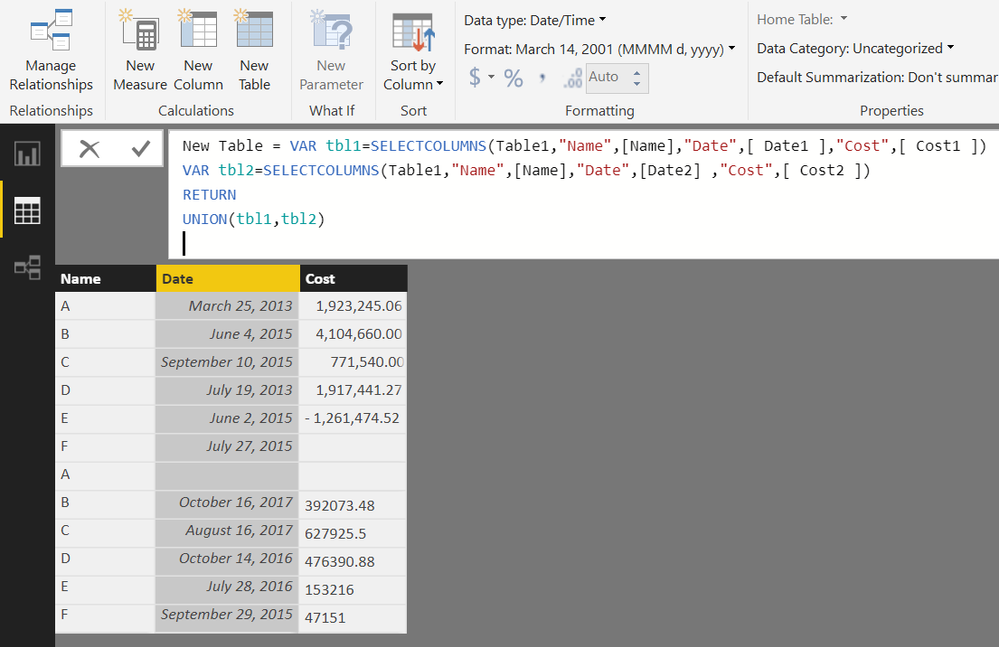
Also, you can create a Calculated Table in DAX to acheive desired output
From the Modelling Tab>>New Table
New Table =
VAR tbl1 =
SELECTCOLUMNS ( Table1, "Name", [Name], "Date", [ Date1 ], "Cost", [ Cost1 ] )
VAR tbl2 =
SELECTCOLUMNS ( Table1, "Name", [Name], "Date", [Date2], "Cost", [ Cost2 ] )
RETURN
UNION ( tbl1, tbl2 )
Please See the attached file
Not very fancy - but, what about pulling in your data twice?
First query - just grab the left most data (remove the columns to the right.)
Second query - just grab the right most data (remove the columns on the left)
Or vise versa.
Then merge those 2 queries together.
A new Power BI DataViz World Championship is coming this June! Don't miss out on submitting your entry.
Share feedback directly with Fabric product managers, participate in targeted research studies and influence the Fabric roadmap.
| User | Count |
|---|---|
| 46 | |
| 31 | |
| 29 | |
| 15 | |
| 15 |
| User | Count |
|---|---|
| 58 | |
| 57 | |
| 38 | |
| 21 | |
| 21 |