FabCon is coming to Atlanta
Join us at FabCon Atlanta from March 16 - 20, 2026, for the ultimate Fabric, Power BI, AI and SQL community-led event. Save $200 with code FABCOMM.
Register now!- Power BI forums
- Get Help with Power BI
- Desktop
- Service
- Report Server
- Power Query
- Mobile Apps
- Developer
- DAX Commands and Tips
- Custom Visuals Development Discussion
- Health and Life Sciences
- Power BI Spanish forums
- Translated Spanish Desktop
- Training and Consulting
- Instructor Led Training
- Dashboard in a Day for Women, by Women
- Galleries
- Data Stories Gallery
- Themes Gallery
- Contests Gallery
- QuickViz Gallery
- Quick Measures Gallery
- Visual Calculations Gallery
- Notebook Gallery
- Translytical Task Flow Gallery
- TMDL Gallery
- R Script Showcase
- Webinars and Video Gallery
- Ideas
- Custom Visuals Ideas (read-only)
- Issues
- Issues
- Events
- Upcoming Events
The Power BI Data Visualization World Championships is back! Get ahead of the game and start preparing now! Learn more
- Power BI forums
- Forums
- Get Help with Power BI
- Desktop
- Add a serial number to a new table created in Powe...
- Subscribe to RSS Feed
- Mark Topic as New
- Mark Topic as Read
- Float this Topic for Current User
- Bookmark
- Subscribe
- Printer Friendly Page


- Mark as New
- Bookmark
- Subscribe
- Mute
- Subscribe to RSS Feed
- Permalink
- Report Inappropriate Content
Add a serial number to a new table created in Power BI
Hi all,
I wanted to sort data by customized date, so I created a table as below. Then I couldn't figure out how to add a column showing the row number of each. Does someone know about that?
I appreciate your help!
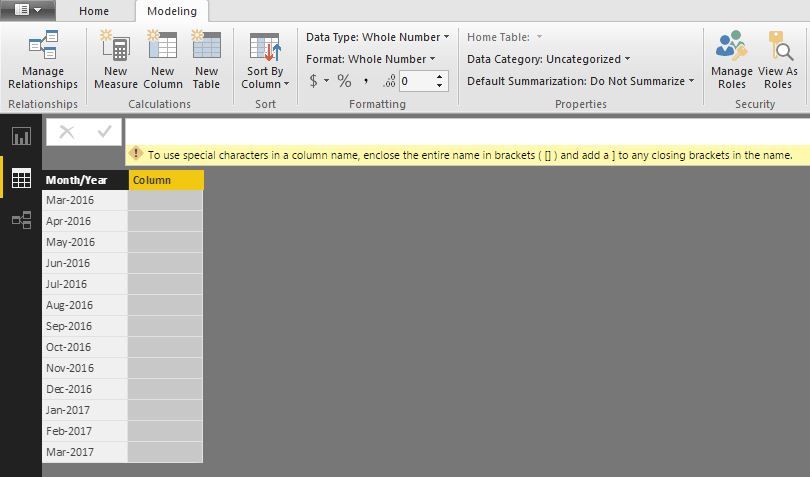
Solved! Go to Solution.


- Mark as New
- Bookmark
- Subscribe
- Mute
- Subscribe to RSS Feed
- Permalink
- Report Inappropriate Content
Hi, let me propose a solution to this:
Step1:
Create a Table with 2 Columns instead of your Month-year Table
MonthYearTable = DISTINCT(SELECTCOLUMNS(Table1,"Month-year",Table1[Month-Year],"Month-year-alt",Table1[Month-Year]))
Step 2:
Change the Data Type to Month-year-alt to Date
Step 3:
Create a New Calculated Column:
MonthSort = RANKX(MonthYearTable,MonthYearTable[Month-year-alt],,ASC)
Step 4: Select your first Column: Month-year and go to Modeling-Sort by Column and choose MonthSort
Ready
Lima - Peru


- Mark as New
- Bookmark
- Subscribe
- Mute
- Subscribe to RSS Feed
- Permalink
- Report Inappropriate Content
Just add an index column
- Mark as New
- Bookmark
- Subscribe
- Mute
- Subscribe to RSS Feed
- Permalink
- Report Inappropriate Content
Thank you so much for your reply.
Could you show me where I can add it? I tried to add an index column under Modeling, but it didn't work; I also tried to edit queries, but the new table I created did not show in the list of tables.
Thanks!
- Mark as New
- Bookmark
- Subscribe
- Mute
- Subscribe to RSS Feed
- Permalink
- Report Inappropriate Content
- Mark as New
- Bookmark
- Subscribe
- Mute
- Subscribe to RSS Feed
- Permalink
- Report Inappropriate Content
Thank you!
I found the index column in query editor, but the problem is, the table I created did not show up, so I was not able to edit queries.
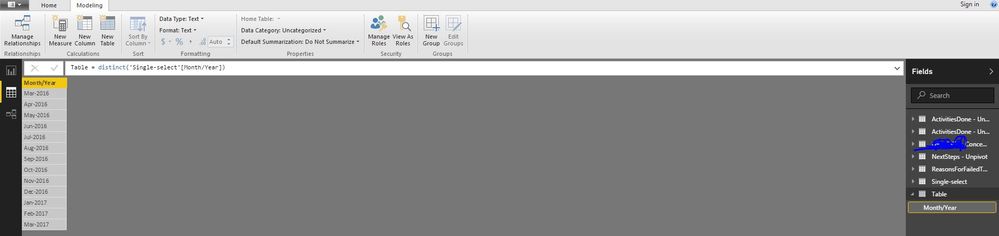
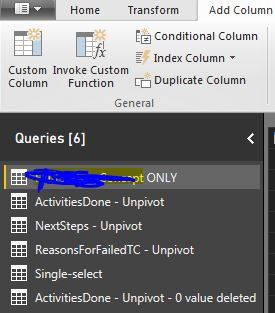
Do you know how to solve this problem?
Great thanks!
- Mark as New
- Bookmark
- Subscribe
- Mute
- Subscribe to RSS Feed
- Permalink
- Report Inappropriate Content
- Mark as New
- Bookmark
- Subscribe
- Mute
- Subscribe to RSS Feed
- Permalink
- Report Inappropriate Content
There are a bunch of columns in this table, some are texts, some are numbers. Basically, I created a new table under the Data view - Modeling, and used one of the variables (Month/Year) in the single-select table.
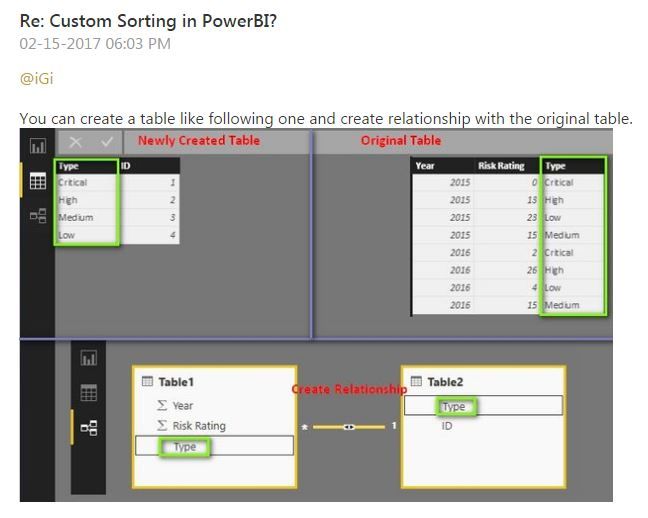
What I want to do is similar to this question:
http://community.powerbi.com/t5/Desktop/Custom-Sorting-in-PowerBI/td-p/126534
but I just could not figure out how to get the numbers in the ID column in the newly created table shown below.
Thank you!
- Mark as New
- Bookmark
- Subscribe
- Mute
- Subscribe to RSS Feed
- Permalink
- Report Inappropriate Content
Hi, let me propose a solution to this:
Step1:
Create a Table with 2 Columns instead of your Month-year Table
MonthYearTable = DISTINCT(SELECTCOLUMNS(Table1,"Month-year",Table1[Month-Year],"Month-year-alt",Table1[Month-Year]))
Step 2:
Change the Data Type to Month-year-alt to Date
Step 3:
Create a New Calculated Column:
MonthSort = RANKX(MonthYearTable,MonthYearTable[Month-year-alt],,ASC)
Step 4: Select your first Column: Month-year and go to Modeling-Sort by Column and choose MonthSort
Ready
Lima - Peru
- Mark as New
- Bookmark
- Subscribe
- Mute
- Subscribe to RSS Feed
- Permalink
- Report Inappropriate Content
It works! Great thanks to you!!

Helpful resources

Power BI Dataviz World Championships
The Power BI Data Visualization World Championships is back! Get ahead of the game and start preparing now!

Power BI Monthly Update - December 2025
Check out the December 2025 Power BI Holiday Recap!

FabCon Atlanta 2026
Join us at FabCon Atlanta, March 16-20, for the ultimate Fabric, Power BI, AI and SQL community-led event. Save $200 with code FABCOMM.

| User | Count |
|---|---|
| 41 | |
| 39 | |
| 37 | |
| 29 | |
| 24 |


| User | Count |
|---|---|
| 122 | |
| 110 | |
| 83 | |
| 69 | |
| 68 |


