
cancel
Showing results for 
Search instead for 
Did you mean: 

July 7 - July 17 | Round 2 of the Power BI Dataviz World Championships. Don't miss your chance! Learn more

Reply
cfg_fang
New Member

Add Subtotal Rows for selected amount

Hi all,


I am trying to get the subtotal for selected rows but I have no idea on how to do it.

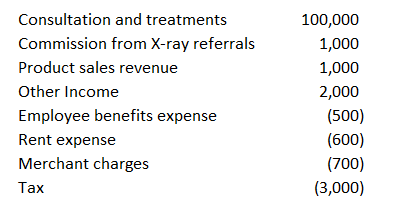
Example for what I have :

cfg_fang_0-1660794553918.png


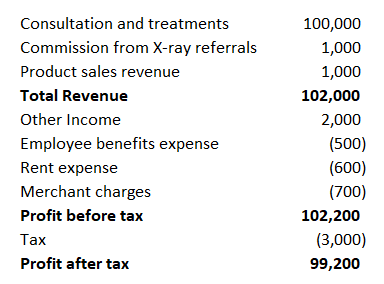
Example for what I wish :

cfg_fang_1-1660794616704.png

Is there any way that I can add in subtotal which I highlighted in bold (Total Revenue, Profit before tax and Profit after tax)?


Thank you for you help 🙂

1 ACCEPTED SOLUTION
Anonymous
Not applicable

Hi  @cfg_fang,

You can refer the following threads which has the similar requirement as yours, hope they can help you achieve your expected result.

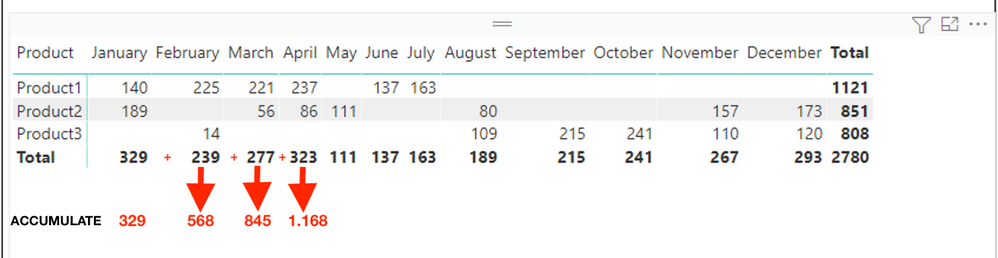
Add new row with accumulate in Matrix

yingyinr_4-1661157764825.png

1. Create a calculated table with below formula

Table = UNION(VALUES('Sales'[Product]),ROW("Product","XMonth Accumulate")) 

yingyinr_0-1661157508885.png2. Create two measures as below to get the sum of sales

Measure = 
VAR _selmonthname =
    SELECTEDVALUE ( 'Date'[MontName] )
VAR _selmonthnum =
    CALCULATE (
        MAX ( 'Date'[MontNumber] ),
        FILTER ( 'Date', 'Date'[MontName] = _selmonthname )
    )
RETURN
    SWITCH (
        SELECTEDVALUE ( 'Table'[Product] ),
        "XMonth Accumulate",
            SUMX (
                FILTER (
                    ALLSELECTED ( 'Sales' ),
                    MONTH ( 'Sales'[Date] ) <= VALUE ( _selmonthnum )
                ),
                [Sales (Selected Month)]
            ),
        SUMX (
            FILTER ( 'Sales', 'Sales'[Product] = SELECTEDVALUE ( 'Table'[Product] ) ),
            [Sales (Selected Month)]
        )
    )
Month Accumulate = 
IF (
    ISINSCOPE ( 'Table'[Product] ),
    SUMX ( VALUES ( 'Table'[Product] ), [Measure] ),
    [Sales (Selected Month)]
)

3. Create a matrix visual (Rows: field Product of Table   Column: field MonthName in Date table  Values: [Month Accumulate] )


yingyinr_1-1661157509744.png

View solution in original post

3 REPLIES 3
Anonymous
Not applicable

Hi  @cfg_fang,

You can refer the following threads which has the similar requirement as yours, hope they can help you achieve your expected result.

Add new row with accumulate in Matrix

yingyinr_4-1661157764825.png

1. Create a calculated table with below formula

Table = UNION(VALUES('Sales'[Product]),ROW("Product","XMonth Accumulate")) 

yingyinr_0-1661157508885.png2. Create two measures as below to get the sum of sales

Measure = 
VAR _selmonthname =
    SELECTEDVALUE ( 'Date'[MontName] )
VAR _selmonthnum =
    CALCULATE (
        MAX ( 'Date'[MontNumber] ),
        FILTER ( 'Date', 'Date'[MontName] = _selmonthname )
    )
RETURN
    SWITCH (
        SELECTEDVALUE ( 'Table'[Product] ),
        "XMonth Accumulate",
            SUMX (
                FILTER (
                    ALLSELECTED ( 'Sales' ),
                    MONTH ( 'Sales'[Date] ) <= VALUE ( _selmonthnum )
                ),
                [Sales (Selected Month)]
            ),
        SUMX (
            FILTER ( 'Sales', 'Sales'[Product] = SELECTEDVALUE ( 'Table'[Product] ) ),
            [Sales (Selected Month)]
        )
    )
Month Accumulate = 
IF (
    ISINSCOPE ( 'Table'[Product] ),
    SUMX ( VALUES ( 'Table'[Product] ), [Measure] ),
    [Sales (Selected Month)]
)

3. Create a matrix visual (Rows: field Product of Table   Column: field MonthName in Date table  Values: [Month Accumulate] )


yingyinr_1-1661157509744.png
MahyarTF
Memorable Member
Memorable Member

Hi,

Not sure if it is a good idea,

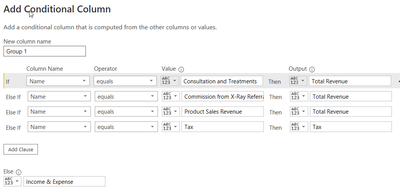
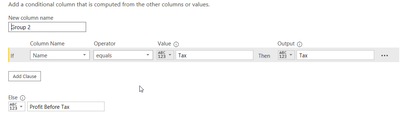
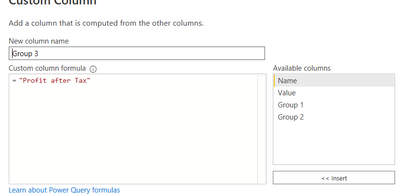
But I add the 3 separate column in Power Query :

- the first one is :

MahyarTF_0-1660796821799.png

-The second one :

MahyarTF_1-1660796850430.png


- The third one : 

MahyarTF_2-1660796877832.png


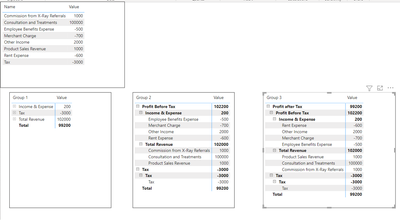
In the end I have this table : 

MahyarTF_3-1660796903731.png

Then Create the Matrix visual (the right one is with all groups) as below :


MahyarTF_4-1660796986546.png

Appreciate your Kudos

Mahyartf
amitchandak
Super User
Super User

@cfg_fang , What I have done for that is aI appended a table with those account names

Append : https://radacad.com/append-vs-merge-in-power-bi-and-power-query into my Account table (Append table power query)


Then I created a measure

if( Max(Table[Account Name]) <> "Profit before tax" ,

[Measure] , calculate([Measure], filter(allselected(Table[Account Name]) , Table[Account Group] in {"Income"} ) )
- calculate([Measure], filter(allselected(Table[Account Name]) , Table[Account Group] in {"Expense"} ) )
)


You can use individual account names too in place groups. I have given in for that in code


Share with Power BI Enthusiasts: Full Power BI Video (20 Hours) YouTube
Microsoft Fabric Series 60+ Videos YouTube
Microsoft Fabric Hindi End to End YouTube

Helpful resources

Announcements
FabCon and SQLCon Barcelona 2026

FabCon & SQLCon – Barcelona 2026

Join us in Barcelona for FabCon and SQLCon, the Fabric, Power BI, SQL, and AI community event. Save €200 with code FABCMTY200.

60 days of Data Days Carousel

Data Days 2026

Join Fabric Data Days 2026: 60 days of free live/on-demand sessions, challenges, study groups, and certification opportunities.

Power BI DataViz World Championships carousel

Power BI DataViz World Championships - June 2026

A new Power BI DataViz World Championship is coming this June! Don't miss out on submitting your entry.