Join us at FabCon Atlanta from March 16 - 20, 2026, for the ultimate Fabric, Power BI, AI and SQL community-led event. Save $200 with code FABCOMM.
Register now!The Power BI Data Visualization World Championships is back! Get ahead of the game and start preparing now! Learn more
Hi All,
I have this is in continuation of Old post . An awsome solution was given by @camargos88 using power query - join. Now I have realised that raw data size is huge and I need multiple charts and foreach combination I don't want to create join. I want to do it using DAX alone. Is it possible?
I have data like below:
State | Engineer|
Florida, Johny
Florida, Nick
Indiana, Johny
Indiana, Nick
I want a pivot table like below which shows common engineer between states.
| State | Florida | Indiana |
| Florida | NA | 1 |
| Indiana | 1 | NA |
Santhosh K
Solved! Go to Solution.
Here you go:
In case you do not want to create a relationship between your base table the filter table:
EngineerCount =
VAR EngineerCount = VALUES('Table'[Engineer])
VAR FilterEngineerCount = CALCULATETABLE(VALUES('Table'[Engineer]);ALL('Table');TREATAS(VALUES(FilterStates[State]); 'Table'[State]))
RETURN
COUNTROWS(INTERSECT(EngineerCount;FilterEngineerCount))
In case you can create an inactive relationship:
EngineersinBotStates =
CALCULATE (
DISTINCTCOUNT ('Table'[Engineer] );
CALCULATETABLE (
SUMMARIZE ( 'Table';'Table'[Engineer] );
ALL ( 'Table');
USERELATIONSHIP ( 'Table'[State]; FilterStates[State] )
)
)
Which is based on this article:
https://www.daxpatterns.com/basket-analysis/
Result can be seen here, please note the data model and the use of a filtered states table, which is created with:
FilterStates = SUMMARIZE('Table';'Table'[State])
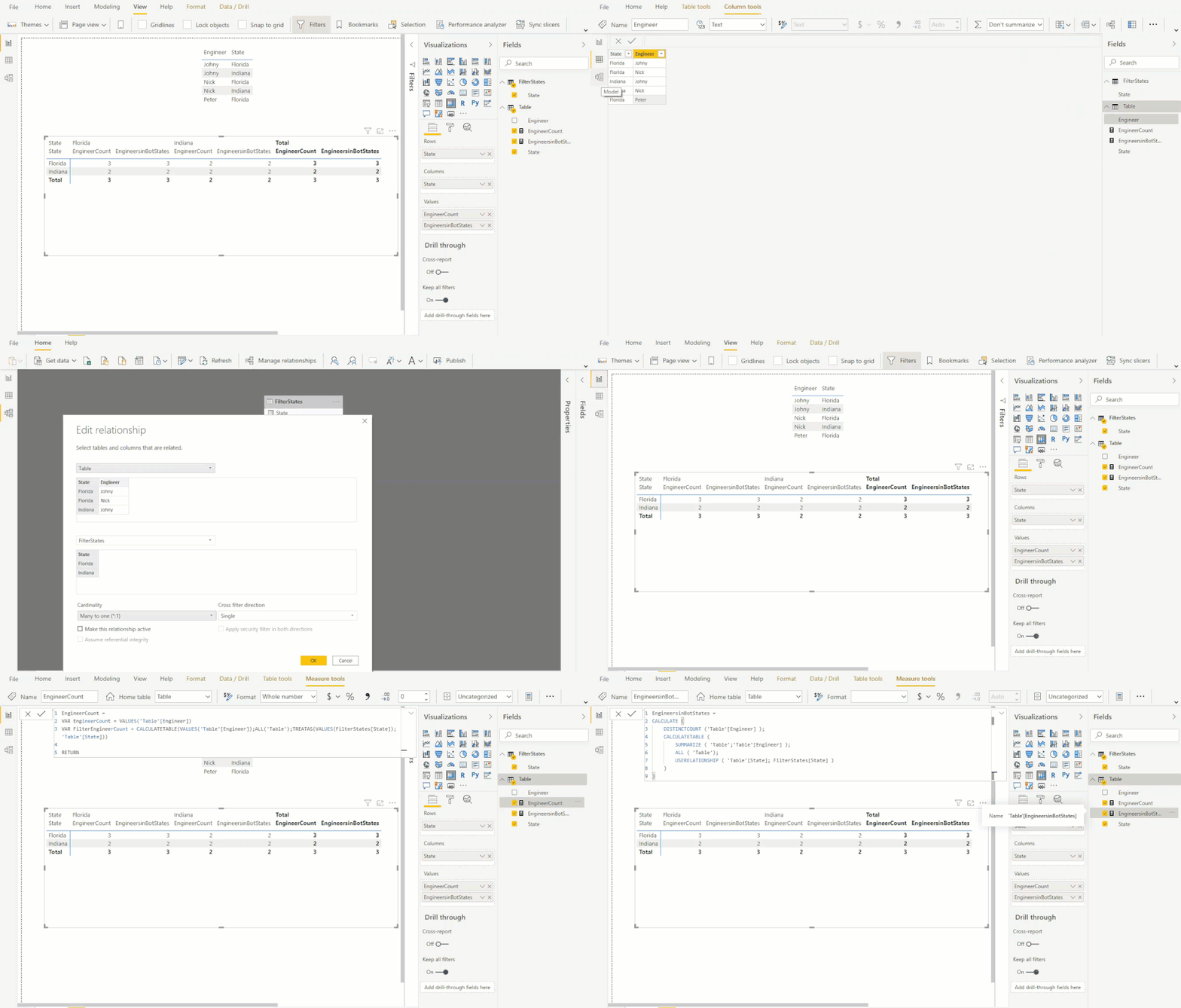
File is available here.
Please mark as solution if this works for you. Thumbs up for the effort is appreciated.
Kind regards, Steve.
Proud to be a Super User!
Awesome Keyboard Shortcusts in Power BI, thumbs up if you like the article
My Community Blog Articles (check them out!)
My Blog - Power M code to automatically detect column types -
How to create test data using DAX!
Here you go:
In case you do not want to create a relationship between your base table the filter table:
EngineerCount =
VAR EngineerCount = VALUES('Table'[Engineer])
VAR FilterEngineerCount = CALCULATETABLE(VALUES('Table'[Engineer]);ALL('Table');TREATAS(VALUES(FilterStates[State]); 'Table'[State]))
RETURN
COUNTROWS(INTERSECT(EngineerCount;FilterEngineerCount))
In case you can create an inactive relationship:
EngineersinBotStates =
CALCULATE (
DISTINCTCOUNT ('Table'[Engineer] );
CALCULATETABLE (
SUMMARIZE ( 'Table';'Table'[Engineer] );
ALL ( 'Table');
USERELATIONSHIP ( 'Table'[State]; FilterStates[State] )
)
)
Which is based on this article:
https://www.daxpatterns.com/basket-analysis/
Result can be seen here, please note the data model and the use of a filtered states table, which is created with:
FilterStates = SUMMARIZE('Table';'Table'[State])
File is available here.
Please mark as solution if this works for you. Thumbs up for the effort is appreciated.
Kind regards, Steve.
Proud to be a Super User!
Awesome Keyboard Shortcusts in Power BI, thumbs up if you like the article
My Community Blog Articles (check them out!)
My Blog - Power M code to automatically detect column types -
How to create test data using DAX!
Thank you steve for detailed explanantion. I really appreciate your approach.
The Power BI Data Visualization World Championships is back! Get ahead of the game and start preparing now!
| User | Count |
|---|---|
| 19 | |
| 13 | |
| 10 | |
| 4 | |
| 4 |
| User | Count |
|---|---|
| 31 | |
| 28 | |
| 19 | |
| 11 | |
| 10 |