Join us at FabCon Atlanta from March 16 - 20, 2026, for the ultimate Fabric, Power BI, AI and SQL community-led event. Save $200 with code FABCOMM.
Register now!The Power BI Data Visualization World Championships is back! Get ahead of the game and start preparing now! Learn more
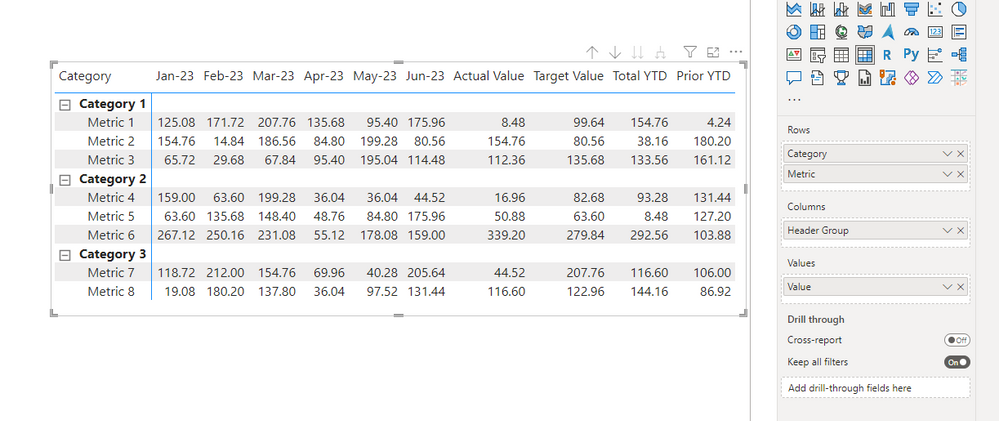
I have a Matrix that looks like this:
Where the columns across the top are being pulled from a single column called Header Group.
I would like to compare the Actual Values matrix column against the Target Values matrix column and color code ONLY the Actual Values background based on whether they are greater than or less than the Target Values.
I tried using the LOOKUPVALUE function and it's not performing how I thought it does.
Example:
Here are links to the files, sometimes my OneDrive doesn't work so I've uploaded it to GoogleDrive as well:
OneDrive - https://1drv.ms/u/s!AoXwZT-xo7jRgfUeCY_uZYYHviqdvA?e=akvQJ6
GoogleDrive - https://drive.google.com/file/d/13cRHlq4f5IQa22NspynS2V-JuA343NFw/view?usp=sharing
Solved! Go to Solution.
Hi @djallarii ,
As per our understanding, you want to show Background colour as:
Also, within your provided power bi report we checked the datatable “Metric_Table” and noticed that Actual Value row is followed with the Target Value row so we used Previous row function.
You can follow below steps to achieve required output.
1. Create Index column using Power Query.
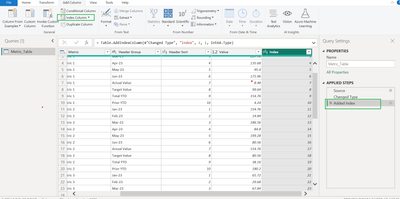
2. Create “Previous row Value” column using DAX expression.
Previous row Value = LOOKUPVALUE('Metric_Table'[Value],'Metric_Table'[Index],'Metric_Table'[Index]-1)
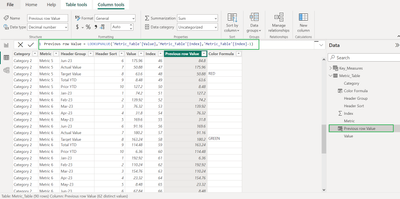
3. Create a Colour Formula based on conditions as below DAX expression.
Color Formula =
var containsTarget =IF(CONTAINSSTRING(Metric_Table[Header Group],"Target value"),TRUE(),FALSE())
return IF(containsTarget, IF('Metric_Table'[Value]<'Metric_Table'[Previous row
Value] ,"GREEN","RED"),BLANK())
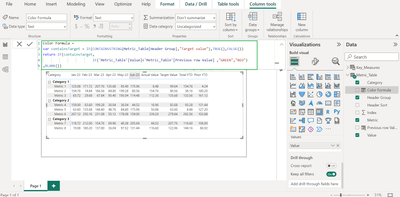
4. Now we can use this column to give conditional formatting to the cell as shown in below screenshot,
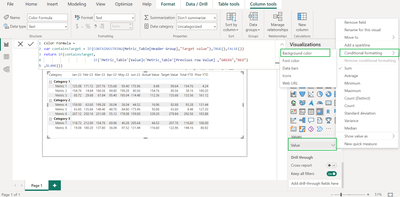
This results the column with background colour as shown in the below screenshot,
Thanks!
Inogic Professional Services Division
Power Platform and Microsoft Dynamics 365 CRM Development – All under one roof!
Drop an email at crm@inogic.com
Services: http://www.inogic.com/services/
Power Platform/Dynamics 365 CRM Tips and Tricks: http://www.inogic.com/blog/
Hi @djallarii ,
As per our understanding, you want to show Background colour as:
Also, within your provided power bi report we checked the datatable “Metric_Table” and noticed that Actual Value row is followed with the Target Value row so we used Previous row function.
You can follow below steps to achieve required output.
1. Create Index column using Power Query.
2. Create “Previous row Value” column using DAX expression.
Previous row Value = LOOKUPVALUE('Metric_Table'[Value],'Metric_Table'[Index],'Metric_Table'[Index]-1)
3. Create a Colour Formula based on conditions as below DAX expression.
Color Formula =
var containsTarget =IF(CONTAINSSTRING(Metric_Table[Header Group],"Target value"),TRUE(),FALSE())
return IF(containsTarget, IF('Metric_Table'[Value]<'Metric_Table'[Previous row
Value] ,"GREEN","RED"),BLANK())
4. Now we can use this column to give conditional formatting to the cell as shown in below screenshot,
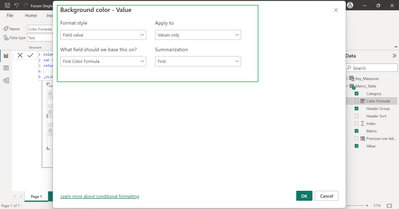
This results the column with background colour as shown in the below screenshot,
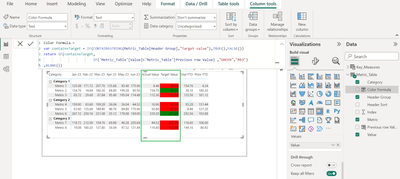
Thanks!
Inogic Professional Services Division
Power Platform and Microsoft Dynamics 365 CRM Development – All under one roof!
Drop an email at crm@inogic.com
Services: http://www.inogic.com/services/
Power Platform/Dynamics 365 CRM Tips and Tricks: http://www.inogic.com/blog/
The Power BI Data Visualization World Championships is back! Get ahead of the game and start preparing now!
Check out the November 2025 Power BI update to learn about new features.
| User | Count |
|---|---|
| 20 | |
| 11 | |
| 10 | |
| 4 | |
| 4 |
| User | Count |
|---|---|
| 33 | |
| 30 | |
| 19 | |
| 11 | |
| 10 |