Share feedback directly with Fabric product managers, participate in targeted research studies and influence the Fabric roadmap.
Sign up nowGet Fabric certified for FREE! Don't miss your chance! Learn more
Hi friends,
I'm sorry to make this question, but I was trying to simulate an assignment and I found that they used DAX "DIVIDE" to create this table and to make it also appear in the "Data model view" , despite that as far as I know "Measures" appear only in the "Report view".
But when I try to do the same step by clicking "New measure" and selecting "Divide function" it doesn't suggest the columns that I should divide or divide by. I changed the column format to "Whole number" but I still unable to select the coulmns to complete the measure.
Many thanks to you all. 🙂
Solved! Go to Solution.
Hi @Trooz ,
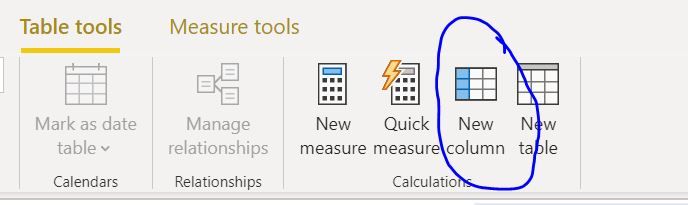
Incase you want to create a calculated column, you will need to click on the calculated column and not a measure.
Try creating a column and you can perform the Divide function.
Regards,
Harsh Nathani
Thanks @Greg_Deckler 🙂
you know those are my first days with Power BI so I still need to learn 🙂
Hi @Trooz ,
Incase you want to create a calculated column, you will need to click on the calculated column and not a measure.
Try creating a column and you can perform the Divide function.
Regards,
Harsh Nathani
Thanks @harshnathani , I was a quite confused between both things, now it's very clear 🤗
Share feedback directly with Fabric product managers, participate in targeted research studies and influence the Fabric roadmap.
| User | Count |
|---|---|
| 5 | |
| 4 | |
| 4 | |
| 3 | |
| 2 |
| User | Count |
|---|---|
| 14 | |
| 11 | |
| 8 | |
| 6 | |
| 5 |