Get Fabric or SQL Certified for Free.
Get certified for free when you join Fabric Data Days 2026 and dive into Fabric, Power BI, SQL, AI, and other essential data skills.
Join now- Power BI forums
- Get Help with Power BI
- Desktop
- Service
- Report Server
- Power Query
- Mobile Apps
- Developer
- DAX Commands and Tips
- Custom Visuals Development Discussion
- Health and Life Sciences
- Power BI Spanish forums
- Translated Spanish Desktop
- Training and Consulting
- Instructor Led Training
- Dashboard in a Day for Women, by Women
- Galleries
- Data Stories Gallery
- Themes Gallery
- Contests Gallery
- QuickViz Gallery
- Quick Measures Gallery
- Visual Calculations Gallery
- Fabric Apps Gallery
- Notebook Gallery
- Translytical Task Flow Gallery
- TMDL Gallery
- R Script Showcase
- Webinars and Video Gallery
- Ideas
- Custom Visuals Ideas (read-only)
- Issues
- Issues
- Events
- Upcoming Events
July 28 - August 9 | Final Round of the Power BI Dataviz World Championships. This is your chance. Learn more
- Power BI forums
- Forums
- Get Help with Power BI
- Service
- Re: Display Percent rather than Count
- Subscribe to RSS Feed
- Mark Topic as New
- Mark Topic as Read
- Float this Topic for Current User
- Bookmark
- Subscribe
- Printer Friendly Page


- Mark as New
- Bookmark
- Subscribe
- Mute
- Subscribe to RSS Feed
- Permalink
- Report Inappropriate Content
Display Percent rather than Count
Hi,
This seems like a simple thing to do in theory, but I can't seem to make it happen in Power BI. If anybody has any suggestions, it would be greatly appreciated! Here's the scenario:
- I have a Report that pulls data from an Excel file on Onedrive.
- I have an ID field that I want to count - I use the Card visualization and change the ID field to 'Count' and I get the total. Great!
- I now want to add a filter where Amount = 800. I drag the Amount field to the Visual level filters, set it to 800 and I get a new total. Also Great!
- However, I need to report it as a percent of the Total.
i.e. Count of all IDs in the Excel file is 1000. Count of all IDs where Amount=800 is 778. How can i display it as 77.8% rather than just 778?
Soooo Confused. Help! 
Thanks!
Solved! Go to Solution.


- Mark as New
- Bookmark
- Subscribe
- Mute
- Subscribe to RSS Feed
- Permalink
- Report Inappropriate Content
Hi enterprised1,
We should write measure to show the correct percentage. Please follow the steps below to see if it would work:
- Under the data View, create a measure to calculate the count of Amount=800;
- Count800 = calculate(count(‘Table’[ID]), ‘Table’[Amount]=800)
- Create another measure to calculate the percentage:
- Precent = Divide([Count800],COUNT(‘Table’[ID]))
- Under the report View, in the Fields, click Precent, then click on % to format it. Select Card Visual and put the Precent into the values, it should show the correct percentage:

Using the quick calc here would always show 100%, as the total count is also filtered, but not the original total.
If any further help needed, please feel free to post back.
Regards
- Mark as New
- Bookmark
- Subscribe
- Mute
- Subscribe to RSS Feed
- Permalink
- Report Inappropriate Content
Hi enterprised1,
We should write measure to show the correct percentage. Please follow the steps below to see if it would work:
- Under the data View, create a measure to calculate the count of Amount=800;
- Count800 = calculate(count(‘Table’[ID]), ‘Table’[Amount]=800)
- Create another measure to calculate the percentage:
- Precent = Divide([Count800],COUNT(‘Table’[ID]))
- Under the report View, in the Fields, click Precent, then click on % to format it. Select Card Visual and put the Precent into the values, it should show the correct percentage:
Using the quick calc here would always show 100%, as the total count is also filtered, but not the original total.
If any further help needed, please feel free to post back.
Regards
- Mark as New
- Bookmark
- Subscribe
- Mute
- Subscribe to RSS Feed
- Permalink
- Report Inappropriate Content
I have specified the column is a percent in the data table but it is showing as a decimal in the card. And under modeling the formatting options are grayed out, do you know why that would be?
- Mark as New
- Bookmark
- Subscribe
- Mute
- Subscribe to RSS Feed
- Permalink
- Report Inappropriate Content
@v-micsh-msft Thanks for the suggestion! I'm not using Power BI Desktop, but I believe I can accomplish adding the Measure directly in the Excel file. I'll give that a try and will post back if I run into any issues.
Any ideas on if or how this can be accomplished within the Power BI service? I would rather be able to do it from the Power BI interface than go messing with the Excel file if I can avoid it.
Thanks!
- Mark as New
- Bookmark
- Subscribe
- Mute
- Subscribe to RSS Feed
- Permalink
- Report Inappropriate Content
Hi
Apologize to say that currently it is not available to create calculated column or a measure in Power BI Service.
You may take a try with Power Bi desktop, download it from here:
https://powerbi.microsoft.com/en-us/desktop/
Regards
- Mark as New
- Bookmark
- Subscribe
- Mute
- Subscribe to RSS Feed
- Permalink
- Report Inappropriate Content
Hi Michael,
I thought that would be the case. I didn't see any way of adding measures from the Power BI service.
However, I was able to add the measures within the data model of the Excel file using the steps you provided, so all's good. Thanks for your help!


- Mark as New
- Bookmark
- Subscribe
- Mute
- Subscribe to RSS Feed
- Permalink
- Report Inappropriate Content
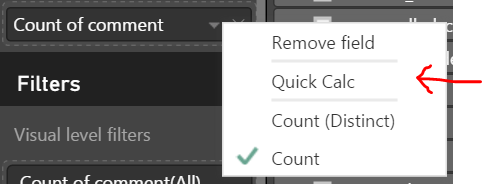
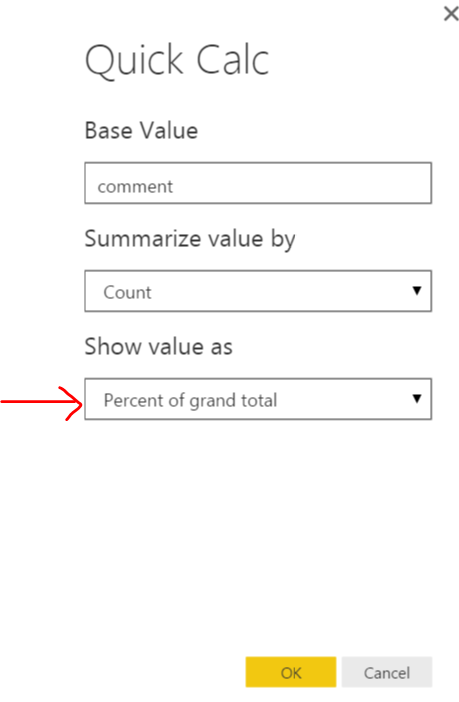
@enterprised1 Click dropdown for the field used for Card visual as below and then choose 'Percent of grand total" under Show value as.
- Mark as New
- Bookmark
- Subscribe
- Mute
- Subscribe to RSS Feed
- Permalink
- Report Inappropriate Content
@ankitpatiraThanks for the reply. Unfortunately, I don't see the "Quick Calc" option you have in your picture. Those menu options seem to vary depending on the underlying data type. I'm using the Number type for the ID field, and here is what I see:

If I select a Text field, here is what I see:
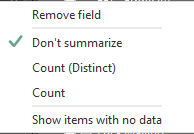
What field type were you using to get the "Quick Calc" field?
Thanks!

Helpful resources

FabCon & SQLCon – Barcelona 2026
Join us in Barcelona for FabCon and SQLCon, the Fabric, Power BI, SQL, and AI community event. Save €200 with code FABCMTY200.

Fabric Community Sticker Challenge - Barcelona 2026
If you love stickers, then you will definitely want to check out our community sticker challenge, Barcelona edition!

Power BI Monthly Update - July 2026
Check out the July 2026 Power BI update to learn about new features.

Power BI DataViz World Championships - June 2026
A new Power BI DataViz World Championship is coming this June! Don't miss out on submitting your entry.

| User | Count |
|---|---|
| 14 | |
| 8 | |
| 6 | |
| 6 | |
| 6 |


