cancel
Showing results for 
Search instead for 
Did you mean: 

The Power BI Data Visualization World Championships is back! Get ahead of the game and start preparing now! Learn more

Reply
Anonymous
Not applicable

Two Digit Date Problem

Hello, I am importing birthdates from a text file into PowerQuery.  The birthdates in the text file are a two digit year format (e.g. 7/20/69).  When reviewing the imported birthdates in PowerQuery, four digit years are shown and it appears that birthdates prior to 1/1/1950 are converted to a 21st century date instead of a 20th century date.  For example, a birthdate of 12/7/41 appears as 12/7/2041 when it should appear 12/7/1941.  Thanks very much for any help!

1 ACCEPTED SOLUTION
edhans
Community Champion
Community Champion

This is the problem with 2 digit years @Anonymous 

You can try this custom column formula. Leave those dates as text, and create this column:

let
     varYear = Number.From(Text.AfterDelimiter([Date], "/", 1))
in
Date.From(
     Text.BeforeDelimiter([Date], "/", 1) 
     & "/" 
     & Text.From(
          (if varYear > 20 then 1900 else 2000) + varYear)
     )


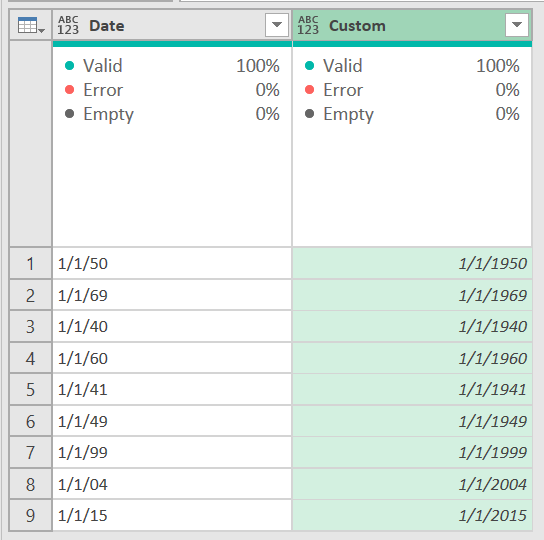
Any date after 20 will be counted as the year 2000 or later, but that could be wrong. You can change it. But this logic will not allow you to have a 107 year old and a 7 yr old at the same time. 1/1/15 - is that 1915 or 2015? But depending you your data you can make that decision. Patients would be difficult for a hospital as they could have both, but employees would never have a 7yr old so you could adjust accordingly. Of course, not too many 107 yr old employees either. 😁


Then remove your orginal Date column


edhans_0-1622761444985.png


Did I answer your question? Mark my post as a solution!
Did my answers help arrive at a solution? Give it a kudos by clicking the Thumbs Up!

DAX is for Analysis. Power Query is for Data Modeling


Proud to be a Super User!

MCSA: BI Reporting

View solution in original post

3 REPLIES 3
edhans
Community Champion
Community Champion

This is the problem with 2 digit years @Anonymous 

You can try this custom column formula. Leave those dates as text, and create this column:

let
     varYear = Number.From(Text.AfterDelimiter([Date], "/", 1))
in
Date.From(
     Text.BeforeDelimiter([Date], "/", 1) 
     & "/" 
     & Text.From(
          (if varYear > 20 then 1900 else 2000) + varYear)
     )


Any date after 20 will be counted as the year 2000 or later, but that could be wrong. You can change it. But this logic will not allow you to have a 107 year old and a 7 yr old at the same time. 1/1/15 - is that 1915 or 2015? But depending you your data you can make that decision. Patients would be difficult for a hospital as they could have both, but employees would never have a 7yr old so you could adjust accordingly. Of course, not too many 107 yr old employees either. 😁


Then remove your orginal Date column


edhans_0-1622761444985.png


Did I answer your question? Mark my post as a solution!
Did my answers help arrive at a solution? Give it a kudos by clicking the Thumbs Up!

DAX is for Analysis. Power Query is for Data Modeling


Proud to be a Super User!

MCSA: BI Reporting
Anonymous
Not applicable

Thank you!

edhans
Community Champion
Community Champion

Glad it helped @Anonymous 👍


Did I answer your question? Mark my post as a solution!
Did my answers help arrive at a solution? Give it a kudos by clicking the Thumbs Up!

DAX is for Analysis. Power Query is for Data Modeling


Proud to be a Super User!

MCSA: BI Reporting

Helpful resources

Announcements
Power BI DataViz World Championships

Power BI Dataviz World Championships

The Power BI Data Visualization World Championships is back! Get ahead of the game and start preparing now!

December 2025 Power BI Update Carousel

Power BI Monthly Update - December 2025

Check out the December 2025 Power BI Holiday Recap!

FabCon Atlanta 2026 carousel

FabCon Atlanta 2026

Join us at FabCon Atlanta, March 16-20, for the ultimate Fabric, Power BI, AI and SQL community-led event. Save $200 with code FABCOMM.

Top Solution Authors