A new Data Days event is coming soon!
This time we’re going bigger than ever. Fabric, Power BI, SQL, AI and more. We're covering it all. You won't want to miss it.
Learn more- Power BI forums
- Get Help with Power BI
- Desktop
- Service
- Report Server
- Power Query
- Mobile Apps
- Developer
- DAX Commands and Tips
- Custom Visuals Development Discussion
- Health and Life Sciences
- Power BI Spanish forums
- Translated Spanish Desktop
- Training and Consulting
- Instructor Led Training
- Dashboard in a Day for Women, by Women
- Galleries
- Data Stories Gallery
- Themes Gallery
- Contests Gallery
- QuickViz Gallery
- Quick Measures Gallery
- Visual Calculations Gallery
- Notebook Gallery
- Translytical Task Flow Gallery
- TMDL Gallery
- R Script Showcase
- Webinars and Video Gallery
- Ideas
- Custom Visuals Ideas (read-only)
- Issues
- Issues
- Events
- Upcoming Events
Did you hear? There's a new SQL AI Developer certification (DP-800). Start preparing now and be one of the first to get certified. Register now
- Power BI forums
- Forums
- Get Help with Power BI
- Power Query
- Transforming Data - help needed
- Subscribe to RSS Feed
- Mark Topic as New
- Mark Topic as Read
- Float this Topic for Current User
- Bookmark
- Subscribe
- Printer Friendly Page

- Mark as New
- Bookmark
- Subscribe
- Mute
- Subscribe to RSS Feed
- Permalink
- Report Inappropriate Content
Transforming Data - help needed
I need to transform data from table 1 to table 2. What is the best way to do that? 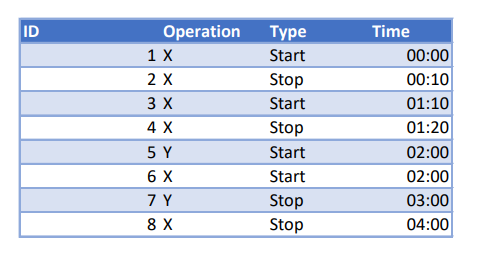
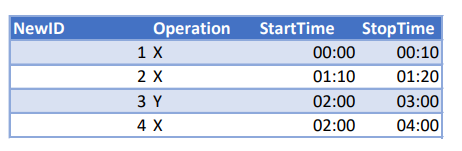
Thank you.
Source table: https://printgs-my.sharepoint.com/:x:/g/personal/ahrvanovic_printgs_onmicrosoft_com/ERvNbDQhHBRKv0AN...
Solved! Go to Solution.
- Mark as New
- Bookmark
- Subscribe
- Mute
- Subscribe to RSS Feed
- Permalink
- Report Inappropriate Content
HI @ahrvanovic ,
Please run the following query.
let
Source = Table.FromRows(Json.Document(Binary.Decompress(Binary.FromText("XY5BDoQwCEXvwrqLQutUuYVxo9O4mBOMMd4/EkhJddE0/Jf/oFZACLDKW67feckfOUbYQwVy8D80R8vTq4AN5GcBmSwfZNi6ArUNn5fJQfGGmlLLx+eG3PJJhm8nSpwMyGUB5o5kpsEIOlFX4VwMkMsUjNrYbw==", BinaryEncoding.Base64), Compression.Deflate)), let _t = ((type nullable text) meta [Serialized.Text = true]) in type table [ID = _t, Operation = _t, Type = _t, Time = _t]),
#"Grouped Rows" = Table.Group(Source, {"Type", "Operation"}, {{"Data", each _, type table [ID=nullable text, Operation=nullable text, Type=nullable text, Time=nullable text]}}),
#"Added Custom" = Table.AddColumn(#"Grouped Rows", "Custom", each Table.AddIndexColumn([Data], "order",1)),
#"Expanded Custom1" = Table.ExpandTableColumn(#"Added Custom", "Custom", {"Time", "order"}, {"Custom.Time", "Custom.order"}),
#"Removed Columns1" = Table.RemoveColumns(#"Expanded Custom1",{"Data"}),
#"Changed Type" = Table.TransformColumnTypes(#"Removed Columns1",{{"Custom.order", type text}}),
#"Added Custom1" = Table.AddColumn(#"Changed Type", "Custom", each [Operation]&"-"&[Custom.order]),
#"Changed Type1" = Table.TransformColumnTypes(#"Added Custom1",{{"Custom.Time", type time}}),
#"Pivoted Column" = Table.Pivot(#"Changed Type1", List.Distinct(#"Changed Type1"[Type]), "Type", "Custom.Time"),
#"Sorted Rows" = Table.Sort(#"Pivoted Column",{{"Start", Order.Ascending}}),
#"Removed Columns" = Table.RemoveColumns(#"Sorted Rows",{"Custom.order", "Custom"}),
#"Added Index" = Table.AddIndexColumn(#"Removed Columns", "Index", 1, 1, Int64.Type),
#"Renamed Columns" = Table.RenameColumns(#"Added Index",{{"Index", "NewID"}}),
#"Reordered Columns" = Table.ReorderColumns(#"Renamed Columns",{"NewID", "Operation", "Start", "Stop"})
in
#"Reordered Columns"

- Mark as New
- Bookmark
- Subscribe
- Mute
- Subscribe to RSS Feed
- Permalink
- Report Inappropriate Content
Hi @ahrvanovic ,
Please try the following :
let
Source = Table.FromRows(Json.Document(Binary.Decompress(Binary.FromText("i45WMlTSUYoA4uCSxKISIG1gZWCgFKsTrWQEl8gvAIsbQsSN0TQYwiRMUDUYWhlBxE2BnEgkDUYwG8zQTIJLmMN1gE0yholboNpgAhaPBQA=", BinaryEncoding.Base64), Compression.Deflate)), let _t = ((type nullable text) meta [Serialized.Text = true]) in type table [ID = _t, Operation = _t, Type = _t, Time = _t]),
#"Pivoted Column" = Table.Pivot(Source, List.Distinct(Source[Type]), "Type", "Time"),
#"Filled Down" = Table.FillDown(#"Pivoted Column",{"Start"}),
#"Filtered Rows" = Table.SelectRows(#"Filled Down", each [Stop] <> null and [Stop] <> ""),
#"Added Index" = Table.AddIndexColumn(#"Filtered Rows", "New ID", 1, 1, Int64.Type),
#"Removed Columns" = Table.RemoveColumns(#"Added Index",{"ID"}),
#"Reordered Columns" = Table.ReorderColumns(#"Removed Columns",{"New ID", "Operation", "Start", "Stop"})
in
#"Reordered Columns"
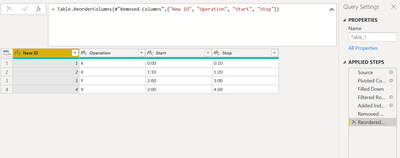
Would request you to provide a more concrete sample.
Currently, there is no other key in the table to perform this operation.
- Mark as New
- Bookmark
- Subscribe
- Mute
- Subscribe to RSS Feed
- Permalink
- Report Inappropriate Content
https://printgs-my.sharepoint.com/:x:/g/personal/ahrvanovic_printgs_onmicrosoft_com/ERvNbDQhHBRKv0AN...
Table 1
pbi doc - https://printgs-my.sharepoint.com/:u:/g/personal/ahrvanovic_printgs_onmicrosoft_com/EU_6YL2BavtHgusd...
Here is source table and pbi document. Can u please apply your solution in this pbi doc.
It is working with table enter manually but i cant change the source of table in this solution. Its probably posible but i dont have knowlidge for that 😞
Real case for this scenario is import table from SQL server, with new entries everyday.
That table register
Operations ID;
sequential ID - next entry = biger ID integer;
Type of entry - Stop or Start,
Time of entry;
I know there is no key for operation, but as far as I understand problem here, there should be a way to give key to every operation Start and find end time as a first next stop entry for that operation. Or there is some other aproach for solving this. Much more eficient or ...
My problem is that am really new to BI so i dont have knowlidge to do that.
So can u please use pbix and table that im sharing so i can change source of data later with no problems and try to understand what is going on.
Thank you
- Mark as New
- Bookmark
- Subscribe
- Mute
- Subscribe to RSS Feed
- Permalink
- Report Inappropriate Content
Hi,
One doubt, Is it possible for another same Operation to start if the previous Operation has not stopped yet.
- Mark as New
- Bookmark
- Subscribe
- Mute
- Subscribe to RSS Feed
- Permalink
- Report Inappropriate Content
I dont think so.
Same operation must start and end after.
- Mark as New
- Bookmark
- Subscribe
- Mute
- Subscribe to RSS Feed
- Permalink
- Report Inappropriate Content
HI @ahrvanovic ,
Please run the following query.
let
Source = Table.FromRows(Json.Document(Binary.Decompress(Binary.FromText("XY5BDoQwCEXvwrqLQutUuYVxo9O4mBOMMd4/EkhJddE0/Jf/oFZACLDKW67feckfOUbYQwVy8D80R8vTq4AN5GcBmSwfZNi6ArUNn5fJQfGGmlLLx+eG3PJJhm8nSpwMyGUB5o5kpsEIOlFX4VwMkMsUjNrYbw==", BinaryEncoding.Base64), Compression.Deflate)), let _t = ((type nullable text) meta [Serialized.Text = true]) in type table [ID = _t, Operation = _t, Type = _t, Time = _t]),
#"Grouped Rows" = Table.Group(Source, {"Type", "Operation"}, {{"Data", each _, type table [ID=nullable text, Operation=nullable text, Type=nullable text, Time=nullable text]}}),
#"Added Custom" = Table.AddColumn(#"Grouped Rows", "Custom", each Table.AddIndexColumn([Data], "order",1)),
#"Expanded Custom1" = Table.ExpandTableColumn(#"Added Custom", "Custom", {"Time", "order"}, {"Custom.Time", "Custom.order"}),
#"Removed Columns1" = Table.RemoveColumns(#"Expanded Custom1",{"Data"}),
#"Changed Type" = Table.TransformColumnTypes(#"Removed Columns1",{{"Custom.order", type text}}),
#"Added Custom1" = Table.AddColumn(#"Changed Type", "Custom", each [Operation]&"-"&[Custom.order]),
#"Changed Type1" = Table.TransformColumnTypes(#"Added Custom1",{{"Custom.Time", type time}}),
#"Pivoted Column" = Table.Pivot(#"Changed Type1", List.Distinct(#"Changed Type1"[Type]), "Type", "Custom.Time"),
#"Sorted Rows" = Table.Sort(#"Pivoted Column",{{"Start", Order.Ascending}}),
#"Removed Columns" = Table.RemoveColumns(#"Sorted Rows",{"Custom.order", "Custom"}),
#"Added Index" = Table.AddIndexColumn(#"Removed Columns", "Index", 1, 1, Int64.Type),
#"Renamed Columns" = Table.RenameColumns(#"Added Index",{{"Index", "NewID"}}),
#"Reordered Columns" = Table.ReorderColumns(#"Renamed Columns",{"NewID", "Operation", "Start", "Stop"})
in
#"Reordered Columns"
- Mark as New
- Bookmark
- Subscribe
- Mute
- Subscribe to RSS Feed
- Permalink
- Report Inappropriate Content
Thank you very much.
- Mark as New
- Bookmark
- Subscribe
- Mute
- Subscribe to RSS Feed
- Permalink
- Report Inappropriate Content
Happy to help! 🙂
- Mark as New
- Bookmark
- Subscribe
- Mute
- Subscribe to RSS Feed
- Permalink
- Report Inappropriate Content
Dear CNENFRNL, thank you for your time, but it seams i Cant get expected results.
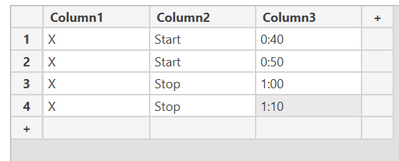
When i insert more rows to source table 
This is result I got.
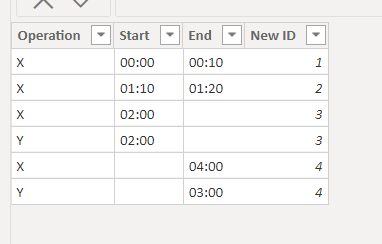
Can you please use this excel table as a source, because real table i need to transform is more complex than the sample source table i presented here. Thank you once more.
https://printgs-my.sharepoint.com/:x:/g/personal/ahrvanovic_printgs_onmicrosoft_com/ERvNbDQhHBRKv0AN...


- Mark as New
- Bookmark
- Subscribe
- Mute
- Subscribe to RSS Feed
- Permalink
- Report Inappropriate Content
let
    Source = Table.FromRows(Json.Document(Binary.Decompress(Binary.FromText("i45WMlTSUYoA4uCSxKISIG1gYGVgoBSrE61kBJVxzUuBiBtCxI3RdRjCZExQdRhaGQHFYwE=", BinaryEncoding.Base64), Compression.Deflate)), let _t = ((type nullable text) meta [Serialized.Text = true]) in type table [ID = _t, Operation = _t, Type = _t, Time = _t]),
    Custom1 = Table.AddIndexColumn(Table.FromColumns({List.Transform(Table.Split(Source,2), each Table.Pivot(Table.RemoveColumns(_, {"ID"}), List.Distinct([Type]), "Type", "Time"))}, {"t"}), "New ID", 1),
    #"Expanded t" = Table.ExpandTableColumn(Custom1, "t", {"Operation", "Start", "End"}, {"Operation", "Start", "End"})
in
#"Expanded t"| Thanks to the great efforts by MS engineers to simplify syntax of DAX! Most beginners are SUCCESSFULLY MISLED to think that they could easily master DAX; but it turns out that the intricacy of the most frequently used RANKX() is still way beyond their comprehension! |
DAX is simple, but NOT EASY! |
Helpful resources

Power BI Monthly Update - April 2026
Check out the April 2026 Power BI update to learn about new features.

Data Days 2026 coming soon!
Sign up to receive a private message when registration opens and key events begin.

New to Fabric Survey
If you have recently started exploring Fabric, we'd love to hear how it's going. Your feedback can help with product improvements.

Power BI DataViz World Championships - June 2026
A new Power BI DataViz World Championship is coming this June! Don't miss out on submitting your entry.


