Join us at FabCon Atlanta from March 16 - 20, 2026, for the ultimate Fabric, Power BI, AI and SQL community-led event. Save $200 with code FABCOMM.
Register now!Vote for your favorite vizzies from the Power BI Dataviz World Championship submissions. Vote now!
Hi,
I would like to ask for help with an assignment, today is the first time I am using such advanced PowerQuery functions in this M.
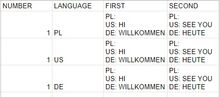
I have a graph like this:
and I need to get that result:
I tried to do this by cutting text or elements from the table, but each time it returned a result only for EN and for the rest empty cells or an error. When I enter the language to filter in the code, it filters fine, but if I select it to filter using the LANGUAGE column, it only returns the first result.
Thank you for your help!
EDIT:
I solved the problem. The problem was the space character in the LANGUAGE cells because by default they are in one cell as [PL, US, DE]. When split into rows I was getting:[PL], [ US] and [ DE]. Where at the next ones there was a space at the beginning. After removing the space and applying the code:
Text.Combine(List.FindText(Text.Split([FIRST],"#(lf)"), [LANGUAGE]&":"))&
"#(lf)"&
Text.Combine(List.FindText(Text.Split([SECOND],"#(lf)"), [LANGUAGE]&":"))I got the expected result
Solved! Go to Solution.
I solved the problem. The problem was the space character in the LANGUAGE cells because by default they are in one cell as [PL, US, DE]. When split into rows I was getting:[PL], [ US] and [ DE]. Where at the next ones there was a space at the beginning. After removing the space and applying the code:
Text.Combine(List.FindText(Text.Split([FIRST],"#(lf)"), [LANGUAGE]&":"))& "#(lf)"& Text.Combine(List.FindText(Text.Split([SECOND],"#(lf)"), [LANGUAGE]&":"))
I got the expected result
thanks for your help!
Hi @Jedrzej ,
Please try the following:
1) Assuming your data looks like this, please load this into power query.
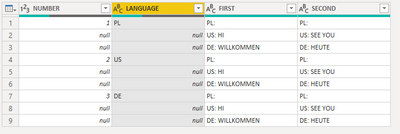
2) Fill down values on the "NUMBER" and "LANGUAGE" columns
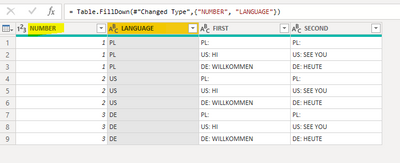
3) Merge columns "FIRST" and "SECOND" to create a new column "Merged", using "-" as the delimiter
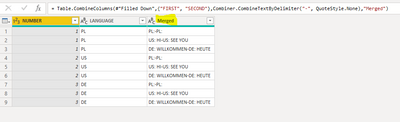
4) Add a custom column that compares "LANGUAGE" with 1st two characters of "Merged". If there is a match it returns the column value of "Merged" else null
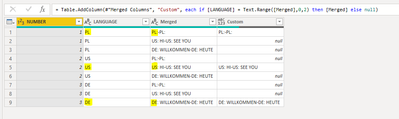
5) Remove column "Merged" and filter column custom <> null
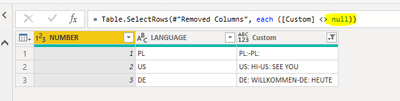
6) Split column "Custom" by delimiter "-". You will now see two columns "Custom.1" and "Custom.2"

7) Add column to merge values of "Custom.1" and "Custom.2" into a list.
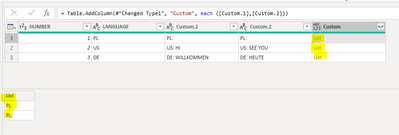
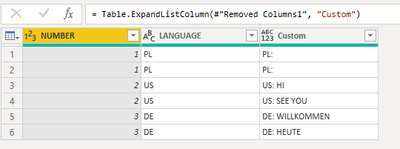
😎Remove columns "Custom.1" and "Custom.2" and expand column "Custom"
This is the final result
Here is the M-Code
let
Source = Table.FromRows(Json.Document(Binary.Decompress(Binary.FromText("i45WMlTSUQrwARNWUDJWJ1oJyASi0GArBQ9PKCPY1VUh0j8USdrF1Uoh3NPHx9vf19fVDyrg4Roa4gpWZATWSBOjjcEi1Dc6FgA=", BinaryEncoding.Base64), Compression.Deflate)), let _t = ((type nullable text) meta [Serialized.Text = true]) in type table [NUMBER = _t, LANGUAGE = _t, FIRST = _t, SECOND = _t]),
#"Replaced Value" = Table.ReplaceValue(Source,"",null,Replacer.ReplaceValue,{"LANGUAGE"}),
#"Changed Type" = Table.TransformColumnTypes(#"Replaced Value",{{"NUMBER", Int64.Type}, {"LANGUAGE", type text}, {"FIRST", type text}, {"SECOND", type text}}),
#"Filled Down" = Table.FillDown(#"Changed Type",{"NUMBER", "LANGUAGE"}),
#"Merged Columns" = Table.CombineColumns(#"Filled Down",{"FIRST", "SECOND"},Combiner.CombineTextByDelimiter("-", QuoteStyle.None),"Merged"),
#"Added Custom" = Table.AddColumn(#"Merged Columns", "Custom", each if [LANGUAGE] = Text.Range([Merged],0,2) then [Merged] else null),
#"Removed Columns" = Table.RemoveColumns(#"Added Custom",{"Merged"}),
#"Filtered Rows" = Table.SelectRows(#"Removed Columns", each ([Custom] <> null)),
#"Split Column by Delimiter" = Table.SplitColumn(#"Filtered Rows", "Custom", Splitter.SplitTextByDelimiter("-", QuoteStyle.Csv), {"Custom.1", "Custom.2"}),
#"Changed Type1" = Table.TransformColumnTypes(#"Split Column by Delimiter",{{"Custom.1", type text}, {"Custom.2", type text}}),
#"Added Custom1" = Table.AddColumn(#"Changed Type1", "Custom", each {[Custom.1],[Custom.2]}),
#"Removed Columns1" = Table.RemoveColumns(#"Added Custom1",{"Custom.1", "Custom.2"}),
#"Expanded Custom" = Table.ExpandListColumn(#"Removed Columns1", "Custom")
in
#"Expanded Custom"
Kind regards,
Rohit
Please mark this answer as the solution if it resolves your issue.
Appreciate your kudos! 🙂
I solved the problem. The problem was the space character in the LANGUAGE cells because by default they are in one cell as [PL, US, DE]. When split into rows I was getting:[PL], [ US] and [ DE]. Where at the next ones there was a space at the beginning. After removing the space and applying the code:
Text.Combine(List.FindText(Text.Split([FIRST],"#(lf)"), [LANGUAGE]&":"))& "#(lf)"& Text.Combine(List.FindText(Text.Split([SECOND],"#(lf)"), [LANGUAGE]&":"))
I got the expected result
thanks for your help!
Unfortunately, my initial data looks different.
| NUMBER | LANGUAGE | FIRST | SECOND |
| 1 | PL,US,DE | PL: US: HI DE: WILLKOMMEN | PL: US: SEE YOU DE: HEUTE |
in the LANGUAGE column, I separate to the rows after the "," and I get:
| NUMBER | LANGUAGE | FIRST | SECOND |
| 1 | PL | PL: US: HI DE: WILLKOMMEN | PL: US: SEE YOU DE: HEUTE |
| 1 | US | PL: US: HI DE: WILLKOMMEN | PL: US: SEE YOU DE: HEUTE |
| 1 | DE | PL: US: HI DE: WILLKOMMEN | PL: US: SEE YOU DE: HEUTE |
In the FIRST and SECOND columns, sentences are separated by the end-of-line symbol (#(lf)).
The contents of one FIRST cell is:
[EN: #(lf) US: HI #(lf) DE: WILLKOMMEN]
the problem is how to select the appropriate language versions from a single cell.
unfortunately splitting it into more rows like in the case of LANGUAGE is not an option, because it will extend the number of rows by about 5^30
Vote for your favorite vizzies from the Power BI World Championship submissions!
If you love stickers, then you will definitely want to check out our Community Sticker Challenge!
Check out the January 2026 Power BI update to learn about new features.
| User | Count |
|---|---|
| 7 | |
| 6 | |
| 4 | |
| 4 | |
| 3 |
| User | Count |
|---|---|
| 11 | |
| 10 | |
| 6 | |
| 6 | |
| 5 |