cancel
Showing results for 
Search instead for 
Did you mean: 

The Power BI Data Visualization World Championships is back! Get ahead of the game and start preparing now! Learn more

Reply
Anonymous
Not applicable

Restructuring Data - Show targets and their status

Hi,


I am currently trying to wrap my head around a little problem that I simply cannot get working properly.


I have a large excel table containing target fulfilment for different entities. The structure of this data is as follows:


NameIDTask 1 DescriptionTask 1 Completed?Task 2 DescriptionTask 2 Completed?Task 3 DescriptionTask 3 Completed?
John Smith1Buy a houseYesBuild a carNoRun a marathonYes
Ryan Miller2Buy a carNoPlant a treeYesWalk your dogNo


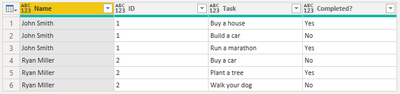
In my power BI report I however want to show the data in the following format:


[Filtered by John Smith]

TaskCompleted?
Buy a houseYes
Build a carNo
Run a marathonYes


[Filtered by Ryan Miller]

TaskCompleted?
Buy a carNo
Plant a treeYes
Walk your dogNo


Does any one know a clever little trick to manipulate the table so that this will work? Or is there a good way to do this in the current format?


The idea behind this is to share targets and their status with different team members. The idea is to have a matrix/table with the information as shown above and a slicer to filter by name.


Thanks in advance!


S

1 ACCEPTED SOLUTION
Jakinta
Solution Sage
Solution Sage

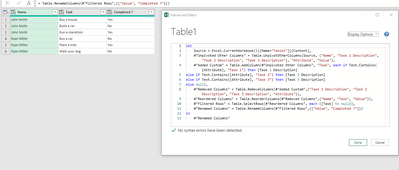
This might help...

Jakinta_0-1619053962201.png

let
Source = Excel.CurrentWorkbook(){[Name="Table1"]}[Content],
#"Unpivoted Other Columns" = Table.UnpivotOtherColumns(Source, {"Name", "Task 1 Description", "Task 2 Description", "Task 3 Description"}, "Attribute", "Value"),
#"Added Custom" = Table.AddColumn(#"Unpivoted Other Columns", "Task", each if Text.Contains([Attribute], "Task 1") then [Task 1 Description]
else if Text.Contains([Attribute], "Task 2") then [Task 2 Description]
else if Text.Contains([Attribute], "Task 3") then [Task 3 Description]
else null),
#"Removed Columns" = Table.RemoveColumns(#"Added Custom",{"Task 1 Description", "Task 2 Description", "Task 3 Description", "Attribute"}),
#"Reordered Columns" = Table.ReorderColumns(#"Removed Columns",{"Name", "Task", "Value"}),
#"Filtered Rows" = Table.SelectRows(#"Reordered Columns", each ([Task] <> null)),
#"Renamed Columns" = Table.RenameColumns(#"Filtered Rows",{{"Value", "Completed ?"}})
in
#"Renamed Columns"


View solution in original post

3 REPLIES 3
CNENFRNL
Community Champion
Community Champion

Alternative solution

let
    Source = Table.FromRows(Json.Document(Binary.Decompress(Binary.FromText("i45W8srPyFMIzs0syVDSUTIEYqfSSoVEhYz80uJUIC8ytRgslpmTAhRNTiwC8vzygURQaR5QIDexKLEkIz8PqjJWJ1opqDIxT8E3MycnFaTWCG4ikt6AnMS8EqBQSVEqwo7wxJxshcr80iKFlPx0iMrYWAA=", BinaryEncoding.Base64), Compression.Deflate)), let _t = ((type nullable text) meta [Serialized.Text = true]) in type table [Name = _t, ID = _t, #"Task 1 Description" = _t, #"Task 1 Completed?" = _t, #"Task 2 Description" = _t, #"Task 2 Completed?" = _t, #"Task 3 Description" = _t, #"Task 3 Completed?" = _t]),
    Custom1 = List.Transform(
        Table.ToRows(Source),
        each
        let
            hdr = List.FirstN(_, 2)
        in
            Table.FromRows(
                List.TransformMany({_}, each List.Split(List.Skip(_, 2), 2), (x, y) => hdr & y),
                {"Name", "ID", "Task", "Completed?"}
            )
    ),
    Custom2 = Table.Combine(Custom1)
in
    Custom2

Screenshot 2021-04-22 171816.png


Thanks to the great efforts by MS engineers to simplify syntax of DAX! Most beginners are SUCCESSFULLY MISLED to think that they could easily master DAX; but it turns out that the intricacy of the most frequently used RANKX() is still way beyond their comprehension!

DAX is simple, but NOT EASY!

Anonymous
Not applicable

Thanks - that worked out perfectly!

Jakinta
Solution Sage
Solution Sage

This might help...

Jakinta_0-1619053962201.png

let
Source = Excel.CurrentWorkbook(){[Name="Table1"]}[Content],
#"Unpivoted Other Columns" = Table.UnpivotOtherColumns(Source, {"Name", "Task 1 Description", "Task 2 Description", "Task 3 Description"}, "Attribute", "Value"),
#"Added Custom" = Table.AddColumn(#"Unpivoted Other Columns", "Task", each if Text.Contains([Attribute], "Task 1") then [Task 1 Description]
else if Text.Contains([Attribute], "Task 2") then [Task 2 Description]
else if Text.Contains([Attribute], "Task 3") then [Task 3 Description]
else null),
#"Removed Columns" = Table.RemoveColumns(#"Added Custom",{"Task 1 Description", "Task 2 Description", "Task 3 Description", "Attribute"}),
#"Reordered Columns" = Table.ReorderColumns(#"Removed Columns",{"Name", "Task", "Value"}),
#"Filtered Rows" = Table.SelectRows(#"Reordered Columns", each ([Task] <> null)),
#"Renamed Columns" = Table.RenameColumns(#"Filtered Rows",{{"Value", "Completed ?"}})
in
#"Renamed Columns"


Helpful resources

Announcements
Power BI DataViz World Championships

Power BI Dataviz World Championships

The Power BI Data Visualization World Championships is back! Get ahead of the game and start preparing now!

December 2025 Power BI Update Carousel

Power BI Monthly Update - December 2025

Check out the December 2025 Power BI Holiday Recap!

FabCon Atlanta 2026 carousel

FabCon Atlanta 2026

Join us at FabCon Atlanta, March 16-20, for the ultimate Fabric, Power BI, AI and SQL community-led event. Save $200 with code FABCOMM.