Join us at FabCon Atlanta from March 16 - 20, 2026, for the ultimate Fabric, Power BI, AI and SQL community-led event. Save $200 with code FABCOMM.
Register now!The Power BI Data Visualization World Championships is back! Get ahead of the game and start preparing now! Learn more
Hello everyone!
I'm having trouble preparing my data using Power Query in Power BI. I have a dataset that has the following columns: CustomerID, Street Name, Zip Code and Location Code. Location Code has some missing values, but I am able to fill in some of those by merging another query (customer info). Still, I am left with some missing values. In Excel I solved the problem by looking up street name and zip code, and returning corresponding location code (location code is based on this pair).
However, I am a literal noob in Power Query M and, even though I have given this a lot of thought, have not been able to solve the problem. Even though the number of missing values is not that significant, I would prefer not losing data in this case.
My data looks something like this:
| CustomerID | Street name | Zip Code | Location code |
| 123 | Street 1 | 123 | 5000 |
| 456 | Street 2 | 456 | 5002 |
| 789 | Street 1 | 123 | |
| 987 | Street 3 | 987 | 5003 |
| 654 | Street 3 | 987 |
Obviously, the end result should look like this:
| CustomerID | Street name | Zip Code | Location code |
| 123 | Street 1 | 123 | 5000 |
| 456 | Street 2 | 456 | 5002 |
| 789 | Street 1 | 123 | 5000 |
| 987 | Street 3 | 987 | 5003 |
| 654 | Street 3 | 987 | 5003 |
I would appreciate any help and suggestions. I am not even sure if this is possible or practical in the first place.
Solved! Go to Solution.
In Power Query:
Duplicate the query
Remove the Customer and Street Name columns.
Filter out the null entries in Location Code column (using the dropdown in the column heading)
This leaves you a kind of master table which matches Zip codes with Locations.
Using 'Merge Queries->Merge as New'
Merge the original and duplicated queries using an Inner Join on the Zip Code.
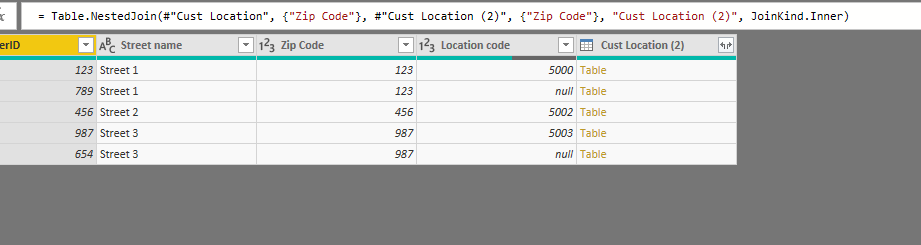
This gets you a table like this
Expand the column with 'Table' in each row (using the icon in the column heading)
You are really only interested in the new Location Code column. It should be fully populated.
Tidy up your data ( by Removing the old Location Code column)
In Power Query:
Duplicate the query
Remove the Customer and Street Name columns.
Filter out the null entries in Location Code column (using the dropdown in the column heading)
This leaves you a kind of master table which matches Zip codes with Locations.
Using 'Merge Queries->Merge as New'
Merge the original and duplicated queries using an Inner Join on the Zip Code.
This gets you a table like this
Expand the column with 'Table' in each row (using the icon in the column heading)
You are really only interested in the new Location Code column. It should be fully populated.
Tidy up your data ( by Removing the old Location Code column)
I got it working, thank you very much!
Apologies for the elementary question.
The Power BI Data Visualization World Championships is back! Get ahead of the game and start preparing now!
Check out the November 2025 Power BI update to learn about new features.