Advance your Data & AI career with 50 days of live learning, dataviz contests, hands-on challenges, study groups & certifications and more!
Get registeredGet Fabric Certified for FREE during Fabric Data Days. Don't miss your chance! Request now
I have a dataset in My Workspace stored in the Power BI cloud. It is working and refreshing fine, but I sync it to Excel using "Analyze in Excel".
I am facing 2 issues:
1. When I try to download the app "Analyze in Excel updates" I get a GERMAN version of the executable. It seems this is a bug already acknowledged >> http://community.powerbi.com/t5/Integrations-with-Files-and/Downloading-Analyze-in-Excel-app-is-in-G...
2. After I installed the SQL OLEDB app in the post above, I can download the .odc file from Power BI and open in Excel. But after login, I get the following error in Excel: "The following error occurred: (The operation completed successfully)." ....... and nothing happens. I cannot refresh the query, nothing...
Anybody facing this same issue?
Solved! Go to Solution.
@rjrn,
In my environment, I have got 1710 update. Please contact your system administrator that if the update is automatically released to your system.
Regarding to the workaround, do you use 32bit or 64bit Excel? Please check the detailed steps below.
1. Verify excel version - 32 bit or 64 bit. Go Excel -> Files -> Account -> About Excel
2. Go to: "C:\Program Files (x86)\Microsoft Office\root\VFS\ProgramFilesX86\Microsoft Analysis Services\AS OLEDB\140" for 32-bit excel version or to: "C:\Program Files\Microsoft Office\root\VFS\ProgramFilesX64\Microsoft Analysis Services\AS OLEDB\140" for 64-bit excel version
3. Right click on the adal.dll -> Properties -> Details tab and check that the 'Product version' is 1.0.2044.0414 (this is the "bad" adal version)
4. Close all office applications
5. Rename the adal.dll file to adal_orig.dll
6. Download MSOLAP 7 from here: http://download.microsoft.com/download/4/8/2/482E5799-9B8E-4724-8A4C-F301BAE788EE/13.0.3523.4/1033/x...
7. Go to: "C:\Program Files (x86)\Microsoft Analysis Services\AS OLEDB\130" for 32-bit excel version or to: "C:\Program Files\Microsoft Analysis Services\AS OLEDB\130" for 64-bit version and copy the adal.dll to the location in step number 2
8. Go back to the location in step number 2 and check that the version of the adal.dll is now: 1.0.2028.318
9. Now try to open the odc file again and see if it works for you.
Regards,
Lydia
@rjrn,
For your second question, this is a known issue, please try the workaround below.
1. Download MSOLAP 7 from here: http://download.microsoft.com/download/4/8/2/482E5799-9B8E-4724-8A4C-F301BAE788EE/13.0.3523.4/1033/x...
2. Close all office applications
3. Go to: C:\Program Files (x86)\Microsoft Office\root\VFS\ProgramFilesX86\Microsoft Analysis Services\AS OLEDB\140 and rename the adal.dll to adal_orig.dll (if you have excel 64 bit use the version from Program Files)
4. Copy the adal.dll from here: C:\Program Files (x86)\Microsoft Analysis Services\AS OLEDB\130 to: C:\Program Files (x86)\Microsoft Office\root\VFS\ProgramFilesX86\Microsoft Analysis Services\AS OLEDB\140 (if you have excel 64 bit use the version from Program Files)
5. Open the odc file and see if it works for you.
Alternatively, you can update your Office to 1710 version.
There is a similar thread for your reference.
http://community.powerbi.com/t5/Integrations-with-Files-and/Analyze-in-excel-system-error/m-p/278325...
Regards,
Lydia
@Anonymous
I did all the steps above and keep getting the same error.
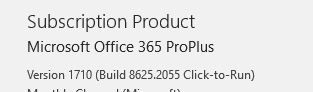
Also, my Excel is version 1709, when I try to update it, it says "The latest version of Office is installed on your computer".
Any thoughts?
@rjrn,
In my environment, I have got 1710 update. Please contact your system administrator that if the update is automatically released to your system.
Regarding to the workaround, do you use 32bit or 64bit Excel? Please check the detailed steps below.
1. Verify excel version - 32 bit or 64 bit. Go Excel -> Files -> Account -> About Excel
2. Go to: "C:\Program Files (x86)\Microsoft Office\root\VFS\ProgramFilesX86\Microsoft Analysis Services\AS OLEDB\140" for 32-bit excel version or to: "C:\Program Files\Microsoft Office\root\VFS\ProgramFilesX64\Microsoft Analysis Services\AS OLEDB\140" for 64-bit excel version
3. Right click on the adal.dll -> Properties -> Details tab and check that the 'Product version' is 1.0.2044.0414 (this is the "bad" adal version)
4. Close all office applications
5. Rename the adal.dll file to adal_orig.dll
6. Download MSOLAP 7 from here: http://download.microsoft.com/download/4/8/2/482E5799-9B8E-4724-8A4C-F301BAE788EE/13.0.3523.4/1033/x...
7. Go to: "C:\Program Files (x86)\Microsoft Analysis Services\AS OLEDB\130" for 32-bit excel version or to: "C:\Program Files\Microsoft Analysis Services\AS OLEDB\130" for 64-bit version and copy the adal.dll to the location in step number 2
8. Go back to the location in step number 2 and check that the version of the adal.dll is now: 1.0.2028.318
9. Now try to open the odc file again and see if it works for you.
Regards,
Lydia
@Anonymous
Lydia, it worked now! Thank you very much!! ![]()
Advance your Data & AI career with 50 days of live learning, contests, hands-on challenges, study groups & certifications and more!
Check out the October 2025 Power BI update to learn about new features.