Get Fabric or SQL Certified for Free.
Get certified for free when you join Fabric Data Days 2026 and dive into Fabric, Power BI, SQL, AI, and other essential data skills.
Join now- Power BI forums
- Get Help with Power BI
- Desktop
- Service
- Report Server
- Power Query
- Mobile Apps
- Developer
- DAX Commands and Tips
- Custom Visuals Development Discussion
- Health and Life Sciences
- Power BI Spanish forums
- Translated Spanish Desktop
- Training and Consulting
- Instructor Led Training
- Dashboard in a Day for Women, by Women
- Galleries
- Data Stories Gallery
- Themes Gallery
- Contests Gallery
- QuickViz Gallery
- Quick Measures Gallery
- Visual Calculations Gallery
- Fabric Apps Gallery
- Notebook Gallery
- Translytical Task Flow Gallery
- TMDL Gallery
- R Script Showcase
- Webinars and Video Gallery
- Ideas
- Custom Visuals Ideas (read-only)
- Issues
- Issues
- Events
- Upcoming Events
July 7 - July 17 | Round 2 of the Power BI Dataviz World Championships. Don't miss your chance! Learn more
- Power BI forums
- Forums
- Get Help with Power BI
- Power Query
- Re: Power Query help
- Subscribe to RSS Feed
- Mark Topic as New
- Mark Topic as Read
- Float this Topic for Current User
- Bookmark
- Subscribe
- Printer Friendly Page


- Mark as New
- Bookmark
- Subscribe
- Mute
- Subscribe to RSS Feed
- Permalink
- Report Inappropriate Content
Power Query help
Hi,
Does anyone know how i can convert this using power query or from excel.
The header is on the 1st column, it organize in a weekly fashion.
The spreadsheet was not designed by me. But i need import the data into PBI.

Solved! Go to Solution.


- Mark as New
- Bookmark
- Subscribe
- Mute
- Subscribe to RSS Feed
- Permalink
- Report Inappropriate Content
Good, so you add the category-field to the unpivot others step:
// Table1
let
    Source = Excel.CurrentWorkbook(){[Name="Table1"]}[Content],
    #"Filtered Rows2" = Table.SelectRows(Source, each ([Column1] <> null)),
    #"Added Custom" = Table.AddColumn(#"Filtered Rows2", "Week", each if Text.StartsWith([Column1], "Week ") then [Column1] else null),
    #"Filled Down" = Table.FillDown(#"Added Custom",{"Week"}),
    #"Promoted Headers" = Table.PromoteHeaders(#"Filled Down", [PromoteAllScalars=true]),
    #"Unpivoted Other Columns" = Table.UnpivotOtherColumns(#"Promoted Headers", {"Week 1", "Week 1_1", "category"}, "Attribute", "Value"),
    #"Renamed Columns" = Table.RenameColumns(#"Unpivoted Other Columns",{{"Attribute", "Date"}}),
    #"Filtered Rows" = Table.SelectRows(#"Renamed Columns", each not Text.StartsWith([Week 1], "Week ")),
    #"Filtered Rows1" = Table.SelectRows(#"Filtered Rows", each ([Value] <> "")),
    #"Renamed Columns1" = Table.RenameColumns(#"Filtered Rows1",{{"Week 1", "Row"}, {"Week 1_1", "Week"}}),
    #"Changed Type1" = Table.TransformColumnTypes(#"Renamed Columns1",{{"Value", type number}, {"category", type text}})
in
    #"Changed Type1"
Imke Feldmann (The BIccountant)
If you liked my solution, please give it a thumbs up. And if I did answer your question, please mark this post as a solution. Thanks!
How to integrate M-code into your solution -- How to get your questions answered quickly -- How to provide sample data -- Check out more PBI- learning resources here -- Performance Tipps for M-queries

- Mark as New
- Bookmark
- Subscribe
- Mute
- Subscribe to RSS Feed
- Permalink
- Report Inappropriate Content
= Table.Combine(Table.Group(Source,"Column1",{"n",each let a=Table.PromoteHeaders(Table.SelectRows(_,each [Column1]<>null)),b=Table.UnpivotOtherColumns(a,List.RemoveRange(Table.ColumnNames(a),1,7),"Date","x") in Table.RenameColumns(Table.Pivot(b,List.Distinct(Table.ToColumns(b){0}),Table.ColumnNames(b){0},"x"),{{"dates","category"}},1)},0,(x,y)=>Byte.From(Text.StartsWith(y??"","Week ")))[n])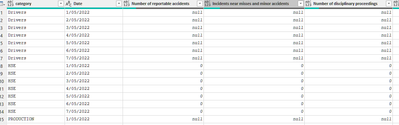


- Mark as New
- Bookmark
- Subscribe
- Mute
- Subscribe to RSS Feed
- Permalink
- Report Inappropriate Content
Hi @VincenzoChean ,
I just realised that you have attached the source file.
See below link for the solution.
Regards
KT
- Mark as New
- Bookmark
- Subscribe
- Mute
- Subscribe to RSS Feed
- Permalink
- Report Inappropriate Content
Good, so you add the category-field to the unpivot others step:
// Table1
let
    Source = Excel.CurrentWorkbook(){[Name="Table1"]}[Content],
    #"Filtered Rows2" = Table.SelectRows(Source, each ([Column1] <> null)),
    #"Added Custom" = Table.AddColumn(#"Filtered Rows2", "Week", each if Text.StartsWith([Column1], "Week ") then [Column1] else null),
    #"Filled Down" = Table.FillDown(#"Added Custom",{"Week"}),
    #"Promoted Headers" = Table.PromoteHeaders(#"Filled Down", [PromoteAllScalars=true]),
    #"Unpivoted Other Columns" = Table.UnpivotOtherColumns(#"Promoted Headers", {"Week 1", "Week 1_1", "category"}, "Attribute", "Value"),
    #"Renamed Columns" = Table.RenameColumns(#"Unpivoted Other Columns",{{"Attribute", "Date"}}),
    #"Filtered Rows" = Table.SelectRows(#"Renamed Columns", each not Text.StartsWith([Week 1], "Week ")),
    #"Filtered Rows1" = Table.SelectRows(#"Filtered Rows", each ([Value] <> "")),
    #"Renamed Columns1" = Table.RenameColumns(#"Filtered Rows1",{{"Week 1", "Row"}, {"Week 1_1", "Week"}}),
    #"Changed Type1" = Table.TransformColumnTypes(#"Renamed Columns1",{{"Value", type number}, {"category", type text}})
in
    #"Changed Type1"
Imke Feldmann (The BIccountant)
If you liked my solution, please give it a thumbs up. And if I did answer your question, please mark this post as a solution. Thanks!
How to integrate M-code into your solution -- How to get your questions answered quickly -- How to provide sample data -- Check out more PBI- learning resources here -- Performance Tipps for M-queries
- Mark as New
- Bookmark
- Subscribe
- Mute
- Subscribe to RSS Feed
- Permalink
- Report Inappropriate Content
Hi @VincenzoChean ,
will there always only be 7 columns with dates or could there be more or less? (This is relevant for how to determine the columns that shall be unpivoted.)
With regards to the m-code, in this video I show how to use code from the internet and paste it into the advanced editor: Dynamically solve parent child hierarchies in Power BI and Power Query - YouTube
Imke Feldmann (The BIccountant)
If you liked my solution, please give it a thumbs up. And if I did answer your question, please mark this post as a solution. Thanks!
How to integrate M-code into your solution -- How to get your questions answered quickly -- How to provide sample data -- Check out more PBI- learning resources here -- Performance Tipps for M-queries
- Mark as New
- Bookmark
- Subscribe
- Mute
- Subscribe to RSS Feed
- Permalink
- Report Inappropriate Content
Hi
Yes it will be. Thanks a lot.
- Mark as New
- Bookmark
- Subscribe
- Mute
- Subscribe to RSS Feed
- Permalink
- Report Inappropriate Content
Hi @VincenzoChean ,
please paste the following code into the advanced editor and follow the steps:
let
    Source = Excel.CurrentWorkbook(){[Name="Table1"]}[Content],
    #"Filtered Rows2" = Table.SelectRows(Source, each ([Column1] <> null)),
    #"Added Custom" = Table.AddColumn(#"Filtered Rows2", "Week", each if Text.StartsWith([Column1], "Week ") then [Column1] else null),
    #"Filled Down" = Table.FillDown(#"Added Custom",{"Week"}),
    #"Promoted Headers" = Table.PromoteHeaders(#"Filled Down", [PromoteAllScalars=true]),
    #"Unpivoted Other Columns" = Table.UnpivotOtherColumns(#"Promoted Headers", {"Week 1", "Week 1_1"}, "Attribute", "Value"),
    #"Renamed Columns" = Table.RenameColumns(#"Unpivoted Other Columns",{{"Attribute", "Date"}}),
    #"Filtered Rows" = Table.SelectRows(#"Renamed Columns", each not Text.StartsWith([Week 1], "Week ")),
    #"Filtered Rows1" = Table.SelectRows(#"Filtered Rows", each ([Value] <> "")),
    #"Renamed Columns1" = Table.RenameColumns(#"Filtered Rows1",{{"Week 1", "Row"}, {"Week 1_1", "Week"}}),
    #"Changed Type1" = Table.TransformColumnTypes(#"Renamed Columns1",{{"Value", type number}})
in
    #"Changed Type1"
File also attached.
Imke Feldmann (The BIccountant)
If you liked my solution, please give it a thumbs up. And if I did answer your question, please mark this post as a solution. Thanks!
How to integrate M-code into your solution -- How to get your questions answered quickly -- How to provide sample data -- Check out more PBI- learning resources here -- Performance Tipps for M-queries
- Mark as New
- Bookmark
- Subscribe
- Mute
- Subscribe to RSS Feed
- Permalink
- Report Inappropriate Content
Hi
Thanks for assisting. i forgot there's another column that has to go onto it.
Can you please assist again ?
Secondly, do i have to add to 'Data model' before i can use the power query editor ?
I tried going into advance editor but there's no data to select.
Thanks
- Mark as New
- Bookmark
- Subscribe
- Mute
- Subscribe to RSS Feed
- Permalink
- Report Inappropriate Content
Hi @VincenzoChean ,
Below transformation code should be dynamic enough to turn the data into structured data formate:
let
//Get Source
Source = Excel.CurrentWorkbook(){[Name="Table2"]}[Content],
//Unpivot other column other than the first one (i.e. week1,2, column)
#"Unpivoted Other Columns" = Table.UnpivotOtherColumns(Source, {"Column1"}, "Attribute", "Value"),
//Add conditional column to get "Week", then fill down
#"Added Custom1" = Table.AddColumn(#"Unpivoted Other Columns", "Custom", each if Text.StartsWith([Column1],"Week") then [Column1] else null),
#"Filled Down" = Table.FillDown(#"Added Custom1",{"Custom"}),
//Filter for only the header rows
ColumnTbl = Table.SelectRows(#"Filled Down", each Text.StartsWith([Column1],"Week")),
//Filter for all row except header rows
NonColumnTbl = Table.SelectRows(#"Filled Down", each not Text.StartsWith([Column1],"Week")),
//Join the main table (the content without header) with header table to get table
#"Merged Queries" = Table.NestedJoin(NonColumnTbl, {"Custom", "Attribute"}, ColumnTbl, {"Custom", "Attribute"}, "NonColumnTbl", JoinKind.LeftOuter),
#"Expanded NonColumnTbl" = Table.ExpandTableColumn(#"Merged Queries", "NonColumnTbl", {"Value"}, {"Date"}),
//Rename header (rename to whatever name you want)
#"Renamed Columns" = Table.RenameColumns(#"Expanded NonColumnTbl",{{"Column1", "Measure / Title"}, {"Custom", "Week Number"}}),
//Remove access columns
#"Removed Columns1" = Table.RemoveColumns(#"Renamed Columns",{"Attribute"})
in
#"Removed Columns1"

Regards
KT

Helpful resources

FabCon & SQLCon – Barcelona 2026
Join us in Barcelona for FabCon and SQLCon, the Fabric, Power BI, SQL, and AI community event. Save €200 with code FABCMTY200.

Power BI Monthly Update - July 2026
Check out the July 2026 Power BI update to learn about new features.

Data Days 2026
Join Data Days 2026: 60 days of free live/on-demand sessions, challenges, study groups, and certification opportunities.

Power BI DataViz World Championships - June 2026
A new Power BI DataViz World Championship is coming this June! Don't miss out on submitting your entry.


