Join us at FabCon Atlanta from March 16 - 20, 2026, for the ultimate Fabric, Power BI, AI and SQL community-led event. Save $200 with code FABCOMM.
Register now!Vote for your favorite vizzies from the Power BI Dataviz World Championship submissions. Vote now!
Long-time reader first-time poster.
Question
In short, how do I create a column that lists a row's corresponding filename when combining multiple workbooks from a SharePoint folder?
Background
I am sourcing multiple workbooks (raw reports) from a SharePoint folder. Annoyingly the reports do not have dates included in the data. However, I need a date to be included.
To get around the issue of no date, all the reports have been named with their corresponding date.
In the past using a local folder or a synced one drive folder I have been able to use the transform file name into text and then date when I and transforming and combining the data. However, when I have done this in the past I ultimately run into data source issues. This project needs to be portable and not run into these issues. Thus, I have been trying the SharePoint folder option.
Steps Taken So Far
1. Loaded my SharePoint folder URL
2. Filtered the Folder Path to correct folder
3. (STUCK) Combined Files - no "Name" column once combined
I have tried multiple things to no avail and have searched for solutions but can't seem to find anything. The Closet thing I came to was here https://community.powerbi.com/t5/Desktop/Retain-file-name-in-a-column-when-using-Sharepoint-Folder-a... but the answer didn't provide me with much clarity. I also tried to retrofit the answer supplied here https://community.powerbi.com/t5/Desktop/Retain-file-name-column-when-using-Folder-as-a-data-source-... & https://youtu.be/LPC3aPyi5BE
Any help would be super appreciated. Let me know if you need more info.
Solved! Go to Solution.
Hi @Nakor84 ,
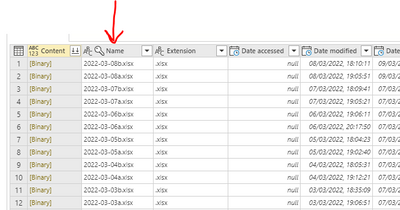
Are you using the folder source 'Transform and Load' function? If you are, then there will be a step in your output query called 'Invoke Custom Function' or similar. Click on this step and you should see your source file names, something like this:
Extract the date from the filename at this point, then this date will be duplicated over all relevant rows when the binary tables are expanded in a later step.
Pete
Proud to be a Datanaut!
Yes, sometimes (gui button click,) it hides it, when you click combine & transform.
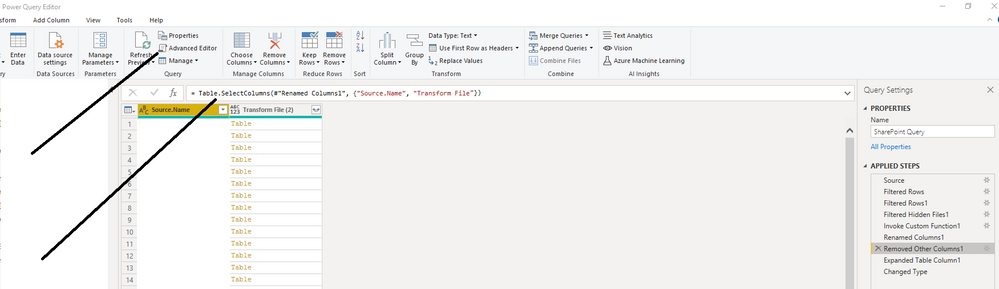
Launch Power Query Editor. click the query where it transformed, click advanced editor (under home tab), adjust one line ... "Name" (or) "Source.Name" , depends on your previous line you can add as below:
#"Removed Other Columns1" = Table.SelectColumns(#"Renamed Columns1", {"Source.Name", "Transform File"}),
Lines of the context, what I am talking about ...
#"Invoke Custom Function1" = Table.AddColumn(#"Filtered Hidden Files1", "Transform File", each #"Transform File"([Content])),
#"Renamed Columns1" = Table.RenameColumns(#"Invoke Custom Function1", {"Name", "Source.Name"}),
#"Removed Other Columns1" = Table.SelectColumns(#"Renamed Columns1", {"Source.Name", "Transform File"}),
#"Expanded Table Column1" = Table.ExpandTableColumn(#"Removed Other Columns1", "Transform File", Table.ColumnNames(#"Transform File"(#"Sample File"))),
#"Changed Type" = Table.TransformColumnTypes(#"Expanded Table Column1",{{"Source.Name", type text}, {"Column1", type text}})
in
#"Changed Type"
You can do the same using Query Applied steps, either way the same:
Thanks Pete and Sevenhills, I appreciate the assist! Both of your solutions got me there 😊
Yes, sometimes (gui button click,) it hides it, when you click combine & transform.
Launch Power Query Editor. click the query where it transformed, click advanced editor (under home tab), adjust one line ... "Name" (or) "Source.Name" , depends on your previous line you can add as below:
#"Removed Other Columns1" = Table.SelectColumns(#"Renamed Columns1", {"Source.Name", "Transform File"}),
Lines of the context, what I am talking about ...
#"Invoke Custom Function1" = Table.AddColumn(#"Filtered Hidden Files1", "Transform File", each #"Transform File"([Content])),
#"Renamed Columns1" = Table.RenameColumns(#"Invoke Custom Function1", {"Name", "Source.Name"}),
#"Removed Other Columns1" = Table.SelectColumns(#"Renamed Columns1", {"Source.Name", "Transform File"}),
#"Expanded Table Column1" = Table.ExpandTableColumn(#"Removed Other Columns1", "Transform File", Table.ColumnNames(#"Transform File"(#"Sample File"))),
#"Changed Type" = Table.TransformColumnTypes(#"Expanded Table Column1",{{"Source.Name", type text}, {"Column1", type text}})
in
#"Changed Type"
You can do the same using Query Applied steps, either way the same:
Hi @Nakor84 ,
Are you using the folder source 'Transform and Load' function? If you are, then there will be a step in your output query called 'Invoke Custom Function' or similar. Click on this step and you should see your source file names, something like this:
Extract the date from the filename at this point, then this date will be duplicated over all relevant rows when the binary tables are expanded in a later step.
Pete
Proud to be a Datanaut!
Vote for your favorite vizzies from the Power BI World Championship submissions!
If you love stickers, then you will definitely want to check out our Community Sticker Challenge!
Check out the January 2026 Power BI update to learn about new features.
| User | Count |
|---|---|
| 11 | |
| 9 | |
| 8 | |
| 7 | |
| 6 |