Get Fabric or SQL Certified for Free.
Get certified for free when you join Fabric Data Days 2026 and dive into Fabric, Power BI, SQL, AI, and other essential data skills.
Join now- Power BI forums
- Get Help with Power BI
- Desktop
- Service
- Report Server
- Power Query
- Mobile Apps
- Developer
- DAX Commands and Tips
- Custom Visuals Development Discussion
- Health and Life Sciences
- Power BI Spanish forums
- Translated Spanish Desktop
- Training and Consulting
- Instructor Led Training
- Dashboard in a Day for Women, by Women
- Galleries
- Data Stories Gallery
- Themes Gallery
- Contests Gallery
- QuickViz Gallery
- Quick Measures Gallery
- Visual Calculations Gallery
- Fabric Apps Gallery
- Notebook Gallery
- Translytical Task Flow Gallery
- TMDL Gallery
- R Script Showcase
- Webinars and Video Gallery
- Ideas
- Custom Visuals Ideas (read-only)
- Issues
- Issues
- Events
- Upcoming Events
July 28 - August 9 | Final Round of the Power BI Dataviz World Championships. This is your chance. Learn more
- Power BI forums
- Forums
- Get Help with Power BI
- Power Query
- Re: Open Links To Excel Files As Dataset
- Subscribe to RSS Feed
- Mark Topic as New
- Mark Topic as Read
- Float this Topic for Current User
- Bookmark
- Subscribe
- Printer Friendly Page

- Mark as New
- Bookmark
- Subscribe
- Mute
- Subscribe to RSS Feed
- Permalink
- Report Inappropriate Content
Open Links To Excel Files As Dataset
Hi all,
I have an Excel table that has a list of links to other Excel files. What I would like to do is use Power Query to open all the links into a single dataset. I'm able to do something similar when I have files linked in a Sharepoint folder (as explained here) but I can't seem to find a way to do this for a list of links.
It might not even be possible, but just wondering if anyone might have a solution?
TIA,
SamB


- Mark as New
- Bookmark
- Subscribe
- Mute
- Subscribe to RSS Feed
- Permalink
- Report Inappropriate Content
Hi @Anonymous
Just add a column to the Excel table that contains the link like so:
Excel.Workbook(File.Contents([link])))
Where [link] is the reference to the column with the link to your Excel-Workbooks.
Imke Feldmann (The BIccountant)
If you liked my solution, please give it a thumbs up. And if I did answer your question, please mark this post as a solution. Thanks!
How to integrate M-code into your solution -- How to get your questions answered quickly -- How to provide sample data -- Check out more PBI- learning resources here -- Performance Tipps for M-queries
- Mark as New
- Bookmark
- Subscribe
- Mute
- Subscribe to RSS Feed
- Permalink
- Report Inappropriate Content
Hi Imke,
Thanks for the input. I think this is already done - so this is my table at the moment:
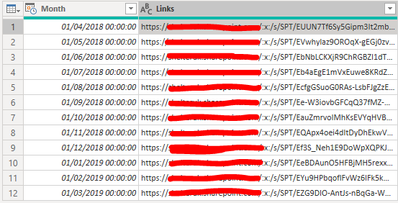
And this is the code:
let
Source = Excel.Workbook(File.Contents("C:\Users\xxxx\Downloads\Example.xlsx"), null, true),
Table2_2_Table = Source{[Item="Table2_2",Kind="Table"]}[Data],
#"Changed Type" = Table.TransformColumnTypes(Table2_2_Table,{{"Month", type datetime}, {"Links", type text}})
in
#"Changed Type"
The second line looks like your suggestion, or am I missing something?
Thanks,
Sam
- Mark as New
- Bookmark
- Subscribe
- Mute
- Subscribe to RSS Feed
- Permalink
- Report Inappropriate Content
Yes, you missed to add the column:
let
Source = Excel.Workbook(File.Contents("C:\Users\xxxx\Downloads\Example.xlsx"), null, true),
Table2_2_Table = Source{[Item="Table2_2",Kind="Table"]}[Data],
#"Changed Type" = Table.TransformColumnTypes(Table2_2_Table,{{"Month", type datetime}, {"Links", type text}}),
ImkesStep = Table.AddColumn(#"Changed Type", "Custom", each Excel.Workbook(File.Contents([Links])))
in
ImkesStep
While this works on references to local files. You have to adjust it a bit to grab the contents from an online source.
Imke Feldmann (The BIccountant)
If you liked my solution, please give it a thumbs up. And if I did answer your question, please mark this post as a solution. Thanks!
How to integrate M-code into your solution -- How to get your questions answered quickly -- How to provide sample data -- Check out more PBI- learning resources here -- Performance Tipps for M-queries
- Mark as New
- Bookmark
- Subscribe
- Mute
- Subscribe to RSS Feed
- Permalink
- Report Inappropriate Content
H Imke,
Thanks for your help on this. The files are saved in a colleagues Sharepoint / OneDrive folder and I think that's why I'm now getting a 'DataFormat.Error: The supplied file path must be a valid absolute path' error. I've tried saving my file locally, but no joy.
Thanks,
Sam
- Mark as New
- Bookmark
- Subscribe
- Mute
- Subscribe to RSS Feed
- Permalink
- Report Inappropriate Content
Have you tried my method on you local files? What did the error-message say?
If you want to continue with Sharepoint, I recommend this: https://www.poweredsolutions.co/2019/04/04/connecting-to-files-in-sharepoint-onedrive-with-power-bi-...
Imke Feldmann (The BIccountant)
If you liked my solution, please give it a thumbs up. And if I did answer your question, please mark this post as a solution. Thanks!
How to integrate M-code into your solution -- How to get your questions answered quickly -- How to provide sample data -- Check out more PBI- learning resources here -- Performance Tipps for M-queries
- Mark as New
- Bookmark
- Subscribe
- Mute
- Subscribe to RSS Feed
- Permalink
- Report Inappropriate Content
Hi Imke,
Well, I think it just might not be doable  - I've tried to advice in the link you sent and I still get the same error message, as I also do with the local files.
Thanks for your input anyhow!
Sam


- Mark as New
- Bookmark
- Subscribe
- Mute
- Subscribe to RSS Feed
- Permalink
- Report Inappropriate Content
Hi there, I was facing the same issue, having a list of links to Sharepoint-hosted Excel files that I wanted to open in Power Query. I managed to get it working in the end, with a solution inspired by this post. Instead of trying to use the magical Excel-opening function, you have to use the Web-opening function. In the example above that means changing:
ImkesStep = Table.AddColumn(#"Changed Type", "Custom", each Excel.Workbook(File.Contents([Links])))
to
ImkesStep = Table.AddColumn(#"Changed Type", "Custom", each Web.Contents([Links]))
That seems to work for me.
Cheers,
Matt
Helpful resources

Fabric Community Sticker Challenge - Barcelona 2026
If you love stickers, then you will definitely want to check out our community sticker challenge, Barcelona edition!

Power BI Monthly Update - July 2026
Check out the July 2026 Power BI update to learn about new features.

Power BI DataViz World Championships - June 2026
A new Power BI DataViz World Championship is coming this June! Don't miss out on submitting your entry.


