cancel
Showing results for 
Search instead for 
Did you mean: 

The Power BI Data Visualization World Championships is back! Get ahead of the game and start preparing now! Learn more

Reply
PowerDR
Regular Visitor

Missing Data Error on Refresh

Hi all


We have Power BI connected to our Dynamics 365 CRM data source. There have recently been some changes to the tables in Dynamics and now we get a Missing Data Error on Refresh.


I have searched for solutions and came across the MissingField.UseNull option which I think could work for our needs. I have attempted to add it to the query, but do not have success.


See the current query below. Please help me insert the MissingField.UseNull function?


let
    Source = OData.Feed("our_data_source", null, [Implementation="2.0"]),
    opportunities_table = Source{[Name="opportunities",Signature="table"]}[Data]
in
    opportunities_table


Thanks so much in advance!


1 ACCEPTED SOLUTION

@PowerDR I don't know of a way around adding all columns but what you can do as a quick way around having to manually add all the column names is to click on Choose Columns select all the columns you need and click Ok. That will add all the column names for you. Then all you have to do is add a comma after the closing bracket } and MissingField.UseNull and close the parenthesis. Similar to the solution I provided above. 

Hope this helps.


Did my answer(s) help you? Give it a kudos by clicking the Thumbs Up! ?
Did my post answer your question(s)? Mark my post as a solution. This will help others find the solution.


Did my answer(s) help you? Give it a kudos by clicking the Thumbs Up!
Did my post answer your question(s)? Mark my post as a solution. This will help others find the solution.

Proud to be a Super User!

View solution in original post

4 REPLIES 4
Watsky
Solution Sage
Solution Sage

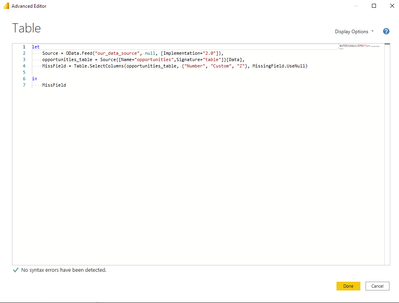
Hey @PowerDR to use MissingField.UseNull you'll need to have more code that lists out the names of the columns you're bringing in. Here's an example:


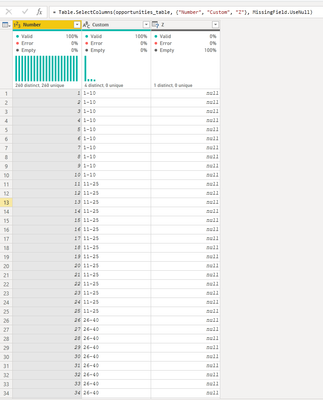
I have three columns Number, Custom, and Z. Let's say these are the columns that are in your opportunities table. Z doesn't exist anymore but I'm still listing it out in my code. 


let
    Source = OData.Feed("our_data_source", null, [Implementation="2.0"]),
    opportunities_table = Source{[Name="opportunities",Signature="table"]}[Data],
    MissFields = Table.SelectColumns(opportunities_table, {"Number", "Custom", "Z"}, MissingField.UseNull)
in
    MissFields
 

Watsky_0-1622845888596.png

The result ends up looking like this. 
 

Watsky_2-1622846024855.png


Hope this helps!


Did my answer(s) help you? Give it a kudos by clicking the Thumbs Up! ?
Did my post answer your question(s)? Mark my post as a solution. This will help others find the solution.



Did my answer(s) help you? Give it a kudos by clicking the Thumbs Up!
Did my post answer your question(s)? Mark my post as a solution. This will help others find the solution.

Proud to be a Super User!

Hi Watsky 

Thanks so much for the reply. This table is huge with over 400 columns and we need at least 300 of them. Do I need to list them all in the 3rd line of the query or just those I know are missing?

Many thanks!

@PowerDR I don't know of a way around adding all columns but what you can do as a quick way around having to manually add all the column names is to click on Choose Columns select all the columns you need and click Ok. That will add all the column names for you. Then all you have to do is add a comma after the closing bracket } and MissingField.UseNull and close the parenthesis. Similar to the solution I provided above. 

Hope this helps.


Did my answer(s) help you? Give it a kudos by clicking the Thumbs Up! ?
Did my post answer your question(s)? Mark my post as a solution. This will help others find the solution.


Did my answer(s) help you? Give it a kudos by clicking the Thumbs Up!
Did my post answer your question(s)? Mark my post as a solution. This will help others find the solution.

Proud to be a Super User!

Thanks so much Watsky. I got it sorted by selecting the columns as you said and then added "Remove Other Columns".

Helpful resources

Announcements
Power BI DataViz World Championships

Power BI Dataviz World Championships

The Power BI Data Visualization World Championships is back! Get ahead of the game and start preparing now!

December 2025 Power BI Update Carousel

Power BI Monthly Update - December 2025

Check out the December 2025 Power BI Holiday Recap!

FabCon Atlanta 2026 carousel

FabCon Atlanta 2026

Join us at FabCon Atlanta, March 16-20, for the ultimate Fabric, Power BI, AI and SQL community-led event. Save $200 with code FABCOMM.