cancel
Showing results for 
Search instead for 
Did you mean: 

July 7 - July 17 | Round 2 of the Power BI Dataviz World Championships. Don't miss your chance! Learn more

Reply
saravanan
New Member

Issue with unpivoting Excel Data

Hello There

I am trying to unpivot the excel data but it was not correctly unpivoted 

see the below sample which i am trying to unvpoit from PBI designer . 

I have employee sales by name but Pivoted date values

EmpName12/12/201412/1/200412/14/201512/15/200212/16/198812/17/2014
Saravanan122023
Jeff1210891 5

i selected the file from PBI designer then i tried to edit the query to use the first row as headers then wanted to Unpivot the sales data by employee by date

PBI1.PNG

After i Clicked the Use First Row As Headers it ended up as below. it shows up ONLY the EmpName Column as Header but none of the dates become Header

First Row Click.PNG

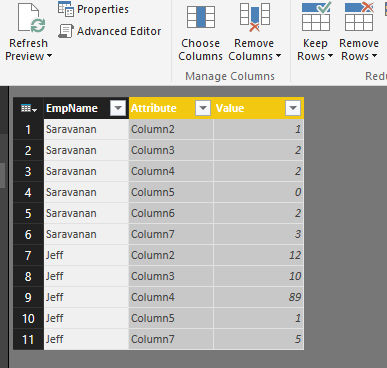
and when i Unpivot the All Columns except EmpName it comes out like below which is totally wrong

UnPivot.PNG


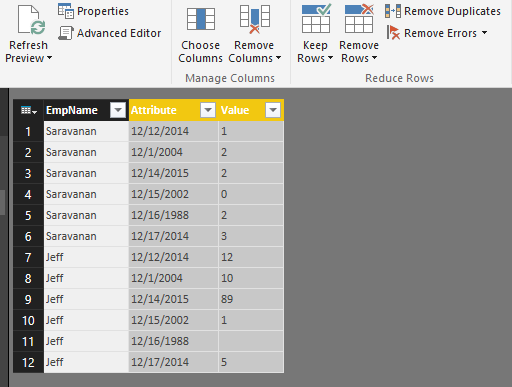
it does works well if its CSV and i can see what i want as below

Correct Unpivot.PNG

i think this is because of Excel mixed data type but can this be fixed or is there any work around ?


thanks

Saravanan

1 ACCEPTED SOLUTION
Greg_Deckler
Community Champion
Community Champion

I believe the issue is that when you import from your Excel file, it is changing the types of the columns to "Any", should be the third step in your query. Go to View | Advanced Editor and edit the "any" to "text". Then and only then promote your headers.


let
    Source = Excel.Workbook(File.Contents("C:\Temp\employees.xlsx"), null, true),
    Sheet1_Sheet = Source{[Item="Sheet1",Kind="Sheet"]}[Data],
    #"Changed Type" = Table.TransformColumnTypes(Sheet1_Sheet,{{"Column1", type text}, {"Column2", type text}, {"Column3", type text}, {"Column4", type text}, {"Column5", type text}, {"Column6", type text}, {"Column7", type text}}),
    #"Promoted Headers" = Table.PromoteHeaders(#"Changed Type")
in
    #"Promoted Headers"


Follow on LinkedIn
@ me in replies or I'll lose your thread!!!
Instead of a Kudo, please vote for this idea
Become an expert!: Enterprise DNA
External Tools: MSHGQM
YouTube Channel!: Microsoft Hates Greg
Latest book!:
DAX For Humans

DAX is easy, CALCULATE makes DAX hard...

View solution in original post

2 REPLIES 2
Greg_Deckler
Community Champion
Community Champion

I believe the issue is that when you import from your Excel file, it is changing the types of the columns to "Any", should be the third step in your query. Go to View | Advanced Editor and edit the "any" to "text". Then and only then promote your headers.


let
    Source = Excel.Workbook(File.Contents("C:\Temp\employees.xlsx"), null, true),
    Sheet1_Sheet = Source{[Item="Sheet1",Kind="Sheet"]}[Data],
    #"Changed Type" = Table.TransformColumnTypes(Sheet1_Sheet,{{"Column1", type text}, {"Column2", type text}, {"Column3", type text}, {"Column4", type text}, {"Column5", type text}, {"Column6", type text}, {"Column7", type text}}),
    #"Promoted Headers" = Table.PromoteHeaders(#"Changed Type")
in
    #"Promoted Headers"


Follow on LinkedIn
@ me in replies or I'll lose your thread!!!
Instead of a Kudo, please vote for this idea
Become an expert!: Enterprise DNA
External Tools: MSHGQM
YouTube Channel!: Microsoft Hates Greg
Latest book!:
DAX For Humans

DAX is easy, CALCULATE makes DAX hard...

smoupre,


Great.. this was a quick FIX 🙂

it worked


thanks

Helpful resources

Announcements
FabCon and SQLCon Barcelona 2026

FabCon & SQLCon – Barcelona 2026

Join us in Barcelona for FabCon and SQLCon, the Fabric, Power BI, SQL, and AI community event. Save €200 with code FABCMTY200.

60 days of Data Days Carousel

Data Days 2026

Join Data Days 2026: 60 days of free live/on-demand sessions, challenges, study groups, and certification opportunities.

Power BI DataViz World Championships carousel

Power BI DataViz World Championships - June 2026

A new Power BI DataViz World Championship is coming this June! Don't miss out on submitting your entry.

Top Solution Authors