cancel
Showing results for 
Search instead for 
Did you mean: 

July 28 - August 9 | Final Round of the Power BI Dataviz World Championships. This is your chance. Learn more

Reply
Anonymous
Not applicable

Google Analytics 2.0: Desktop vs Service issue

Hi,


I'm using the Google Analytics 2.0 (GA4) connector to gather data.

The first Query I launched had only a dimension (Date) and a metric (Sessions) and it worked.


Then I tried a more complex Query, involving 3 dimensions (Date, PagePath and DeviceCategory) and a metric (Sessions). 

There, it happened that when calling for data in the Power BI Desktop, the Query has been loading for 5 hours before I cancelled it manually.

On the other hand, the same Query in Power BI Service retrieved data in few seconds.


Moreover, analyzing data through Power Query Editor in both scenarios, over the same Query, I've noticed that:

- in Power BI Desktop, the count of the rows computed with M would have been around 13'000 rows.

- in Power BI Service, the output stores around 2'000 rows (that's the 15% !!)


The query I'm writing in M is the following one:


Cube.Transform([PreviousStep], {{Cube.AddMeasureColumn, "sessions", "sessions"},
                         {Cube.AddAndExpandDimensionColumn, "date", {"date"}, {"date"}},
                         {Cube.AddAndExpandDimensionColumn, "pagePath", {"pagePath"}, {"pagePath"}},
                         {Cube.AddAndExpandDimensionColumn, "deviceCategory", {"deviceCategory"}, {"deviceCategory"}}
                         })
 
I've searched online for some documentation about it but didn't find anything that suites;
can someone help me in understanding why it happens and how to solve it?
 
Thanks to all!
1 REPLY 1
ReportBuilder07
Helper III
Helper III

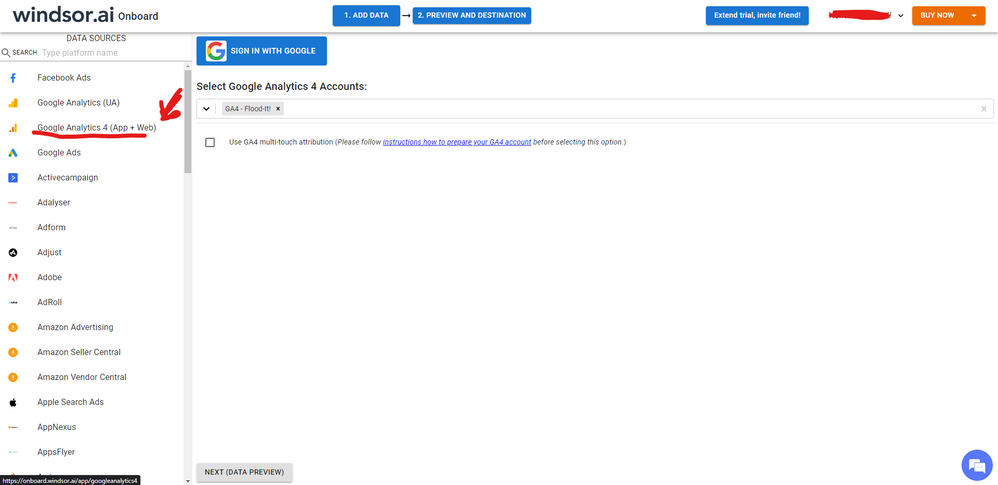
Hi @Anonymous Seems like the 2.0 beta connector is still presenting some issues. As a workaround, maybe you can try to test your connection with a 3rd party tool. I've tried windsor.ai, supemetrics and funnel.io. I stayed with windsor because it is much cheaper so just to let you know other options. In case you wonder, to make the connection first search for the GA4 connector in the data sources list:


GA4-1.png


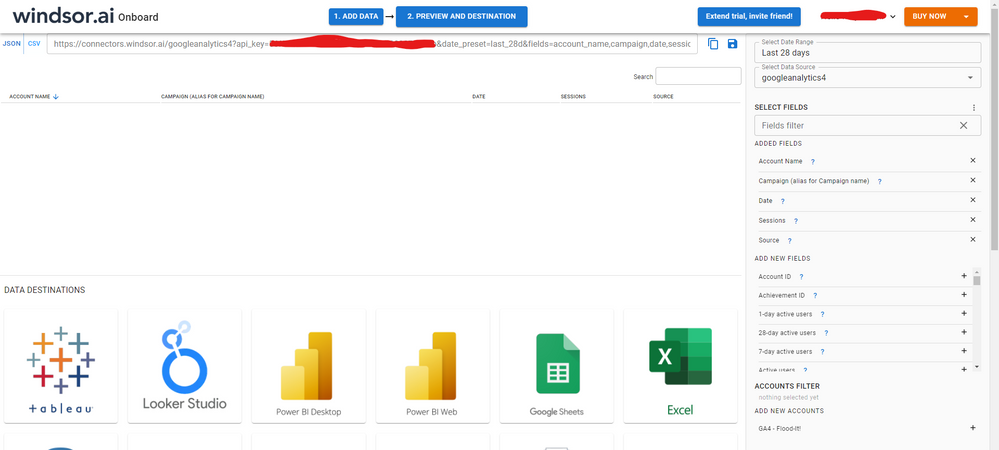
After that, just grant access to your GA4 account using your credentials, then on preview and destination page you will see a preview of your G4 fields:


GA4-2.png


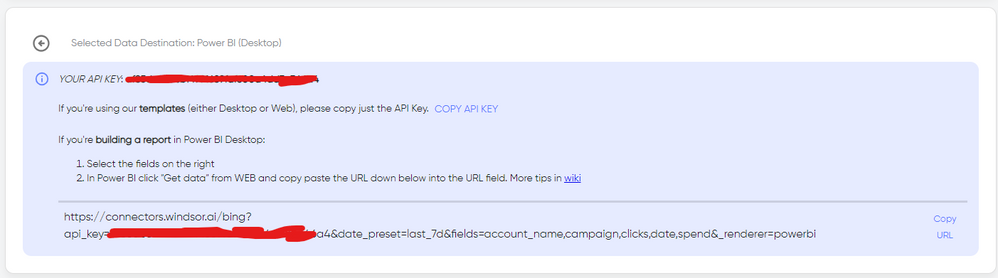
There just select the fields you need. Finally, just select PBI as your data destination and finally just copy and paste the url on PBI --> Get Data --> Web --> Paste the url. 


SELECT_DESTINATION_NEW.png

Helpful resources

Announcements
FabCon and SQLCon Barcelona 2026

FabCon & SQLCon – Barcelona 2026

Join us in Barcelona for FabCon and SQLCon, the Fabric, Power BI, SQL, and AI community event. Save €200 with code FABCMTY200.

Fabric Community Sticker Design Challenge Barcelona Carousel

Fabric Community Sticker Challenge - Barcelona 2026

If you love stickers, then you will definitely want to check out our community sticker challenge, Barcelona edition!

July Power BI Update Carousel

Power BI Monthly Update - July 2026

Check out the July 2026 Power BI update to learn about new features.

Power BI DataViz World Championships carousel

Power BI DataViz World Championships - June 2026

A new Power BI DataViz World Championship is coming this June! Don't miss out on submitting your entry.