This time we’re going bigger than ever. Fabric, Power BI, SQL, AI and more. We're covering it all. You won't want to miss it.
Learn moreDid you hear? There's a new SQL AI Developer certification (DP-800). Start preparing now and be one of the first to get certified. Register now
Hello there, anyone have luck pulling data froma web api (that comes in in XML nested format) and turning it into the right data table for building reports with?
The data looks like this:
<reportDataDTO>
<childReports>
<childReport>
<dataRows>
<dataRow>
<entries>
<entry>
<attributeName>lradName</attributeName>
<dataValue>AP21</dataValue>
<displayName>AP Name</displayName>
</entry>
<entry>
<attributeName>ipAddress_address</attributeName>
<dataValue>10.1.1.1</dataValue>
<displayName>AP IP Address</displayName>
</entry>
<entry>
<attributeName>macAddress</attributeName>
<dataValue>21:23:d4:e4:11:50</dataValue>
<displayName>Base Radio MAC</displayName>
</entry>
<entry>
<attributeName>apNeighborName</attributeName>
<dataValue>Cat21.domain.lcl</dataValue>
<displayName>Neighbor Name</displayName>
</entry>
<entry>
<attributeName>apNeighborPort</attributeName>
<dataValue>FastEthernet0/10</dataValue>
<displayName>Neighbor Port</displayName>
</entry>
</entries>
</dataRow>
</dataRows>
</childReport>
</childReports>
</reportDataDTO>
no matter how I split out the data and unpivot or change I can't get the "dataRow" info to show up as rows. I get to a point that I can get "entry" to be a column with each row showing as "Table" and then if I highlight a row with "Table" in it I can see the data but it is by row not by column. I need either the attributeName or the displayName values to be the column headers with the dataValue values to be the data (if that makes sense). Seems obvious from the XML since "entries" is a row of data so any help with the transform would be welcome
thanks
Steve
Solved! Go to Solution.
@scarr4,
When I directly copy the above data in a text file,named it as test.xml file and connect to it in Power BI Desktop, I get the following table.
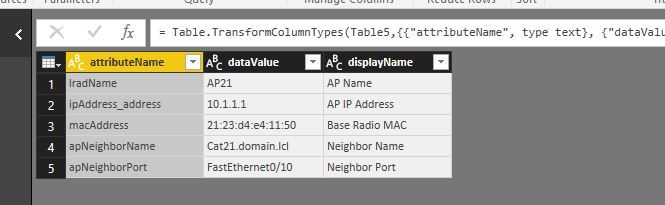
Do you want to get the following expected result?
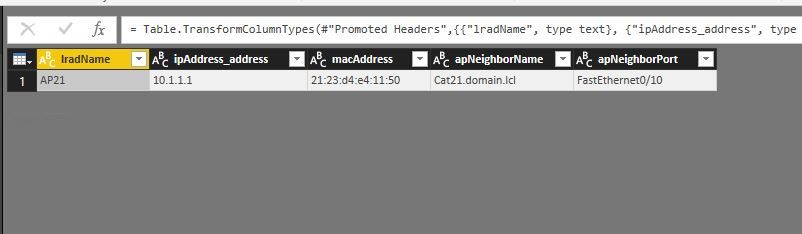
If so, you can use Transpose feature. Add a blank query, copy and paste the following code to test it, remember to replace yourfolder with your own folder name.
let
Source = Xml.Tables(File.Contents("yourfolder\test.xml")),
Table0 = Source{0}[Table],
Table1 = Table0{0}[Table],
Table2 = Table1{0}[Table],
Table3 = Table2{0}[Table],
Table4 = Table3{0}[Table],
Table5 = Table4{0}[Table],
#"Changed Type" = Table.TransformColumnTypes(Table5,{{"attributeName", type text}, {"dataValue", type text}, {"displayName", type text}}),
#"Removed Columns" = Table.RemoveColumns(#"Changed Type",{"displayName"}),
#"Transposed Table" = Table.Transpose(#"Removed Columns"),
#"Promoted Headers" = Table.PromoteHeaders(#"Transposed Table", [PromoteAllScalars=true]),
#"Changed Type1" = Table.TransformColumnTypes(#"Promoted Headers",{{"lradName", type text}, {"ipAddress_address", type text}, {"macAddress", type text}, {"apNeighborName", type text}, {"apNeighborPort", type text}})
in
#"Changed Type1"
Regards,
Lydia
@scarr4,
When I directly copy the above data in a text file,named it as test.xml file and connect to it in Power BI Desktop, I get the following table.
Do you want to get the following expected result?
If so, you can use Transpose feature. Add a blank query, copy and paste the following code to test it, remember to replace yourfolder with your own folder name.
let
Source = Xml.Tables(File.Contents("yourfolder\test.xml")),
Table0 = Source{0}[Table],
Table1 = Table0{0}[Table],
Table2 = Table1{0}[Table],
Table3 = Table2{0}[Table],
Table4 = Table3{0}[Table],
Table5 = Table4{0}[Table],
#"Changed Type" = Table.TransformColumnTypes(Table5,{{"attributeName", type text}, {"dataValue", type text}, {"displayName", type text}}),
#"Removed Columns" = Table.RemoveColumns(#"Changed Type",{"displayName"}),
#"Transposed Table" = Table.Transpose(#"Removed Columns"),
#"Promoted Headers" = Table.PromoteHeaders(#"Transposed Table", [PromoteAllScalars=true]),
#"Changed Type1" = Table.TransformColumnTypes(#"Promoted Headers",{{"lradName", type text}, {"ipAddress_address", type text}, {"macAddress", type text}, {"apNeighborName", type text}, {"apNeighborPort", type text}})
in
#"Changed Type1"
Regards,
Lydia
Thanks for this solution. If I wanted to keep the live connection to the api, how would I accomplish this?
Check out the April 2026 Power BI update to learn about new features.
Sign up to receive a private message when registration opens and key events begin.
If you have recently started exploring Fabric, we'd love to hear how it's going. Your feedback can help with product improvements.