Share feedback directly with Fabric product managers, participate in targeted research studies and influence the Fabric roadmap.
Sign up nowGet Fabric certified for FREE! Don't miss your chance! Learn more
Hello everyone,
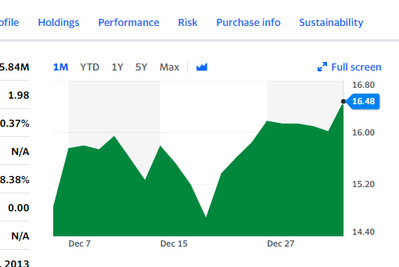
I woudl like to ask for an advise how to extract data from a specific object (Chart) on a website.
My intension is to get daily values of mutual funds into Power BI, howover so far I couldn't find any way how to do it.
Is it even possible?
https://finance.yahoo.com/quote/WPLCX?p=WPLCX
Thanks a lot!
Jan
Hi @JanD
Did you figured how to solve this? I'm trying to build somoething similar as well i can´t find a solution
Hi @JanD ,
Agree with @AlexisOlson .such a difficult requirement could not be realized currently.
If you also want this in power bi, let the power bi community to know this things and give your votes at power bi site's feedback - Ideas
Best Regards,
Eyelyn Qin
Thank you @AlexisOlson,
But this is just example. I have many different websites, which I need to extract data from.
Usually there is only chart without any download option or historical data table..
That's why I am looking for an option how to extract data from the chart.
Here is another case
That one has a link to historical prices too (scroll down to documents). 😉
I don't think I can provide a general solution since different charts are generated differently.
The Historical Data tab should be friendlier to work with:
It has a download option that exports CSV but you could also connect to the web page via Power Query with a query like this:
let
Source = Web.BrowserContents("https://finance.yahoo.com/quote/WPLCX/history?p=WPLCX"),
#"Extracted Table From Html" = Html.Table(Source, {{"Column1", ".Pend\(10px\)"}, {"Column2", ".Pend\(10px\) + *"}, {"Column3", ".Pstart\(10px\):nth-child(3)"}, {"Column4", ".Pstart\(10px\):nth-child(4)"}, {"Column5", ".Pstart\(10px\):nth-child(5)"}, {"Column6", ".Pstart\(10px\):nth-child(6)"}}, [RowSelector=".Pend\(10px\)"]),
#"Changed Type" = Table.TransformColumnTypes(#"Extracted Table From Html",{{"Column1", type date}, {"Column2", type text}, {"Column3", type text}, {"Column4", type text}, {"Column5", type text}, {"Column6", type text}}),
#"Renamed Columns" = Table.RenameColumns(#"Changed Type",{{"Column1", "Date"}, {"Column2", "Open"}, {"Column3", "High"}, {"Column4", "Low"}, {"Column5", "Close"}, {"Column6", "Adj Close"}})
in
#"Renamed Columns"
If you love stickers, then you will definitely want to check out our Community Sticker Challenge!
Check out the January 2026 Power BI update to learn about new features.
| User | Count |
|---|---|
| 13 | |
| 11 | |
| 11 | |
| 7 | |
| 6 |