
cancel
Showing results for 
Search instead for 
Did you mean: 

The Power BI Data Visualization World Championships is back! Get ahead of the game and start preparing now! Learn more

Reply
LostintheBIu
Helper II
Helper II

Date Format problem between PowerBI and Excel

Hello eveyone,


I have a date formatting problem that masses a whole PowerBi Report. To give you a bit of context: I downnload the data from Planner using the "export plan to excel" function. Than, I come that data into another excel file that is in my sharepoint and which is the source file for my power BI report.  Here the problems start:


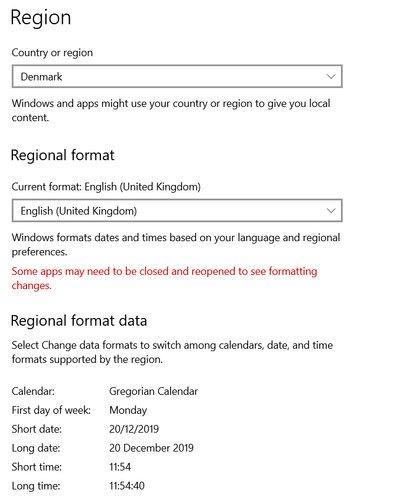
My laptop's regional settings look like this:


Regional settings.PNG


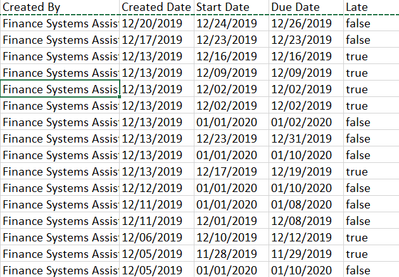
1. My Excel file (stored in SharePoint) looks like this and the date was formated as "Short Date Format"

1st excel file.PNG             


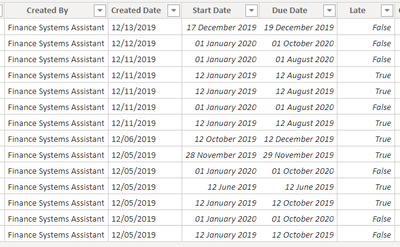
2. When I refersh my PowreBI report, It looks like this


Power BI 2.PNG


Looks like some dates are completly messed up. Days are recognized as months and months as days, but that happens randomly. For example the first task's dates rae correct, but the next due dates are the other way around. My Regional Setting in PowerBI are set to Danish. I find it really stragne that only some cells are affected, not all of them. Any idea how to solve this?


Thank you and feel free to ask more clarification questoins if needed.

1 ACCEPTED SOLUTION
v-juanli-msft
Community Support
Community Support

Hi @LostintheBIu 

As tested, i happen to the similar problem.

To solve this problem,

in Edit queries, change the "Data type" to "text" instead of "date",

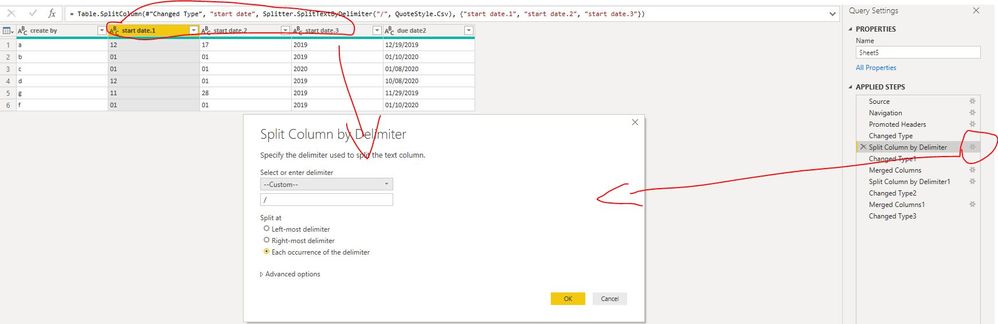
then split "start date" column by delimiter "/",

Capture5.JPG

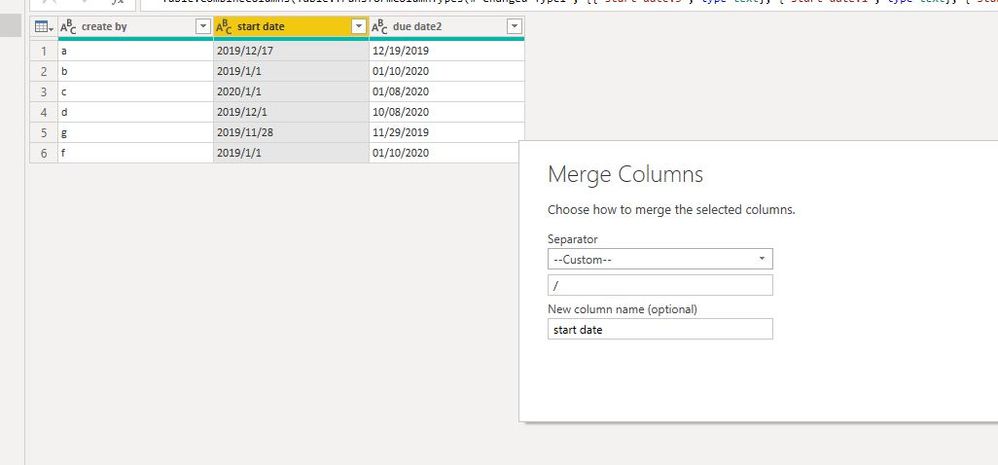
Select "start date.3", "start date.1","start date.2" in this order, then select "Tranfroms'->"Merged columns" by delimeter"/",

Capture6.JPG

The same steps for [due date2] column, 

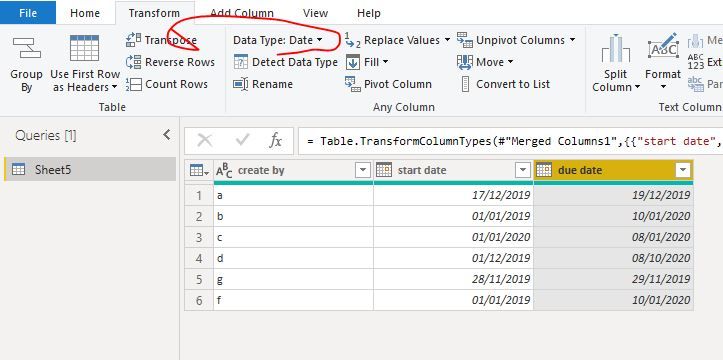
finally, change the data type for these two column to "date",

Capture7.JPGCapture8.JPG


Best Regards
Maggie
Community Support Team _ Maggie Li
If this post helps, then please consider Accept it as the solution to help the other members find it more quickly.

View solution in original post

2 REPLIES 2
v-juanli-msft
Community Support
Community Support

Hi @LostintheBIu 

As tested, i happen to the similar problem.

To solve this problem,

in Edit queries, change the "Data type" to "text" instead of "date",

then split "start date" column by delimiter "/",

Capture5.JPG

Select "start date.3", "start date.1","start date.2" in this order, then select "Tranfroms'->"Merged columns" by delimeter"/",

Capture6.JPG

The same steps for [due date2] column, 

finally, change the data type for these two column to "date",

Capture7.JPGCapture8.JPG


Best Regards
Maggie
Community Support Team _ Maggie Li
If this post helps, then please consider Accept it as the solution to help the other members find it more quickly.

Jimmy801
Community Champion
Community Champion

Hello @LostintheBIu 


normally dates in Excel are stored as number and therefore the conversation should be straightforward. In your case it doesn't seem like this. Maybe it would be best that the export is done with dates formated as numbers. But if this is not possible, and in your it seems that your data is stored as text with a different format then your regional settings. In this case you can try 

Date.From(_,"en-US") or a Date.FromText(_,"en-US") to transform your data. Check out this screenshot

image.png


If this post helps or solves your problem, please mark it as solution.
Kudos are nice to - thanks
Have fun

Jimmy

Helpful resources

Announcements
Power BI DataViz World Championships

Power BI Dataviz World Championships

The Power BI Data Visualization World Championships is back! Get ahead of the game and start preparing now!

December 2025 Power BI Update Carousel

Power BI Monthly Update - December 2025

Check out the December 2025 Power BI Holiday Recap!

FabCon Atlanta 2026 carousel

FabCon Atlanta 2026

Join us at FabCon Atlanta, March 16-20, for the ultimate Fabric, Power BI, AI and SQL community-led event. Save $200 with code FABCOMM.

Top Solution Authors