Get Fabric or SQL Certified for Free.
Get certified for free when you join Fabric Data Days 2026 and dive into Fabric, Power BI, SQL, AI, and other essential data skills.
Join now- Power BI forums
- Get Help with Power BI
- Desktop
- Service
- Report Server
- Power Query
- Mobile Apps
- Developer
- DAX Commands and Tips
- Custom Visuals Development Discussion
- Health and Life Sciences
- Power BI Spanish forums
- Translated Spanish Desktop
- Training and Consulting
- Instructor Led Training
- Dashboard in a Day for Women, by Women
- Galleries
- Data Stories Gallery
- Themes Gallery
- Contests Gallery
- QuickViz Gallery
- Quick Measures Gallery
- Visual Calculations Gallery
- Fabric Apps Gallery
- Notebook Gallery
- Translytical Task Flow Gallery
- TMDL Gallery
- R Script Showcase
- Webinars and Video Gallery
- Ideas
- Custom Visuals Ideas (read-only)
- Issues
- Issues
- Events
- Upcoming Events
July 28 - August 9 | Final Round of the Power BI Dataviz World Championships. This is your chance. Learn more
- Power BI forums
- Forums
- Get Help with Power BI
- Power Query
- Create multiple Tables from Python
- Subscribe to RSS Feed
- Mark Topic as New
- Mark Topic as Read
- Float this Topic for Current User
- Bookmark
- Subscribe
- Printer Friendly Page

- Mark as New
- Bookmark
- Subscribe
- Mute
- Subscribe to RSS Feed
- Permalink
- Report Inappropriate Content
Create multiple Tables from Python
Hi,
Using Python I'm connecting to Google Cloud Storage, I want to be able to loop through the various files in a bucket, create pandas dataframes for each one and then use the contents in Power Query.
I can get it all working in Pycharm with the below...
for file in blobs:
    file_path = "gs://{}/{}".format(file.bucket.name, file.name)
    with fs.open(file_path) as f:
        df = pd.DataFrame
        df.name = file.name
        df = pd.read_csv(f)
        print(df.name)
        print(df)
it loops through and prints the contents and name of each of the 3 files in the bucket, but in Power Query I only pull through the last iteration with the name df.

I've tried various angles using dictionaries and lists but can't figure out how to end up with three separate tables. I've seen examples concatenating various files but I want to keep these all separate. I want to be able to loop through the files in the bucket because there will eventually be hundreds, so don't want to hard code each one.
Any ideas? Is it possible?
Cheers
Mark
Solved! Go to Solution.
- Mark as New
- Bookmark
- Subscribe
- Mute
- Subscribe to RSS Feed
- Permalink
- Report Inappropriate Content
Hi,
I'm not sure is this thread still relevant. I had the same issue and I solved this by associating each data frame to a unique global variable:
for file in blobs:
    file_path = "...."
    with fs.open(file_path) as f:
        globals()[f"{file.name}"] = pd.read_csv(f)
        print(globals()[f"{file.name}"])
- Mark as New
- Bookmark
- Subscribe
- Mute
- Subscribe to RSS Feed
- Permalink
- Report Inappropriate Content
Hi,
I'm not sure is this thread still relevant. I had the same issue and I solved this by associating each data frame to a unique global variable:
for file in blobs:
    file_path = "...."
    with fs.open(file_path) as f:
        globals()[f"{file.name}"] = pd.read_csv(f)
        print(globals()[f"{file.name}"])
- Mark as New
- Bookmark
- Subscribe
- Mute
- Subscribe to RSS Feed
- Permalink
- Report Inappropriate Content
Thank you mate, I've moved company so not working on that solution anymore but this might prove handy in the future!


- Mark as New
- Bookmark
- Subscribe
- Mute
- Subscribe to RSS Feed
- Permalink
- Report Inappropriate Content
Hi @Anonymous ,
How about filter table name to seperate them one by one after you have loaded all to Power bi?
Best Regards,
Kelly
Did I answer your question? Mark my reply as a solution!
- Mark as New
- Bookmark
- Subscribe
- Mute
- Subscribe to RSS Feed
- Permalink
- Report Inappropriate Content
Not sure what you mean...it's the loading them to Power BI part that I have a problem with...
I can only see one table in Power Query, I want to have a list of all the tables representing the files that are in the GCS Bucket...
- Mark as New
- Bookmark
- Subscribe
- Mute
- Subscribe to RSS Feed
- Permalink
- Report Inappropriate Content
Hi @Anonymous ,
Sorry for the misunderstanding.
Are the python statements full?Have you defined "blobs" first?
Best Regards,
Kelly
Did I answer your question? Mark my reply as a solution!


- Mark as New
- Bookmark
- Subscribe
- Mute
- Subscribe to RSS Feed
- Permalink
- Report Inappropriate Content
Yes 'blobs' is defined first....I didn't post all the python....
Like I said, it works fine in PyCharm in that it prints each file name and then the contents.
But when I use this script in Power Query I just get a table for the last iteration of the loop...I would like to see a table for each of the three files in GCS if that's possible?
- Mark as New
- Bookmark
- Subscribe
- Mute
- Subscribe to RSS Feed
- Permalink
- Report Inappropriate Content
Yes 'blobs' is defined first....I didn't post all the python....
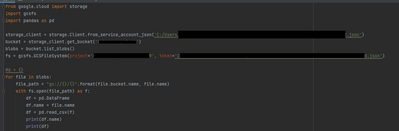
Like I said, it works fine in PyCharm in that it prints each file name and then the contents.
But when I use this script in Power Query I just get a table for the last iteration of the loop...I would like to see a table for each of the three files in GCS if that's possible?
- Mark as New
- Bookmark
- Subscribe
- Mute
- Subscribe to RSS Feed
- Permalink
- Report Inappropriate Content
Hi @Anonymous ,
Try to use Python IDE with Power bi,check below reference:
https://docs.microsoft.com/en-us/power-bi/connect-data/desktop-python-ide
Best Regards,
Kelly
Did I answer your question? Mark my reply as a solution!
- Mark as New
- Bookmark
- Subscribe
- Mute
- Subscribe to RSS Feed
- Permalink
- Report Inappropriate Content
Thanks but I don't see what dfference that would make? I am using a Python IDE. I'm not using the Python visual, I'm using the Python Data Connector which doesn't have any interaction with a specified external IDE:
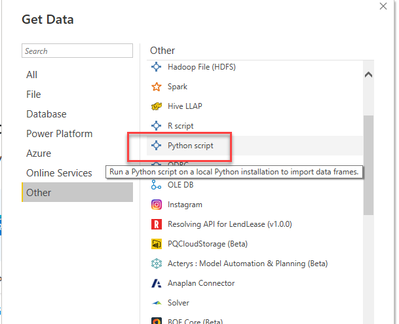
A bit like in this doc:
https://docs.microsoft.com/en-us/power-bi/connect-data/desktop-python-scripts
- Mark as New
- Bookmark
- Subscribe
- Mute
- Subscribe to RSS Feed
- Permalink
- Report Inappropriate Content
Hi @Anonymous ,
I havent tried it,but based on my undertstanding,you should first set the IDE you need in Power bi desktop:

Then in the python script eidtor,click the button below:

Any script you created in the Python script editor pane of Power BI Desktop appears starting in line 4 in your Python IDE. At this point, you can create your Python script in the Python IDE. Once your Python script is complete in your Python IDE, you need to copy and paste it back into the Python script editor pane in Power BI Desktop, excluding the first three lines of the script that Power BI Desktop automatically generated. Do not copy the first three lines of script back into Power BI Desktop, those lines were only used to import your data to your Python IDE from Power BI Desktop.
Try to take the above steps to check whether it will solve the issue.
Best Regards,
Kelly
Did I answer your question? Mark my reply as a solution!
- Mark as New
- Bookmark
- Subscribe
- Mute
- Subscribe to RSS Feed
- Permalink
- Report Inappropriate Content
Hi Kelly,
What you have described applies to working with the Python Visual, in this case I'm not doing that...I'm working with the Power Query Python data connector....as described in the doc I linked above.
FWIW I have specified an IDE (and used it previously) in the Options.
- Mark as New
- Bookmark
- Subscribe
- Mute
- Subscribe to RSS Feed
- Permalink
- Report Inappropriate Content
Hi @Anonymous ,
I just wanna know if it's a Python.Execute issue,since it works fine in your IDE.
I cant reproduce your senario,neither I cant find related document or issue reported,could you pls post your issue via below link and our relevant personnel will help to deal with it.
Best Regards,
Kelly
Did I answer your question? Mark my reply as a solution!
Helpful resources

FabCon & SQLCon – Barcelona 2026
Join us in Barcelona for FabCon and SQLCon, the Fabric, Power BI, SQL, and AI community event. Save €200 with code FABCMTY200.

Fabric Community Sticker Challenge - Barcelona 2026
If you love stickers, then you will definitely want to check out our community sticker challenge, Barcelona edition!

Power BI Monthly Update - July 2026
Check out the July 2026 Power BI update to learn about new features.

Power BI DataViz World Championships - June 2026
A new Power BI DataViz World Championship is coming this June! Don't miss out on submitting your entry.

| User | Count |
|---|---|
| 4 | |
| 2 | |
| 2 | |
| 2 | |
| 1 |


