Join us at FabCon Atlanta from March 16 - 20, 2026, for the ultimate Fabric, Power BI, AI and SQL community-led event. Save $200 with code FABCOMM.
Register now!The Power BI Data Visualization World Championships is back! Get ahead of the game and start preparing now! Learn more
Hi,
I have a problem I can't figure out.
I have a table of numbers attributable to an ID, that I want split out based on the value in one of the columns (Count).
The following is what I have and what I want:
| Current: | |||
| ID | Order | Count | Value |
| 1 | 1 | 2 | 0.5 |
| 1 | 2 | 1 | 1 |
| 1 | 3 | 2 | 0 |
| Desired: | |||
| ID | Order | Count | Value |
| 1 | 1 | 1 | 0.5 |
| 1 | 2 | 1 | 0.5 |
| 1 | 3 | 1 | 1 |
| 1 | 4 | 1 | 0 |
| 1 | 5 | 1 | 0 |
Any help is much appreciated, thanks,
Paul
Solved! Go to Solution.
Thank you for this!
I used a very similar method to get my solution:
....
#"Unpivoted Other Columns" = Table.UnpivotOtherColumns(#"Sorted Rows2", {"fk_LayerId", "order", "value"}, "Attribute", "Value.1"),
#"Added Custom" = Table.AddColumn(#"Unpivoted Other Columns", "Custom", each Table.Repeat(Table.FromRecords({[Col1=1]}),[Value.1])),
#"Expanded Custom" = Table.ExpandTableColumn(#"Added Custom", "Custom", {"Col1"}, {"Col1"}),
#"Removed Columns1" = Table.RemoveColumns(#"Expanded Custom",{"Attribute", "Value.1"}),
#"Renamed Columns" = Table.RenameColumns(#"Removed Columns1",{{"Col1", "Count"}}),
#"Changed Type1" = Table.TransformColumnTypes(#"Renamed Columns",{{"Count", Int64.Type}}),
#"Reordered Columns" = Table.ReorderColumns(#"Changed Type1",{"fk_LayerId", "order", "Count", "value"}),
#"Grouped Rows" = Table.Group(#"Reordered Columns", {"fk_LayerId"}, {{"Rows", each _, type table [fk_LayerId=nullable number, order=nullable number, Count=nullable number, value=nullable number]}}),
Indexed = Table.TransformColumns(#"Grouped Rows", {{"Rows", each Table.AddIndexColumn(_,"GroupIndex", 1, 1)}}),
#"Expanded Rows" = Table.ExpandTableColumn(Indexed, "Rows", {"Count", "value", "GroupIndex"}, {"Count", "value", "GroupIndex"}),
#"Changed Type2" = Table.TransformColumnTypes(#"Expanded Rows",{{"GroupIndex", Int64.Type}, {"Count", Int64.Type}, {"value", type number}}),
#"Renamed Columns2" = Table.RenameColumns(#"Changed Type2",{{"GroupIndex", "order"}, {"Count", "count"}})
in
#"Renamed Columns2"
as I needed the order (Index) to restart for each Id
if @BA_Pete 's solution does not work for you I went a bit of a different direction.
I expanded upon your data to start with...
Did the following...
let
Source = Table.FromRows(Json.Document(Binary.Decompress(Binary.FromText("i45WMlTSAWMjIDbQM1WK1YmG8yFyMBFjKDYAi4DkTaDYCC5iCtWFUGMGNwskAtJvDrNNKTYWAA==", BinaryEncoding.Base64), Compression.Deflate)), let _t = ((type nullable text) meta [Serialized.Text = true]) in type table [ID = _t, Order = _t, Count = _t, Value = _t]),
#"Changed Type" = Table.TransformColumnTypes(Source,{{"ID", Int64.Type}, {"Order", Int64.Type}, {"Count", Int64.Type}, {"Value", type number}}),
#"Added Custom" = Table.AddColumn(#"Changed Type", "Custom", each List.Numbers(1,[Count],0)),
#"ExpandTableColumns" = Table.ExpandListColumn(#"Added Custom", "Custom"),
#"Removed Columns" = Table.RemoveColumns(ExpandTableColumns,{"Order", "Count"}),
#"Renamed Columns" = Table.RenameColumns(#"Removed Columns",{{"Custom", "Count"}}),
#"Added Index" = Table.AddIndexColumn(#"Renamed Columns", "Order", 1, 1, Int64.Type),
#"Reordered Columns" = Table.ReorderColumns(#"Added Index",{"ID", "Order", "Count", "Value"})
in
#"Reordered Columns"
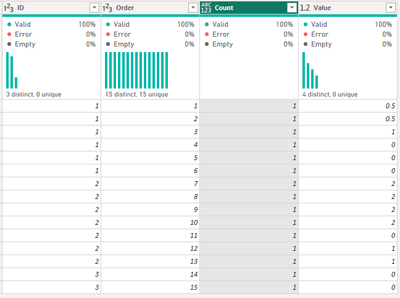
And ended up with...
Cheers!
Proud to be a Super User! | |
Thank you for this!
I used a very similar method to get my solution:
....
#"Unpivoted Other Columns" = Table.UnpivotOtherColumns(#"Sorted Rows2", {"fk_LayerId", "order", "value"}, "Attribute", "Value.1"),
#"Added Custom" = Table.AddColumn(#"Unpivoted Other Columns", "Custom", each Table.Repeat(Table.FromRecords({[Col1=1]}),[Value.1])),
#"Expanded Custom" = Table.ExpandTableColumn(#"Added Custom", "Custom", {"Col1"}, {"Col1"}),
#"Removed Columns1" = Table.RemoveColumns(#"Expanded Custom",{"Attribute", "Value.1"}),
#"Renamed Columns" = Table.RenameColumns(#"Removed Columns1",{{"Col1", "Count"}}),
#"Changed Type1" = Table.TransformColumnTypes(#"Renamed Columns",{{"Count", Int64.Type}}),
#"Reordered Columns" = Table.ReorderColumns(#"Changed Type1",{"fk_LayerId", "order", "Count", "value"}),
#"Grouped Rows" = Table.Group(#"Reordered Columns", {"fk_LayerId"}, {{"Rows", each _, type table [fk_LayerId=nullable number, order=nullable number, Count=nullable number, value=nullable number]}}),
Indexed = Table.TransformColumns(#"Grouped Rows", {{"Rows", each Table.AddIndexColumn(_,"GroupIndex", 1, 1)}}),
#"Expanded Rows" = Table.ExpandTableColumn(Indexed, "Rows", {"Count", "value", "GroupIndex"}, {"Count", "value", "GroupIndex"}),
#"Changed Type2" = Table.TransformColumnTypes(#"Expanded Rows",{{"GroupIndex", Int64.Type}, {"Count", Int64.Type}, {"value", type number}}),
#"Renamed Columns2" = Table.RenameColumns(#"Changed Type2",{{"GroupIndex", "order"}, {"Count", "count"}})
in
#"Renamed Columns2"
as I needed the order (Index) to restart for each Id
Hi @pfInigo ,
Need a bit more info around what these fields represent and how dynamic this needs to be.
The easiest way to duplicate the rows [Count] times would be to add a new column with this:
= {1..[Count]}
...then expand this column.
Re-incrementing the [Order] column could be done by subsequently adding an Index column, and re-stating the [Count] column would just be a new column with ' = 1 ' as the calculation, but these options aren't dynamic.
Pete
Proud to be a Datanaut!
The Power BI Data Visualization World Championships is back! Get ahead of the game and start preparing now!
Check out the November 2025 Power BI update to learn about new features.
| User | Count |
|---|---|
| 10 | |
| 6 | |
| 5 | |
| 4 | |
| 2 |