
Join us at FabCon Atlanta from March 16 - 20, 2026, for the ultimate Fabric, Power BI, AI and SQL community-led event. Save $200 with code FABCOMM.
Register now!The Power BI Data Visualization World Championships is back! Get ahead of the game and start preparing now! Learn more
Hi,
I am a beginner user. I would appreciate your guidance.
I have the data in this form:
and I would like it to look like this:
How I can do this easily and quickly on a large range of data?
Solved! Go to Solution.
Hi @MATSIW ,
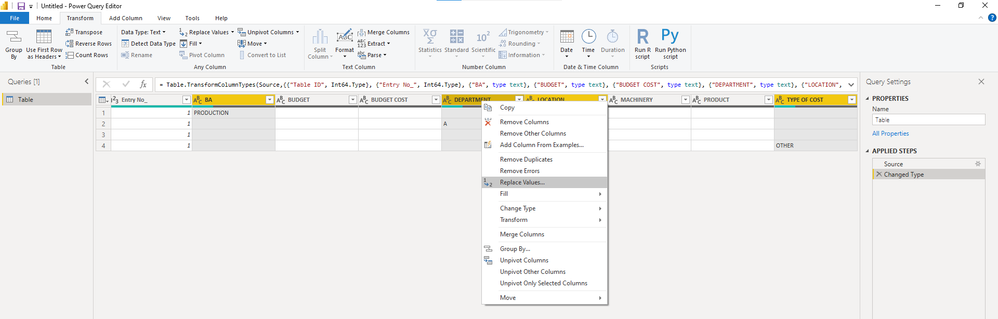
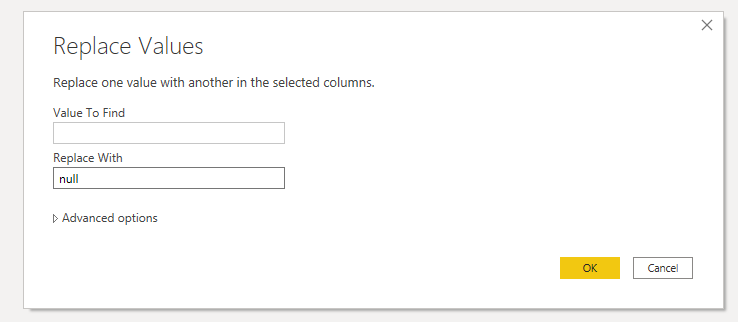
1.Select the following four columns at the same time, right-click to select the replace value. In the Replace values dialog box, leave Value to find blank. For Replace with, enter null.
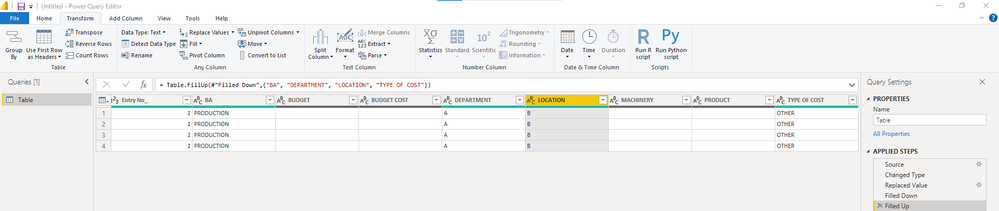
2.Fill up and fill down these four columns.
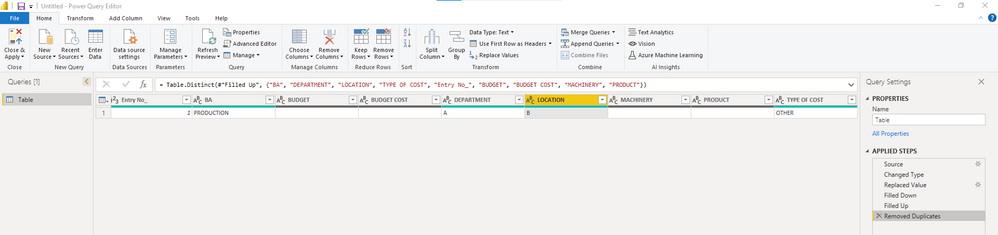
3.Remove duplicates
Best Regards,
Stephen Tao
If this post helps, then please consider Accept it as the solution to help the other members find it more quickly.
Hi @MATSIW ,
1.Select the following four columns at the same time, right-click to select the replace value. In the Replace values dialog box, leave Value to find blank. For Replace with, enter null.
2.Fill up and fill down these four columns.
3.Remove duplicates
Best Regards,
Stephen Tao
If this post helps, then please consider Accept it as the solution to help the other members find it more quickly.
You can use the built-in grouping function, choosing "Table ID" as the group column, and "Max" as the aggregation on all of the columns.
--Nate
The Power BI Data Visualization World Championships is back! Get ahead of the game and start preparing now!
| User | Count |
|---|---|
| 19 | |
| 9 | |
| 8 | |
| 7 | |
| 6 |