cancel
Showing results forย 
Search instead forย 
Did you mean:ย 

The Power BI Data Visualization World Championships is back! Get ahead of the game and start preparing now! Learn more

Reply
jaryszek
Memorable Member
Memorable Member

Append tables and named ranges from multiple workbooks

Hi Guys,

i have table across multiple workbooks in xlsb:

Col1Col2Col3

111
222

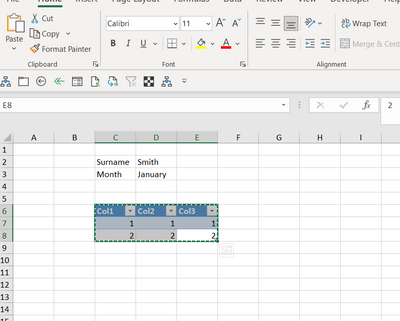
plus named ranges in each: R_Surname and R_Month.

jaryszek_2-1632466687007.png

-------------------------------------------------------------

Now i would like to append all tables into one master workbook and get:

Col1Col2Col3SurnameMonth

111SmithJanuary
222SmithJanuary
333JohnsonDecember
444JohnsonDecember

Smith and January are coming from example workbook1 (table1.xlsb) and Johnson and December are coming from Table2.xlsb.

what is important that name ranges are in the same worksheet as table in each workbook. 


How can i do this? 

My google drive files:

https://drive.google.com/drive/folders/1VVABEwqkTPyhFHmhF4oaUIavsrHxm8zm?usp=sharing


Can you please help?

Best,
Jacek

1 ACCEPTED SOLUTION
Syndicate_Admin
Administrator
Administrator

Hi Jacek,


When you load one of your excel sheets into Power Query, you'll want to bring in all the named ranges and Sheet1:
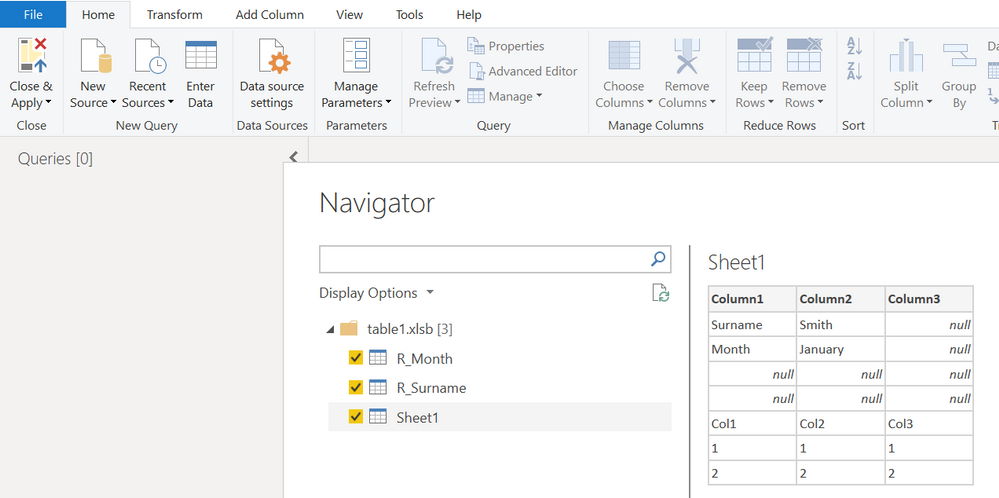
AlanHarmanBox_0-1632475678757.png

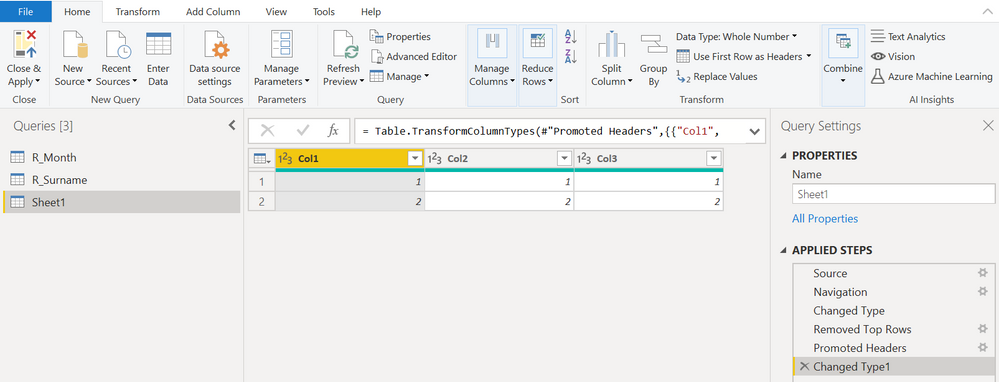
My Power Query isn't picking up the table on Sheet1, so the first thing to do is remove the top 4 rows (with Remove Rows) and then promote the new top row to being column headers (with Use First Row as Headers) so that our Sheet1 query looks like the table on the worksheet:
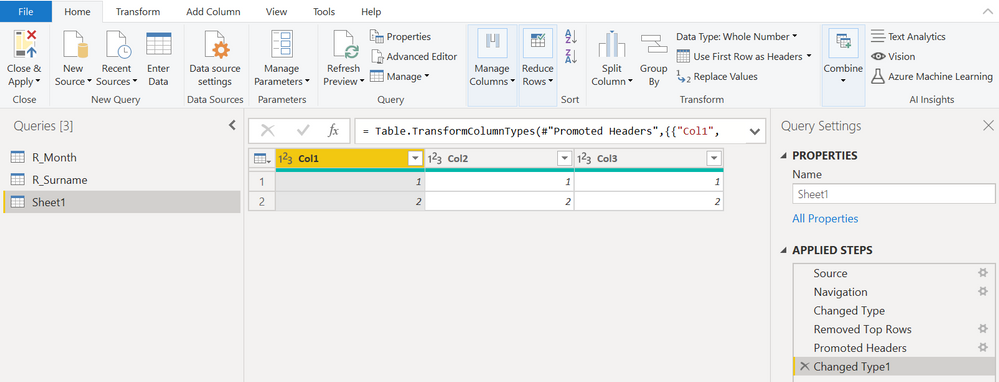
AlanHarmanBox_1-1632475806619.png


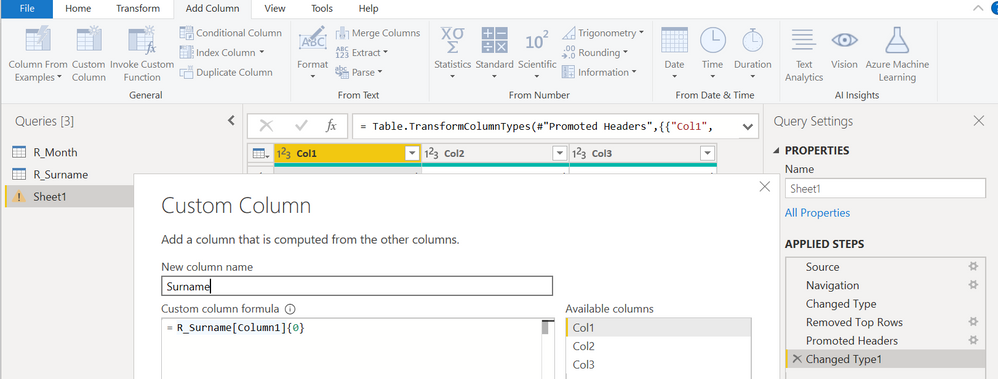
In order to get the value from each named range to appear as a column on our "Sheet1" query, we need to add a Custom Column with the following formula:
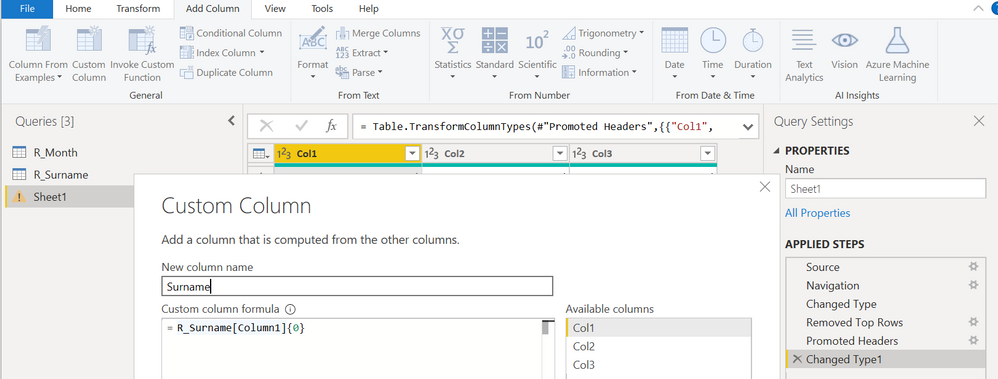
AlanHarmanBox_2-1632475961887.png

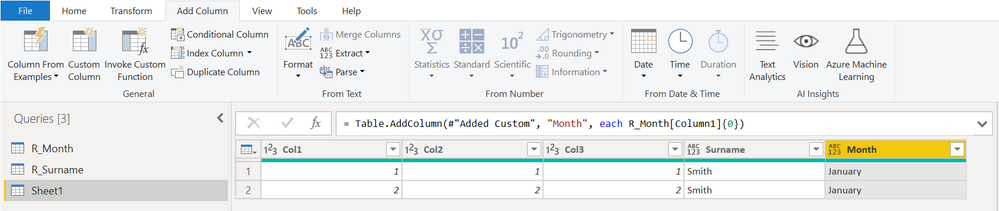
We can repeat this process to get the Month field into this query too:
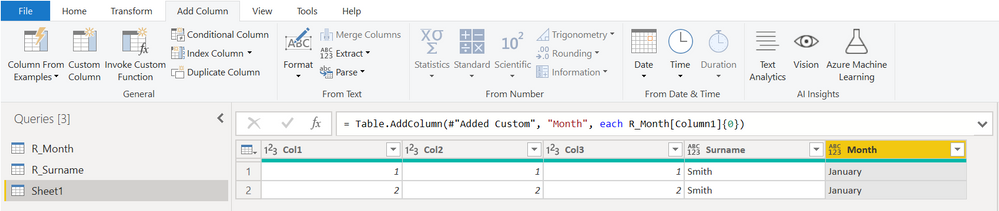
AlanHarmanBox_3-1632476610867.png


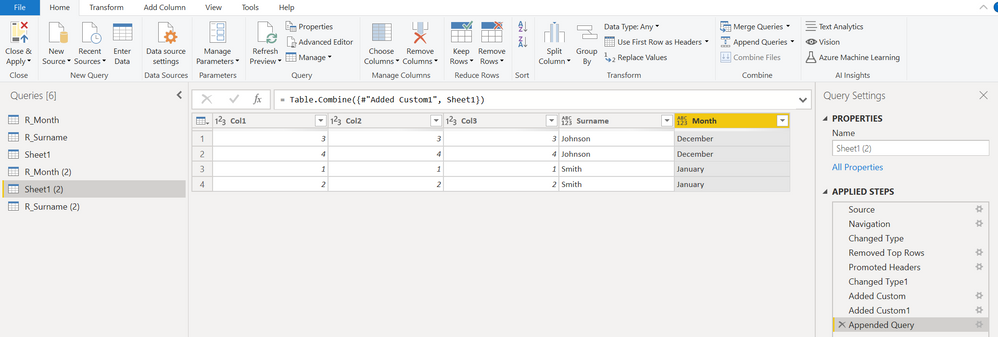
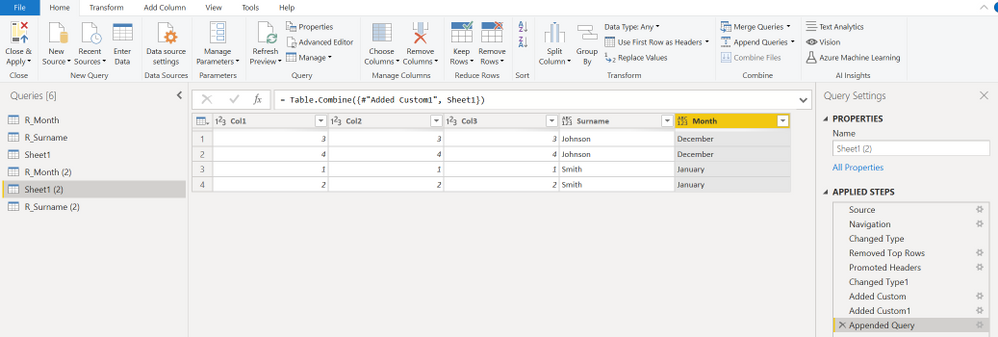
From here, we can just repeat the same process for any other workbooks (copying and pasting from the Advanced Editor if necessary), and then, becuase all of the queries have the same structure, we can Append them (using Append Queries) once we've processed them all to get it into a single table that looks like your master table:
 

AlanHarmanBox_4-1632476819021.png


View solution in original post

3 REPLIES 3
jaryszek
Memorable Member
Memorable Member

Thank you so much! 

Syndicate_Admin
Administrator
Administrator

Hi Jacek,


When you load one of your excel sheets into Power Query, you'll want to bring in all the named ranges and Sheet1:

AlanHarmanBox_0-1632475678757.png

My Power Query isn't picking up the table on Sheet1, so the first thing to do is remove the top 4 rows (with Remove Rows) and then promote the new top row to being column headers (with Use First Row as Headers) so that our Sheet1 query looks like the table on the worksheet:

AlanHarmanBox_1-1632475806619.png


In order to get the value from each named range to appear as a column on our "Sheet1" query, we need to add a Custom Column with the following formula:

AlanHarmanBox_2-1632475961887.png

We can repeat this process to get the Month field into this query too:

AlanHarmanBox_3-1632476610867.png


From here, we can just repeat the same process for any other workbooks (copying and pasting from the Advanced Editor if necessary), and then, becuase all of the queries have the same structure, we can Append them (using Append Queries) once we've processed them all to get it into a single table that looks like your master table:


AlanHarmanBox_4-1632476819021.png


AlanHarman-Box
Frequent Visitor

Hi Jacek,


When you load one of your excel sheets into Power Query, you'll want to bring in all the named ranges and Sheet1:

AlanHarmanBox_0-1632475678757.png

My Power Query isn't picking up the table on Sheet1, so the first thing to do is remove the top 4 rows (with Remove Rows) and then promote the new top row to being column headers (with Use First Row as Headers) so that our Sheet1 query looks like the table on the worksheet:

AlanHarmanBox_1-1632475806619.png


In order to get the value from each named range to appear as a column on our "Sheet1" query, we need to add a Custom Column with the following formula:

AlanHarmanBox_2-1632475961887.png

We can repeat this process to get the Month field into this query too:

AlanHarmanBox_3-1632476610867.png


From here, we can just repeat the same process for any other workbooks (copying and pasting from the Advanced Editor if necessary), and then, becuase all of the queries have the same structure, we can Append them (using Append Queries) once we've processed them all to get it into a single table that looks like your master table:
 

AlanHarmanBox_4-1632476819021.png


Helpful resources

Announcements
Power BI DataViz World Championships

Power BI Dataviz World Championships

The Power BI Data Visualization World Championships is back! Get ahead of the game and start preparing now!

December 2025 Power BI Update Carousel

Power BI Monthly Update - December 2025

Check out the December 2025 Power BI Holiday Recap!

FabCon Atlanta 2026 carousel

FabCon Atlanta 2026

Join us at FabCon Atlanta, March 16-20, for the ultimate Fabric, Power BI, AI and SQL community-led event. Save $200 with code FABCOMM.