cancel
Showing results for 
Search instead for 
Did you mean: 

July 28 -August 9 | Final Round of the Power BI Dataviz World Championships. This is your chance. Learn more

Reply
primolee
Helper V
Helper V

Altering data into different table layout

Hello everyone,


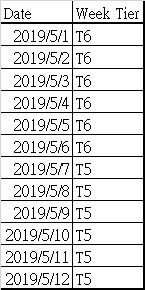
Currently I have this data source:

weekTier.jpg


I want to alter it into the following:

weekTier2.jpg


Is there a way to achieve this in Power Query?  If not, is it possible in BI using DAX?


Thank you.

1 ACCEPTED SOLUTION
ImkeF
Community Champion
Community Champion

Hi @primolee  

please check out the function that I've written for it here: https://www.thebiccountant.com/2017/12/11/date-datesbetween-retrieve-dates-between-2-dates-power-bi-... 


Imke Feldmann (The BIccountant)

If you liked my solution, please give it a thumbs up. And if I did answer your question, please mark this post as a solution. Thanks!

How to integrate M-code into your solution -- How to get your questions answered quickly -- How to provide sample data -- Check out more PBI- learning resources here -- Performance Tipps for M-queries

View solution in original post

3 REPLIES 3
v-lid-msft
Community Support
Community Support

Hi @primolee ,


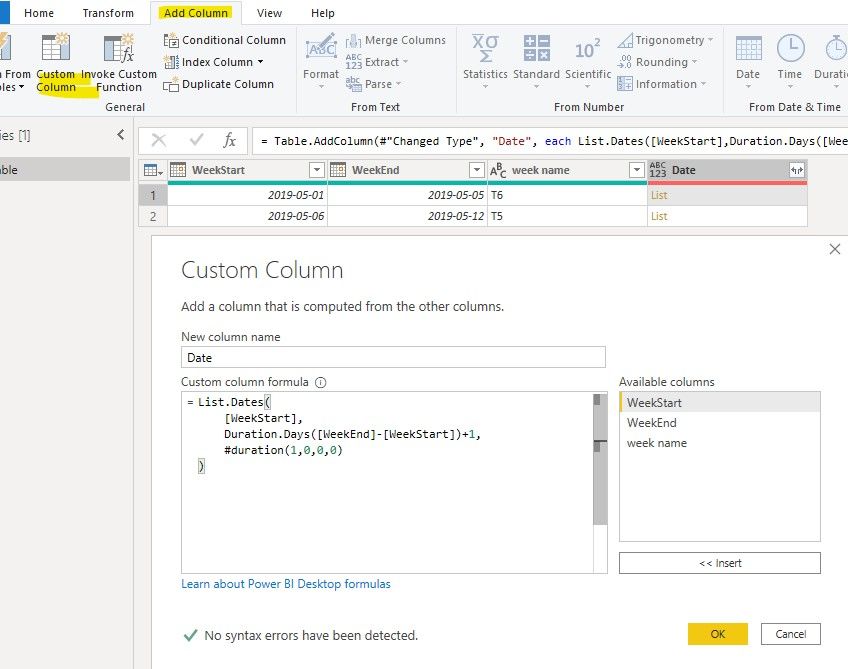
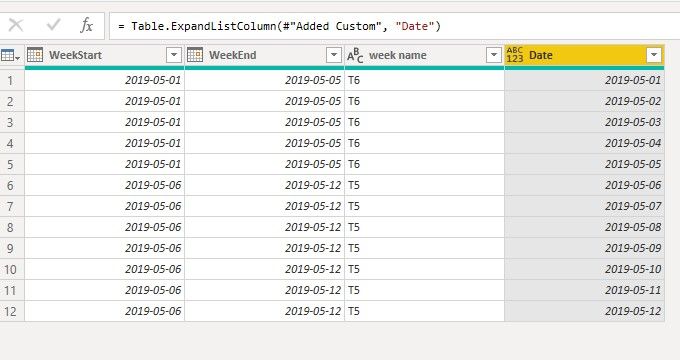
We can create a custom column in power query editor and expand it to rows to meet your requiremnet:


List.Dates([WeekStart],Duration.Days([WeekEnd]-[WeekStart])+1,#duration(1,0,0,0))


3.jpg4.jpg5.jpg


All the queries are here:

let
    Source = Table.FromRows(Json.Document(Binary.Decompress(Binary.FromText("i45WMjIwtNQ31TdU0oExTYHMEDOlWB24pBlC0tAIJGuqFBsLAA==", BinaryEncoding.Base64), Compression.Deflate)), let _t = ((type text) meta [Serialized.Text = true]) in type table [WeekStart = _t, WeekEnd = _t, #"week name" = _t]),
    #"Changed Type" = Table.TransformColumnTypes(Source,{{"WeekStart", type date}, {"WeekEnd", type date}, {"week name", type text}}),
    #"Added Custom" = Table.AddColumn(#"Changed Type", "Date", each List.Dates([WeekStart],Duration.Days([WeekEnd]-[WeekStart])+1,#duration(1,0,0,0))),
    #"Expanded Date" = Table.ExpandListColumn(#"Added Custom", "Date")
in
    #"Expanded Date"


Best regards,

Community Support Team _ Dong Li
If this post helps, then please consider Accept it as the solution to help the other members find it more quickly.
ImkeF
Community Champion
Community Champion

Hi @primolee  

please check out the function that I've written for it here: https://www.thebiccountant.com/2017/12/11/date-datesbetween-retrieve-dates-between-2-dates-power-bi-... 


Imke Feldmann (The BIccountant)

If you liked my solution, please give it a thumbs up. And if I did answer your question, please mark this post as a solution. Thanks!

How to integrate M-code into your solution -- How to get your questions answered quickly -- How to provide sample data -- Check out more PBI- learning resources here -- Performance Tipps for M-queries

Hello both,


Thank you so much, both of you!


Both are the solutions to my question, it is super difficult for me to decide whose answer to accept.


Dong's solution is very simple, whereas ImkeF's solution gives more flexibility of display by different interval.


I will accept ImkeF's reply as solution, but again, both work perfectly.


Thank you both for taking the time to help, greatly appreciated!


Helpful resources

Announcements
FabCon and SQLCon Barcelona 2026

FabCon & SQLCon – Barcelona 2026

Join us in Barcelona for FabCon and SQLCon, the Fabric, Power BI, SQL, and AI community event. Save €200 with code FABCMTY200.

Fabric Community Sticker Design Challenge Barcelona Carousel

Fabric Community Sticker Challenge - Barcelona 2026

If you love stickers, then you will definitely want to check out our community sticker challenge, Barcelona edition!

July Power BI Update Carousel

Power BI Monthly Update - July 2026

Check out the July 2026 Power BI update to learn about new features.

Power BI DataViz World Championships carousel

Power BI DataViz World Championships - June 2026

A new Power BI DataViz World Championship is coming this June! Don't miss out on submitting your entry.