Join us in Barcelona for FabCon and SQLCon, September 28 - October 1, 2026.
This is best Fabric, Power BI, SQL and AI community event. How do we know? The last event sold out! Save €200 with code FABCMTY200.
Register now- Power BI forums
- Get Help with Power BI
- Desktop
- Service
- Report Server
- Power Query
- Mobile Apps
- Developer
- DAX Commands and Tips
- Custom Visuals Development Discussion
- Health and Life Sciences
- Power BI Spanish forums
- Translated Spanish Desktop
- Training and Consulting
- Instructor Led Training
- Dashboard in a Day for Women, by Women
- Galleries
- Data Stories Gallery
- Themes Gallery
- Contests Gallery
- QuickViz Gallery
- Quick Measures Gallery
- Visual Calculations Gallery
- Fabric Apps Gallery
- Notebook Gallery
- Translytical Task Flow Gallery
- TMDL Gallery
- R Script Showcase
- Webinars and Video Gallery
- Ideas
- Custom Visuals Ideas (read-only)
- Issues
- Issues
- Events
- Upcoming Events
The Fabric community is upgrading! Read all of the details including the timeline and what you can expect. Learn more
- Power BI forums
- Forums
- Get Help with Power BI
- Developer
- Re: Not able to generate PDF via PowerBI API call ...
- Subscribe to RSS Feed
- Mark Topic as New
- Mark Topic as Read
- Float this Topic for Current User
- Bookmark
- Subscribe
- Printer Friendly Page

- Mark as New
- Bookmark
- Subscribe
- Mute
- Subscribe to RSS Feed
- Permalink
- Report Inappropriate Content
Not able to generate PDF via PowerBI API call in java
Hi,
I was trying to generate PDF using API call in java code. I tried following API calls but getting empty PDF after exporting as File:
- POST https://api.powerbi.com/v1.0/myorg/groups/{groupId}/reports/{reportId}/ExportTo
From this api call, I get the export id. - To get the status of the exported file, used below API call:
GET https://api.powerbi.com/v1.0/myorg/groups/{groupId}/reports/{reportId}/exports/{exportId}
Added while loop to wait until the status is 200 OK - Once status is 200, I have called below API call:
GET https://api.powerbi.com/v1.0/myorg/groups/{groupId}/reports/{reportId}/exports/{exportId}/file
This api provides the File. Following code snipet I have used:
RestTemplate getReportRestTemplate = new RestTemplate();
HttpHeaders headers = new HttpHeaders();
headers.put("Content-Type", Arrays.asList("application/pdf"));
headers.put("Accept", Arrays.asList("application/*"));
headers.put("Authorization", Arrays.asList("Bearer " + accessToken));
// HTTP entity object - holds header and body
HttpEntity<String> reqEntity = new HttpEntity<> (headers);
ResponseEntity<String> response = getReportRestTemplate.exchange(urlStringBuilder.toString(), HttpMethod.GET, reqEntity, String.class);
Path file = Paths.get("D:\\test.pdf");
try (InputStream in = new ByteArrayInputStream(response.getBody().getBytes())) {
Files.copy(in, file);
}
Am I missing anthing here?
Solved! Go to Solution.


- Mark as New
- Bookmark
- Subscribe
- Mute
- Subscribe to RSS Feed
- Permalink
- Report Inappropriate Content
Can you try it in Powershell? The below works for me:
# Calls the Active Directory Authentication Library (ADAL) to authenticate against AAD
function GetAuthToken
{
    if(-not (Get-Module AzureRm.Profile)) {
        Import-Module AzureRm.Profile
    }
    $clientId = "<your client id>"
    $redirectUri = "urn:ietf:wg:oauth:2.0:oob"
    $resourceAppIdURI = "https://analysis.windows.net/powerbi/api"
    $authority = "https://login.microsoftonline.com/common/oauth2/authorize";
    $authContext = New-Object "Microsoft.IdentityModel.Clients.ActiveDirectory.AuthenticationContext" -ArgumentList $authority
    $authResult = $authContext.AcquireToken($resourceAppIdURI, $clientId, $redirectUri, "Auto")
    return $authResult
}

# Get the auth token from AAD
$token = GetAuthToken

# Building Rest API header with authorization token
$authHeader = @{
    'Content-Type'='application/json'
    'Authorization'=$token.CreateAuthorizationHeader()
}

#Report details
$groupsPath = "<workspace guid>"
$reportID   = "<report guid>"
# 0. get page names - optional
$uri = “https://api.powerbi.com/v1.0/myorg/groups/$groupsPath/reports/$reportID/pages"
$Pages = Invoke-RestMethod -Uri $uri –Headers $authHeader –Method GET
# 1. export request URI
$uri = “https://api.powerbi.com/v1.0/myorg/groups/$groupsPath/reports/$reportID/ExportTo”
$body = "{ format : `"PDF`” }"
# how to define the pages? powerBIReportConfiguration:{pages:[{pageName:"<page 1 guid>"},{pageName:"page2 guid>"}]}
# issue the export request
$FileExport = Invoke-RestMethod -Uri $uri –Headers $authHeader –Method POST -body $body
#save the ID - we need it later
$exportId = $FileExport.id
# 2. export request status URI
$uri = "https://api.powerbi.com/v1.0/myorg/groups/$groupsPath/reports/$reportID/exports/$exportId"
$percentComplete = 0
# repeat rendering status check until status is Succeeded
while ($percentComplete -lt 100) {
    Start-Sleep -Seconds 30
    $exportStatus = Invoke-RestMethod -Uri $uri –Headers $authHeader –Method GET
    $percentComplete = $exportStatus.percentComplete
    Write-Host $percentComplete
}
# 3. retrieve the rendered file
$uri = "https://api.powerbi.com/v1.0/myorg/groups/$groupsPath/reports/$reportID/exports/$exportId/file"
Invoke-RestMethod -Uri $uri –Headers $authHeader –Method GET -OutFile "test.pdf"
- Mark as New
- Bookmark
- Subscribe
- Mute
- Subscribe to RSS Feed
- Permalink
- Report Inappropriate Content
Your while loop needs to check the "percentComplete" export status, not the HTTP 200. Only when percentComplete is 100 can you fetch the file.
- Mark as New
- Bookmark
- Subscribe
- Mute
- Subscribe to RSS Feed
- Permalink
- Report Inappropriate Content
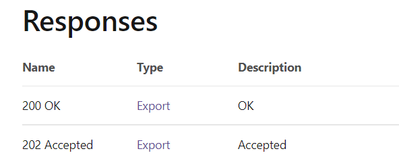
There are only two responses mentioned in the API document https://docs.microsoft.com/en-us/rest/api/power-bi/reports/get-export-to-file-status-in-group
- Mark as New
- Bookmark
- Subscribe
- Mute
- Subscribe to RSS Feed
- Permalink
- Report Inappropriate Content
You need to look inside the Export response
- Mark as New
- Bookmark
- Subscribe
- Mute
- Subscribe to RSS Feed
- Permalink
- Report Inappropriate Content
Verified with PercentComplate attribute of Export and even after that getting same issue.
- Mark as New
- Bookmark
- Subscribe
- Mute
- Subscribe to RSS Feed
- Permalink
- Report Inappropriate Content
Did you wait for PercentComplete to reach 100?
- Mark as New
- Bookmark
- Subscribe
- Mute
- Subscribe to RSS Feed
- Permalink
- Report Inappropriate Content
Yes, I waited till 100 percentage then called next API call
- Mark as New
- Bookmark
- Subscribe
- Mute
- Subscribe to RSS Feed
- Permalink
- Report Inappropriate Content
Can you try it in Powershell? The below works for me:
# Calls the Active Directory Authentication Library (ADAL) to authenticate against AAD
function GetAuthToken
{
    if(-not (Get-Module AzureRm.Profile)) {
        Import-Module AzureRm.Profile
    }
    $clientId = "<your client id>"
    $redirectUri = "urn:ietf:wg:oauth:2.0:oob"
    $resourceAppIdURI = "https://analysis.windows.net/powerbi/api"
    $authority = "https://login.microsoftonline.com/common/oauth2/authorize";
    $authContext = New-Object "Microsoft.IdentityModel.Clients.ActiveDirectory.AuthenticationContext" -ArgumentList $authority
    $authResult = $authContext.AcquireToken($resourceAppIdURI, $clientId, $redirectUri, "Auto")
    return $authResult
}

# Get the auth token from AAD
$token = GetAuthToken

# Building Rest API header with authorization token
$authHeader = @{
    'Content-Type'='application/json'
    'Authorization'=$token.CreateAuthorizationHeader()
}

#Report details
$groupsPath = "<workspace guid>"
$reportID   = "<report guid>"
# 0. get page names - optional
$uri = “https://api.powerbi.com/v1.0/myorg/groups/$groupsPath/reports/$reportID/pages"
$Pages = Invoke-RestMethod -Uri $uri –Headers $authHeader –Method GET
# 1. export request URI
$uri = “https://api.powerbi.com/v1.0/myorg/groups/$groupsPath/reports/$reportID/ExportTo”
$body = "{ format : `"PDF`” }"
# how to define the pages? powerBIReportConfiguration:{pages:[{pageName:"<page 1 guid>"},{pageName:"page2 guid>"}]}
# issue the export request
$FileExport = Invoke-RestMethod -Uri $uri –Headers $authHeader –Method POST -body $body
#save the ID - we need it later
$exportId = $FileExport.id
# 2. export request status URI
$uri = "https://api.powerbi.com/v1.0/myorg/groups/$groupsPath/reports/$reportID/exports/$exportId"
$percentComplete = 0
# repeat rendering status check until status is Succeeded
while ($percentComplete -lt 100) {
    Start-Sleep -Seconds 30
    $exportStatus = Invoke-RestMethod -Uri $uri –Headers $authHeader –Method GET
    $percentComplete = $exportStatus.percentComplete
    Write-Host $percentComplete
}
# 3. retrieve the rendered file
$uri = "https://api.powerbi.com/v1.0/myorg/groups/$groupsPath/reports/$reportID/exports/$exportId/file"
Invoke-RestMethod -Uri $uri –Headers $authHeader –Method GET -OutFile "test.pdf"

Helpful resources

FabCon & SQLCon – Barcelona 2026
Join us in Barcelona for FabCon and SQLCon, the Fabric, Power BI, SQL, and AI community event. Save €200 with code FABCMTY200.

Power BI DataViz World Championships - June 2026
A new Power BI DataViz World Championship is coming this June! Don't miss out on submitting your entry.

| User | Count |
|---|---|
| 2 | |
| 1 | |
| 1 | |
| 1 | |
| 1 |


| User | Count |
|---|---|
| 4 | |
| 2 | |
| 1 | |
| 1 | |
| 1 |


