Get Fabric or SQL Certified for Free.
Get certified for free when you join Fabric Data Days 2026 and dive into Fabric, Power BI, SQL, AI, and other essential data skills.
Join now- Power BI forums
- Get Help with Power BI
- Desktop
- Service
- Report Server
- Power Query
- Mobile Apps
- Developer
- DAX Commands and Tips
- Custom Visuals Development Discussion
- Health and Life Sciences
- Power BI Spanish forums
- Translated Spanish Desktop
- Training and Consulting
- Instructor Led Training
- Dashboard in a Day for Women, by Women
- Galleries
- Data Stories Gallery
- Themes Gallery
- Contests Gallery
- QuickViz Gallery
- Quick Measures Gallery
- Visual Calculations Gallery
- Fabric Apps Gallery
- Notebook Gallery
- Translytical Task Flow Gallery
- TMDL Gallery
- R Script Showcase
- Webinars and Video Gallery
- Ideas
- Custom Visuals Ideas (read-only)
- Issues
- Issues
- Events
- Upcoming Events
July 28 - August 9 | Final Round of the Power BI Dataviz World Championships. This is your chance. Learn more
- Power BI forums
- Forums
- Get Help with Power BI
- Developer
- Not able to generate PDF via PowerBI API call in j...
- Subscribe to RSS Feed
- Mark Topic as New
- Mark Topic as Read
- Float this Topic for Current User
- Bookmark
- Subscribe
- Printer Friendly Page

- Mark as New
- Bookmark
- Subscribe
- Mute
- Subscribe to RSS Feed
- Permalink
- Report Inappropriate Content
Not able to generate PDF via PowerBI API call in java
Hi,
I was trying to generate PDF using API call in java code. I tried following API calls but getting empty PDF after exporting as File:
- POST https://api.powerbi.com/v1.0/myorg/groups/{groupId}/reports/{reportId}/ExportTo
From this api call, I get the export id. - To get the status of the exported file, used below API call:
GET https://api.powerbi.com/v1.0/myorg/groups/{groupId}/reports/{reportId}/exports/{exportId}
Added while loop to wait until the status is 200 OK - Once status is 200, I have called below API call:
GET https://api.powerbi.com/v1.0/myorg/groups/{groupId}/reports/{reportId}/exports/{exportId}/file
This api provides the File. Following code snipet I have used:
RestTemplate getReportRestTemplate = new RestTemplate();
HttpHeaders headers = new HttpHeaders();
headers.put("Content-Type", Arrays.asList("application/pdf"));
headers.put("Accept", Arrays.asList("application/*"));
headers.put("Authorization", Arrays.asList("Bearer " + accessToken));
// HTTP entity object - holds header and body
HttpEntity<String> reqEntity = new HttpEntity<> (headers);
ResponseEntity<String> response = getReportRestTemplate.exchange(urlStringBuilder.toString(), HttpMethod.GET, reqEntity, String.class);
Path file = Paths.get("D:\\test.pdf");
try (InputStream in = new ByteArrayInputStream(response.getBody().getBytes())) {
Files.copy(in, file);
}
Am I missing anthing here?
Solved! Go to Solution.


- Mark as New
- Bookmark
- Subscribe
- Mute
- Subscribe to RSS Feed
- Permalink
- Report Inappropriate Content
Can you try it in Powershell? The below works for me:
# Calls the Active Directory Authentication Library (ADAL) to authenticate against AAD
function GetAuthToken
{
    if(-not (Get-Module AzureRm.Profile)) {
        Import-Module AzureRm.Profile
    }
    $clientId = "<your client id>"
    $redirectUri = "urn:ietf:wg:oauth:2.0:oob"
    $resourceAppIdURI = "https://analysis.windows.net/powerbi/api"
    $authority = "https://login.microsoftonline.com/common/oauth2/authorize";
    $authContext = New-Object "Microsoft.IdentityModel.Clients.ActiveDirectory.AuthenticationContext" -ArgumentList $authority
    $authResult = $authContext.AcquireToken($resourceAppIdURI, $clientId, $redirectUri, "Auto")
    return $authResult
}

# Get the auth token from AAD
$token = GetAuthToken

# Building Rest API header with authorization token
$authHeader = @{
    'Content-Type'='application/json'
    'Authorization'=$token.CreateAuthorizationHeader()
}

#Report details
$groupsPath = "<workspace guid>"
$reportID   = "<report guid>"
# 0. get page names - optional
$uri = “https://api.powerbi.com/v1.0/myorg/groups/$groupsPath/reports/$reportID/pages"
$Pages = Invoke-RestMethod -Uri $uri –Headers $authHeader –Method GET
# 1. export request URI
$uri = “https://api.powerbi.com/v1.0/myorg/groups/$groupsPath/reports/$reportID/ExportTo”
$body = "{ format : `"PDF`” }"
# how to define the pages? powerBIReportConfiguration:{pages:[{pageName:"<page 1 guid>"},{pageName:"page2 guid>"}]}
# issue the export request
$FileExport = Invoke-RestMethod -Uri $uri –Headers $authHeader –Method POST -body $body
#save the ID - we need it later
$exportId = $FileExport.id
# 2. export request status URI
$uri = "https://api.powerbi.com/v1.0/myorg/groups/$groupsPath/reports/$reportID/exports/$exportId"
$percentComplete = 0
# repeat rendering status check until status is Succeeded
while ($percentComplete -lt 100) {
    Start-Sleep -Seconds 30
    $exportStatus = Invoke-RestMethod -Uri $uri –Headers $authHeader –Method GET
    $percentComplete = $exportStatus.percentComplete
    Write-Host $percentComplete
}
# 3. retrieve the rendered file
$uri = "https://api.powerbi.com/v1.0/myorg/groups/$groupsPath/reports/$reportID/exports/$exportId/file"
Invoke-RestMethod -Uri $uri –Headers $authHeader –Method GET -OutFile "test.pdf"
- Mark as New
- Bookmark
- Subscribe
- Mute
- Subscribe to RSS Feed
- Permalink
- Report Inappropriate Content
Your while loop needs to check the "percentComplete" export status, not the HTTP 200. Only when percentComplete is 100 can you fetch the file.
- Mark as New
- Bookmark
- Subscribe
- Mute
- Subscribe to RSS Feed
- Permalink
- Report Inappropriate Content
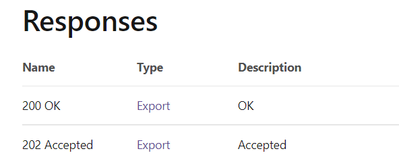
There are only two responses mentioned in the API document https://docs.microsoft.com/en-us/rest/api/power-bi/reports/get-export-to-file-status-in-group
- Mark as New
- Bookmark
- Subscribe
- Mute
- Subscribe to RSS Feed
- Permalink
- Report Inappropriate Content
You need to look inside the Export response
- Mark as New
- Bookmark
- Subscribe
- Mute
- Subscribe to RSS Feed
- Permalink
- Report Inappropriate Content
Verified with PercentComplate attribute of Export and even after that getting same issue.
- Mark as New
- Bookmark
- Subscribe
- Mute
- Subscribe to RSS Feed
- Permalink
- Report Inappropriate Content
Did you wait for PercentComplete to reach 100?
- Mark as New
- Bookmark
- Subscribe
- Mute
- Subscribe to RSS Feed
- Permalink
- Report Inappropriate Content
Yes, I waited till 100 percentage then called next API call
- Mark as New
- Bookmark
- Subscribe
- Mute
- Subscribe to RSS Feed
- Permalink
- Report Inappropriate Content
Can you try it in Powershell? The below works for me:
# Calls the Active Directory Authentication Library (ADAL) to authenticate against AAD
function GetAuthToken
{
    if(-not (Get-Module AzureRm.Profile)) {
        Import-Module AzureRm.Profile
    }
    $clientId = "<your client id>"
    $redirectUri = "urn:ietf:wg:oauth:2.0:oob"
    $resourceAppIdURI = "https://analysis.windows.net/powerbi/api"
    $authority = "https://login.microsoftonline.com/common/oauth2/authorize";
    $authContext = New-Object "Microsoft.IdentityModel.Clients.ActiveDirectory.AuthenticationContext" -ArgumentList $authority
    $authResult = $authContext.AcquireToken($resourceAppIdURI, $clientId, $redirectUri, "Auto")
    return $authResult
}

# Get the auth token from AAD
$token = GetAuthToken

# Building Rest API header with authorization token
$authHeader = @{
    'Content-Type'='application/json'
    'Authorization'=$token.CreateAuthorizationHeader()
}

#Report details
$groupsPath = "<workspace guid>"
$reportID   = "<report guid>"
# 0. get page names - optional
$uri = “https://api.powerbi.com/v1.0/myorg/groups/$groupsPath/reports/$reportID/pages"
$Pages = Invoke-RestMethod -Uri $uri –Headers $authHeader –Method GET
# 1. export request URI
$uri = “https://api.powerbi.com/v1.0/myorg/groups/$groupsPath/reports/$reportID/ExportTo”
$body = "{ format : `"PDF`” }"
# how to define the pages? powerBIReportConfiguration:{pages:[{pageName:"<page 1 guid>"},{pageName:"page2 guid>"}]}
# issue the export request
$FileExport = Invoke-RestMethod -Uri $uri –Headers $authHeader –Method POST -body $body
#save the ID - we need it later
$exportId = $FileExport.id
# 2. export request status URI
$uri = "https://api.powerbi.com/v1.0/myorg/groups/$groupsPath/reports/$reportID/exports/$exportId"
$percentComplete = 0
# repeat rendering status check until status is Succeeded
while ($percentComplete -lt 100) {
    Start-Sleep -Seconds 30
    $exportStatus = Invoke-RestMethod -Uri $uri –Headers $authHeader –Method GET
    $percentComplete = $exportStatus.percentComplete
    Write-Host $percentComplete
}
# 3. retrieve the rendered file
$uri = "https://api.powerbi.com/v1.0/myorg/groups/$groupsPath/reports/$reportID/exports/$exportId/file"
Invoke-RestMethod -Uri $uri –Headers $authHeader –Method GET -OutFile "test.pdf"

Helpful resources

Fabric Community Sticker Challenge - Barcelona 2026
If you love stickers, then you will definitely want to check out our community sticker challenge, Barcelona edition!

Power BI Monthly Update - July 2026
Check out the July 2026 Power BI update to learn about new features.

Power BI DataViz World Championships - June 2026
A new Power BI DataViz World Championship is coming this June! Don't miss out on submitting your entry.

| User | Count |
|---|---|
| 2 | |
| 1 | |
| 1 | |
| 1 | |
| 1 |


| User | Count |
|---|---|
| 4 | |
| 3 | |
| 2 | |
| 1 | |
| 1 |


