Don't miss your chance to take the Fabric Data Engineer (DP-600) exam for FREE! Find out how by watching the DP-600 session on-demand now through April 28th.
Learn moreJoin the FabCon + SQLCon recap series. Up next: Power BI, Real-Time Intelligence, IQ and AI, and Data Factory take center stage. All sessions are available on-demand after the live show. Register now
Hi everyone,
Please help me, I am loosing my mind trying to figure this out :((
My source data is like this:
| Entity | Quantity | Factor |
| A | 100 | |
| B | 120 | |
| C | 112 | |
| A | 0.5 | |
| B | 0.4 | |
| C | 0.2 |
I need to the measure Factor to be aggregated using weighted average (weight being the Quantity).
I tried SUMX as suggested on the forum, but in my case data is structured so that Quantity and Factor are in different rows (I cannot change it).
So SUMX would do 100*0 + 120*0 + 112*0 + 0*0.5 + 0*0.4 + 0*0.2 = 0
I need the formula to be (100*0.5 + 120 * 0.4 + 112 *0.2 ) / sum (100+120+112) = 0.36
Any hint how to acheive this? I will much appreciate
| Entity | Sum of Quantity | Weighted average of Factor |
| A | 100 | 0.5 |
| B | 120 | 0.4 |
| C | 112 | 0.2 |
| Total | 332 | 0.36 |
Please help 🙂
Thanks in advance, Grzegorz
Solved! Go to Solution.
first you need to summerize your table to bring the QTY and FACTOR inline
go to Modeling at the top of the page and then select new table.
in the formula bar enter the code below
Calculated_Table = SUMMARIZE('Table', 'Table'[Entity],"QTY" , Sum('Table'[Quantity]),"FACTOR",sum('Table'[Factor]) )adjust for your actual table names and colunm names
this will output your table with the values inline
EntityQTYFACTOR
| A | 100 | 0.5 |
| B | 120 | 0.4 |
| C | 112 | 0.2 |
add a calculated colunm for the wighted
Column = Calculated_Table[QTY]*Calculated_Table[FACTOR]
then create a measure to dum these and devide by sum of qty
Measure = DIVIDE(sum(Calculated_Table[Column]),sum(Calculated_Table[QTY]))
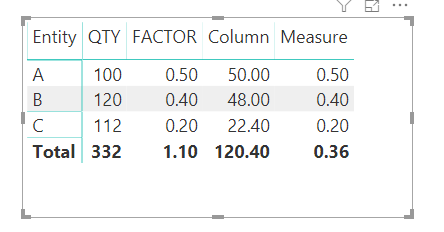
final out put
Proud to be a Super User!
first you need to summerize your table to bring the QTY and FACTOR inline
go to Modeling at the top of the page and then select new table.
in the formula bar enter the code below
Calculated_Table = SUMMARIZE('Table', 'Table'[Entity],"QTY" , Sum('Table'[Quantity]),"FACTOR",sum('Table'[Factor]) )adjust for your actual table names and colunm names
this will output your table with the values inline
EntityQTYFACTOR
| A | 100 | 0.5 |
| B | 120 | 0.4 |
| C | 112 | 0.2 |
add a calculated colunm for the wighted
Column = Calculated_Table[QTY]*Calculated_Table[FACTOR]
then create a measure to dum these and devide by sum of qty
Measure = DIVIDE(sum(Calculated_Table[Column]),sum(Calculated_Table[QTY]))
final out put
Proud to be a Super User!
How do you do what are you are explaining here and add in a column for year and month or just date?
Great!! Thanks for the hint. It put me back on track.
I actually was working in Excel Power Query at the moment, I will trasfer my model to PowerBI soon.
I modified the solution a little bit - as I could not find how to use SUMMARIZE in Excel.
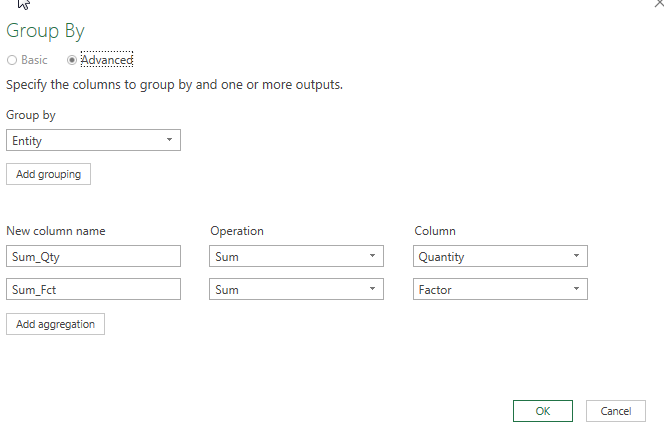
1) I used in query editor the "Group By" function:
2) I was able to create a measure Avg_Factor = Sumx(Table1;[Sum_Qty]*[Sum_Fct])/Sum([Sum_Qty])
Works as a charm 🙂
Check out the April 2026 Power BI update to learn about new features.
If you have recently started exploring Fabric, we'd love to hear how it's going. Your feedback can help with product improvements.
A new Power BI DataViz World Championship is coming this June! Don't miss out on submitting your entry.
| User | Count |
|---|---|
| 44 | |
| 38 | |
| 34 | |
| 20 | |
| 16 |
| User | Count |
|---|---|
| 66 | |
| 65 | |
| 30 | |
| 26 | |
| 25 |