cancel
Showing results for 
Search instead for 
Did you mean: 

The Power BI Data Visualization World Championships is back! Get ahead of the game and start preparing now! Learn more

Reply
spock1984
Frequent Visitor

Weighted average

Hi everyone,


Please help me, I am loosing my mind trying to figure this out :((


My source data is like this:

EntityQuantityFactor
A100 
B120 
C112 
A 0.5
B 0.4
C 0.2


I need to the measure Factor  to be aggregated using weighted average (weight being the Quantity).


I tried SUMX as suggested on the forum, but in my case data is structured so that Quantity and Factor are in different rows (I cannot change it).


So SUMX would do 100*0 + 120*0 + 112*0 + 0*0.5 + 0*0.4 + 0*0.2 = 0


I need the formula to be (100*0.5 + 120 * 0.4 + 112 *0.2 ) / sum (100+120+112) = 0.36


Any hint how to acheive this? I will much appreciate


EntitySum of QuantityWeighted average of Factor
A1000.5
B1200.4
C1120.2
Total3320.36


Please help 🙂

Thanks in advance, Grzegorz

1 ACCEPTED SOLUTION
AnthonyTilley
Solution Sage
Solution Sage

first you need to summerize your table to bring the QTY and FACTOR inline 


go to Modeling at the top of the page and then select new table.

in the formula bar enter the code below 

Calculated_Table = SUMMARIZE('Table', 'Table'[Entity],"QTY" , Sum('Table'[Quantity]),"FACTOR",sum('Table'[Factor])  )

adjust for your actual table names and colunm names 


this will output your table with the values inline

EntityQTYFACTOR

A1000.5
B1200.4
C1120.2


add a calculated colunm for the wighted


Column = Calculated_Table[QTY]*Calculated_Table[FACTOR]

then create a measure to dum these and devide by sum of qty

Measure = DIVIDE(sum(Calculated_Table[Column]),sum(Calculated_Table[QTY]))

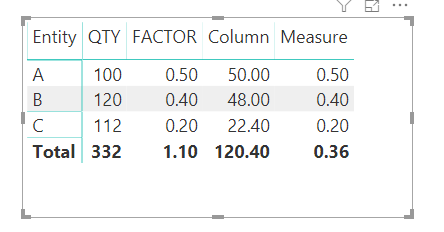
final out put 

output.png


Did I answer your question? Mark my post as a solution!

Proud to be a Super User!


View solution in original post

3 REPLIES 3
AnthonyTilley
Solution Sage
Solution Sage

first you need to summerize your table to bring the QTY and FACTOR inline 


go to Modeling at the top of the page and then select new table.

in the formula bar enter the code below 

Calculated_Table = SUMMARIZE('Table', 'Table'[Entity],"QTY" , Sum('Table'[Quantity]),"FACTOR",sum('Table'[Factor])  )

adjust for your actual table names and colunm names 


this will output your table with the values inline

EntityQTYFACTOR

A1000.5
B1200.4
C1120.2


add a calculated colunm for the wighted


Column = Calculated_Table[QTY]*Calculated_Table[FACTOR]

then create a measure to dum these and devide by sum of qty

Measure = DIVIDE(sum(Calculated_Table[Column]),sum(Calculated_Table[QTY]))

final out put 

output.png


Did I answer your question? Mark my post as a solution!

Proud to be a Super User!


@AnthonyTilley 

How do you do what are you are explaining here and add in a column for year and month or just date?

Great!! Thanks for the hint. It put me back on track.

I actually was working in Excel Power Query at the moment, I will trasfer my model to PowerBI soon.

I modified the solution a little bit - as I could not find how to use SUMMARIZE in Excel.

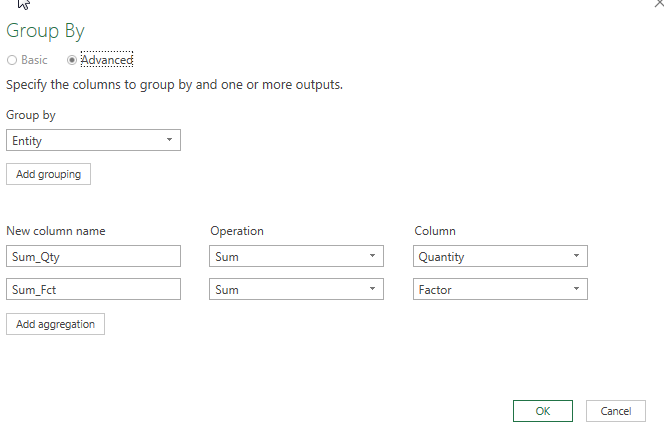
1) I used in query editor the "Group By" function:

2019-08-30 14_08_35-Group By.png

2) I was able to create a measure Avg_Factor = Sumx(Table1;[Sum_Qty]*[Sum_Fct])/Sum([Sum_Qty])

Works as a charm 🙂

Helpful resources

Announcements
Power BI DataViz World Championships

Power BI Dataviz World Championships

The Power BI Data Visualization World Championships is back! Get ahead of the game and start preparing now!

December 2025 Power BI Update Carousel

Power BI Monthly Update - December 2025

Check out the December 2025 Power BI Holiday Recap!

FabCon Atlanta 2026 carousel

FabCon Atlanta 2026

Join us at FabCon Atlanta, March 16-20, for the ultimate Fabric, Power BI, AI and SQL community-led event. Save $200 with code FABCOMM.