FabCon is coming to Atlanta
Join us at FabCon Atlanta from March 16 - 20, 2026, for the ultimate Fabric, Power BI, AI and SQL community-led event. Save $200 with code FABCOMM.
Register now!- Power BI forums
- Get Help with Power BI
- Desktop
- Service
- Report Server
- Power Query
- Mobile Apps
- Developer
- DAX Commands and Tips
- Custom Visuals Development Discussion
- Health and Life Sciences
- Power BI Spanish forums
- Translated Spanish Desktop
- Training and Consulting
- Instructor Led Training
- Dashboard in a Day for Women, by Women
- Galleries
- Data Stories Gallery
- Themes Gallery
- Contests Gallery
- QuickViz Gallery
- Quick Measures Gallery
- Visual Calculations Gallery
- Notebook Gallery
- Translytical Task Flow Gallery
- TMDL Gallery
- R Script Showcase
- Webinars and Video Gallery
- Ideas
- Custom Visuals Ideas (read-only)
- Issues
- Issues
- Events
- Upcoming Events
Vote for your favorite vizzies from the Power BI Dataviz World Championship submissions. Vote now!
- Power BI forums
- Forums
- Get Help with Power BI
- Desktop
- Re: Transform rows into columns
- Subscribe to RSS Feed
- Mark Topic as New
- Mark Topic as Read
- Float this Topic for Current User
- Bookmark
- Subscribe
- Printer Friendly Page

- Mark as New
- Bookmark
- Subscribe
- Mute
- Subscribe to RSS Feed
- Permalink
- Report Inappropriate Content
Transform rows into columns
Hi,
I'm hoping someone can help me get addresses spread over a few rows into one row. The first table below is my input table and the second table is what I'd like to have as the output.
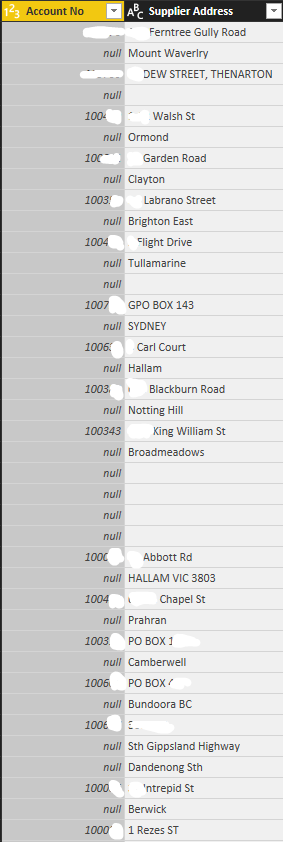
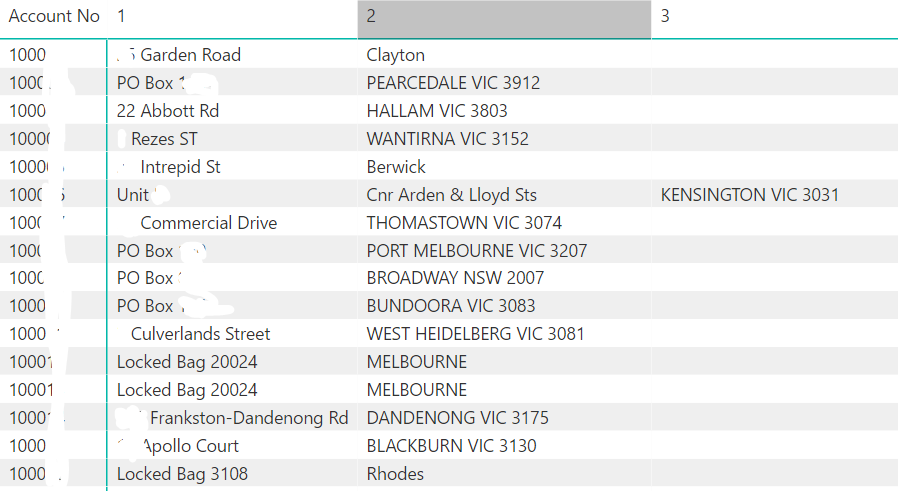
Any thoughts?
Solved! Go to Solution.
- Mark as New
- Bookmark
- Subscribe
- Mute
- Subscribe to RSS Feed
- Permalink
- Report Inappropriate Content
Thanks everyone. I figured it out myself.
let
    Source = vendors,
    Partition = Table.Group(Source, {"Account No"}, {{"Partition", each Table.AddIndexColumn(_, "Index",1,1), type table}}),
    #"Expanded Partition" = Table.ExpandTableColumn(Partition, "Partition", {"Supplier Address", "Index"}, {"Partition.Supplier Address", "Partition.Index"}),
    #"Pivoted Column" = Table.Pivot(Table.TransformColumnTypes(#"Expanded Partition", {{"Partition.Index", type text}}, "en-AU"), List.Distinct(Table.TransformColumnTypes(#"Expanded Partition", {{"Partition.Index", type text}}, "en-AU")[Partition.Index]), "Partition.Index", "Partition.Supplier Address")
in
    #"Pivoted Column"
Cheers


- Mark as New
- Bookmark
- Subscribe
- Mute
- Subscribe to RSS Feed
- Permalink
- Report Inappropriate Content
- Mark as New
- Bookmark
- Subscribe
- Mute
- Subscribe to RSS Feed
- Permalink
- Report Inappropriate Content
Thanks everyone. I figured it out myself.
let
    Source = vendors,
    Partition = Table.Group(Source, {"Account No"}, {{"Partition", each Table.AddIndexColumn(_, "Index",1,1), type table}}),
    #"Expanded Partition" = Table.ExpandTableColumn(Partition, "Partition", {"Supplier Address", "Index"}, {"Partition.Supplier Address", "Partition.Index"}),
    #"Pivoted Column" = Table.Pivot(Table.TransformColumnTypes(#"Expanded Partition", {{"Partition.Index", type text}}, "en-AU"), List.Distinct(Table.TransformColumnTypes(#"Expanded Partition", {{"Partition.Index", type text}}, "en-AU")[Partition.Index]), "Partition.Index", "Partition.Supplier Address")
in
    #"Pivoted Column"
Cheers


- Mark as New
- Bookmark
- Subscribe
- Mute
- Subscribe to RSS Feed
- Permalink
- Report Inappropriate Content
very nice
Subscribe to the @PowerBIHowTo YT channel for an upcoming video on List and Record functions in Power Query!!
Learn Power BI and Fabric - subscribe to our YT channel - Click here: @PowerBIHowTo
If my solution proved useful, I'd be delighted to receive Kudos. When you put effort into asking a question, it's equally thoughtful to acknowledge and give Kudos to the individual who helped you solve the problem. It's a small gesture that shows appreciation and encouragement! ❤
Did I answer your question? Mark my post as a solution. Proud to be a Super User! Appreciate your Kudos 🙂
Feel free to email me with any of your BI needs.

- Mark as New
- Bookmark
- Subscribe
- Mute
- Subscribe to RSS Feed
- Permalink
- Report Inappropriate Content
Hi I tried this on my data which is similar but it puts all of the address information against the first row and creates over 8,000 columns. Any tips on what might be wrong. I copied your code


- Mark as New
- Bookmark
- Subscribe
- Mute
- Subscribe to RSS Feed
- Permalink
- Report Inappropriate Content
The second step should be a Fill Down.... revised code:
let
    Source = vendors,
    FillDown = Table.FillDown(Source, {"Account No"}),
    Partition = Table.Group(FillDown, {"Account No"}, {{"Partition", each Table.AddIndexColumn(_, "Index",1,1), type table}}),
    #"Expanded Partition" = Table.ExpandTableColumn(Partition, "Partition", {"Supplier Address", "Index"}, {"Partition.Supplier Address", "Partition.Index"}),
    #"Pivoted Column" = Table.Pivot(Table.TransformColumnTypes(#"Expanded Partition", {{"Partition.Index", type text}}, "en-AU"), List.Distinct(Table.TransformColumnTypes(#"Expanded Partition", {{"Partition.Index", type text}}, "en-AU")[Partition.Index]), "Partition.Index", "Partition.Supplier Address")
in
    #"Pivoted Column"
- Mark as New
- Bookmark
- Subscribe
- Mute
- Subscribe to RSS Feed
- Permalink
- Report Inappropriate Content
That's great it works fine now 
- Mark as New
- Bookmark
- Subscribe
- Mute
- Subscribe to RSS Feed
- Permalink
- Report Inappropriate Content
not sure but try this, select first column, right click and choose "pivot others"
Subscribe to the @PowerBIHowTo YT channel for an upcoming video on List and Record functions in Power Query!!
Learn Power BI and Fabric - subscribe to our YT channel - Click here: @PowerBIHowTo
If my solution proved useful, I'd be delighted to receive Kudos. When you put effort into asking a question, it's equally thoughtful to acknowledge and give Kudos to the individual who helped you solve the problem. It's a small gesture that shows appreciation and encouragement! ❤
Did I answer your question? Mark my post as a solution. Proud to be a Super User! Appreciate your Kudos 🙂
Feel free to email me with any of your BI needs.
Helpful resources

Power BI Dataviz World Championships
Vote for your favorite vizzies from the Power BI World Championship submissions!

Join our Community Sticker Challenge 2026
If you love stickers, then you will definitely want to check out our Community Sticker Challenge!

Power BI Monthly Update - January 2026
Check out the January 2026 Power BI update to learn about new features.

FabCon Atlanta 2026
Join us at FabCon Atlanta, March 16-20, for the ultimate Fabric, Power BI, AI and SQL community-led event. Save $200 with code FABCOMM.

| User | Count |
|---|---|
| 64 | |
| 51 | |
| 46 | |
| 23 | |
| 19 |


| User | Count |
|---|---|
| 135 | |
| 110 | |
| 50 | |
| 31 | |
| 29 |


