cancel
Showing results for 
Search instead for 
Did you mean: 

The Power BI Data Visualization World Championships is back! Get ahead of the game and start preparing now! Learn more

Reply
PowerBINoob24
Resolver I
Resolver I

Target line

Afternoon all:


I have a line graph that shows montly percentages across a rolling 12 month period for three metrics.  Is it possible to put a target line on the graph for each of the three metrics?  For example: Metric 1 has a target of 5%, Metric 2 has a target of 22%, Metric 3 has a target of xx %. Thos target line would extend across the line graph. This would allow to see where each metric is relative to target each month.


TIA for any help.

2 ACCEPTED SOLUTIONS
NishPatel
Resolver II
Resolver II

Go to Analytics area under visualizations and Click on Y-Axis Constant Line and you can add multiple target lines here and format accordingly

View solution in original post

v-weiyan1-msft
Community Support
Community Support

Hi @PowerBINoob24 ,


Thank you, @NishPatel, for your helpful and quick response.
My additions are as follows.
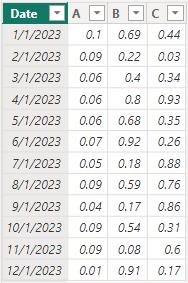
Here is the dummy data I created.

vweiyan1msft_0-1708933659390.png

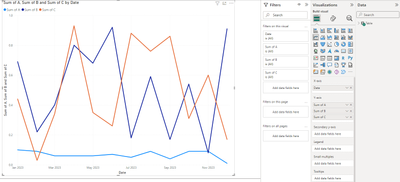
The fields in the line chart are as follows.

vweiyan1msft_1-1708933678574.png

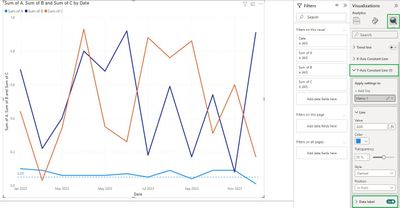
Please select your line chart, and in the Visualizations pane, do the following.
Line colors can be changed on your request.
You can also set the Data label option to "on".

vweiyan1msft_2-1708933710137.jpeg

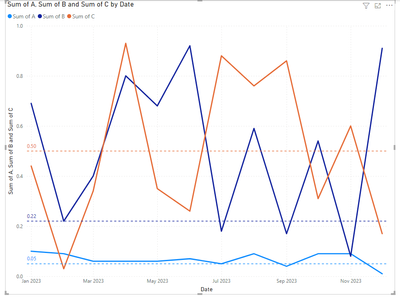
Result is as below.

vweiyan1msft_3-1708933731127.png

For more you may refer to:

Use the Analytics pane in Power BI Desktop - Power BI | Microsoft Learn


Best Regards,
Yulia Yan


If this post helps, then please consider Accept it as the solution to help the other members find it more quickly.

View solution in original post

2 REPLIES 2
v-weiyan1-msft
Community Support
Community Support

Hi @PowerBINoob24 ,


Thank you, @NishPatel, for your helpful and quick response.
My additions are as follows.
Here is the dummy data I created.

vweiyan1msft_0-1708933659390.png

The fields in the line chart are as follows.

vweiyan1msft_1-1708933678574.png

Please select your line chart, and in the Visualizations pane, do the following.
Line colors can be changed on your request.
You can also set the Data label option to "on".

vweiyan1msft_2-1708933710137.jpeg

Result is as below.

vweiyan1msft_3-1708933731127.png

For more you may refer to:

Use the Analytics pane in Power BI Desktop - Power BI | Microsoft Learn


Best Regards,
Yulia Yan


If this post helps, then please consider Accept it as the solution to help the other members find it more quickly.

NishPatel
Resolver II
Resolver II

Go to Analytics area under visualizations and Click on Y-Axis Constant Line and you can add multiple target lines here and format accordingly

Helpful resources

Announcements
November Power BI Update Carousel

Power BI Monthly Update - November 2025

Check out the November 2025 Power BI update to learn about new features.

Fabric Data Days Carousel

Fabric Data Days

Advance your Data & AI career with 50 days of live learning, contests, hands-on challenges, study groups & certifications and more!

FabCon Atlanta 2026 carousel

FabCon Atlanta 2026

Join us at FabCon Atlanta, March 16-20, for the ultimate Fabric, Power BI, AI and SQL community-led event. Save $200 with code FABCOMM.

Top Solution Authors
Top Kudoed Authors