Join us at FabCon Atlanta from March 16 - 20, 2026, for the ultimate Fabric, Power BI, AI and SQL community-led event. Save $200 with code FABCOMM.
Register now!Learn from the best! Meet the four finalists headed to the FINALS of the Power BI Dataviz World Championships! Register now
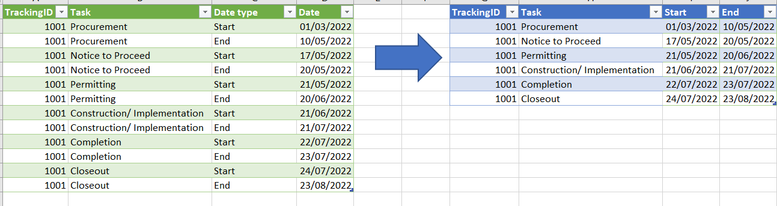
Hi! Can you help me transform the table below to show the start and end date to be the columns? Thank you! I tried transform and unpivot but I cant seem to get it.
Cheers!
Solved! Go to Solution.
Hi,
In the Query Editor, click on any cell in the Date type column and under Transform, click on the Pivot button. In the drop down, select Date. Expand the Options triangle and select Don't aggregate.
Hope this helps.
Hi,
In the Query Editor, click on any cell in the Date type column and under Transform, click on the Pivot button. In the drop down, select Date. Expand the Options triangle and select Don't aggregate.
Hope this helps.
Thank you very much! You saved me lots! 🙂
You are welcome.
@Anonymous , Pivot Date Type and Date
Share feedback directly with Fabric product managers, participate in targeted research studies and influence the Fabric roadmap.
Check out the February 2026 Power BI update to learn about new features.
| User | Count |
|---|---|
| 50 | |
| 49 | |
| 35 | |
| 15 | |
| 14 |
| User | Count |
|---|---|
| 92 | |
| 75 | |
| 41 | |
| 26 | |
| 25 |